Obviously, analysing beer data in high on everybody’s list of favourite things to do in your weekend. Amanda Dobbyn wanted to examine whether she could provide us with an informative categorization the 45.000+ beers in her data set, without having to taste them all herself.
You can find the full report here but you may also like to interactively discover beer similarities yourself in Amanda’s Beer Clustering Shiny App. Or just have a quick look at some of Amanda’s wonderful visualizations below.
A density map of the bitterness (y-axis) and alcohol percentages (x-axis) in the most popular beer styles.A k-means clustering of each of the 45000 beers in 10 clusters. Try out other settings in Amanda’s Beer Clustering Shiny App.The alcohol percentages (x), bitterness (y) and cluster assignments of some popular beer styles.
Modelling beer’s bitterness (y) by the number of used hops (x).
Statistics, and statistical inference in specific, are becoming an ever greater part of our daily lives. Models are trying to estimate anything from (future) consumer behaviour to optimal steering behaviours and we need these models to be as accurate as possible. Trevor Hastie is a great contributor to the development of the field, and I highly recommend the machine learning books and courses that he developed, together with Robert Tibshirani. These you may find in my list of R Resources (Cheatsheets, Tutorials, & Books).
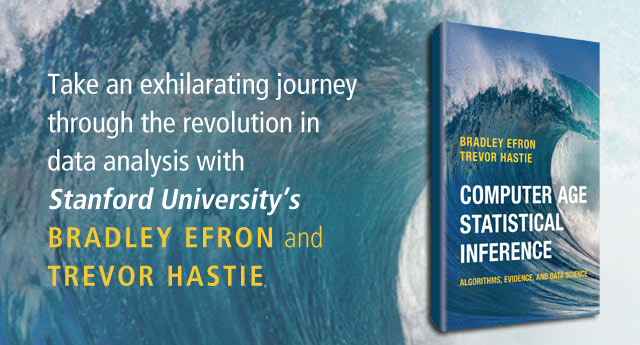
Today I wanted to share another book Hastie wrote, together with Bradley Efron, another colleague of his at Stanford University. It is called Computer Age Statistical Inference (Efron & Hastie, 2016) and is a definite must read for every aspiring data scientist because it illustrates most algorithms commonly used in modern-day statistical inference. Many of these algorithms Hastie and his colleagues at Stanford developed themselves and the book handles among others:
Coding Train is a Youtube channel by Daniel Shiffman that covers anything from the basics of programming languages like JavaScript (with p5.js) and Java (with Processing) to generative algorithms like physics simulation, computer vision, and data visualization. In particular, these latter topics, which Shiffman bundles under the label “the Nature of Code”, draw me to the channel.
In a recent series, Daniel draws from his free e-book to create his seven-video playlist where he elaborates on the inner workings of neural networks, visualizing the entire process as he programs the algorithm from scratch in Processing (Java). I recommend the two videos below consisting of the actual programming, especially for beginners who want to get an intuitive sense of how a neural network works.
This is reposted from DavisVaughan.com with minor modifications.
Introduction
A while back, I saw a conversation on twitter about how Hadley uses the word “pleased” very often when introducing a new blog post (I couldn’t seem to find this tweet anymore. Can anyone help?). Out of curiosity, and to flex my R web scraping muscles a bit, I’ve decided to analyze the 240+ blog posts that RStudio has put out since 2011. This post will do a few things:
Scrape the RStudio blog archive page to construct URL links to each blog post
Scrape the blog post text and metadata from each post
Use a bit of tidytext for some exploratory analysis
Perform a statistical test to compare Hadley’s use of “pleased” to the other blog post authors
To be able to extract the text from each blog post, we first need to have a link to that blog post. Luckily, RStudio keeps an up to date archive page that we can scrape. Using xml2, we can get the HTML off that page.
Now we use a bit of rvest magic combined with the HTML inspector in Chrome to figure out which elements contain the info we need (I also highly recommend SelectorGadget for this kind of work). Looking at the image below, you can see that all of the links are contained within the main tag as a tags (links).
The code below extracts all of the links, and then adds the prefix containing the base URL of the site.
links <- archive_html %>%
# Only the "main" body of the archive
html_nodes("main") %>%
# Grab any node that is a link
html_nodes("a") %>%
# Extract the hyperlink reference from those link tags# The hyperlink is an attribute as opposed to a node
html_attr("href") %>%
# Prefix them all with the base URL
paste0("http://blog.rstudio.com", .)
head(links)
Now that we have every link, we’re ready to extract the HTML from each individual blog post. To make things more manageable, we start by creating a tibble, and then using the mutate + map combination to created a column of XML Nodesets (we will use this combination a lot). Each nodeset contains the HTML for that blog post (exactly like the HTML for the archive page).
blog_data <- tibble(links)

blog_data <- blog_data %>%
  mutate(main = map(
                    # Iterate through every link
                    .x = links,

                    # For each link, read the HTML for that page, and return the main section
                    .f = ~read_html(.) %>%
                            html_nodes("main")
                    )
         )

select(blog_data, main)
Before extracting the blog post itself, lets grab the meta information about each post, specifically:
Author
Title
Date
Category
Tags
In the exploratory analysis, we will use author and title, but the other information might be useful for future analysis.
Looking at the first blog post, the Author, Date, and Title are all HTML class names that we can feed into rvest to extract that information.
In the code below, an example of extracting the author information is shown. To select a HTML class (like “author”) as opposed to a tag (like “main”), we have to put a period in front of the class name. Once the html node we are interested in has been identified, we can extract the text for that node using html_text().
Finally, notice that if we switch ".author" with ".title" or ".date" then we can grab that information as well. This kind of thinking means that we should create a function for extracting these pieces of information!
extract_info <- function(html, class_name) {
  map_chr(
          # Given the list of main HTMLs
          .x = html,

          # Extract the text we are interested in for each one
          .f = ~html_nodes(.x, class_name) %>%
                  html_text())
}

# Extract the data
blog_data <- blog_data %>%
  mutate(
     author = extract_info(main, ".author"),
     title  = extract_info(main, ".title"),
     date   = extract_info(main, ".date")
    )

select(blog_data, author, date)
## # A tibble: 249 x 2## author date## <chr> <chr>## 1 Jonathan McPherson 2017-08-16## 2 Hadley Wickham 2017-08-15## 3 Gary Ritchie 2017-08-11## 4 Roger Oberg 2017-08-10## 5 Jeff Allen 2017-08-03## 6 Javier Luraschi 2017-07-31## 7 Hadley Wickham 2017-07-13## 8 Roger Oberg 2017-07-12## 9 Garrett Grolemund 2017-07-11## 10 Hadley Wickham 2017-06-27## # ... with 239 more rows
select(blog_data, title)
## # A tibble: 249 x 1## title## <chr>## 1 RStudio 1.1 Preview - Data Connections## 2 rstudio::conf(2018): Contributed talks, e-posters, and diversity scholarshi## 3 RStudio v1.1 Preview: Terminal## 4 Building tidy tools workshop## 5 RStudio Connect v1.5.4 - Now Supporting Plumber!## 6 sparklyr 0.6## 7 haven 1.1.0## 8 Registration open for rstudio::conf 2018!## 9 Introducing learnr## 10 dbplyr 1.1.0## # ... with 239 more rows
Categories and tags
The other bits of meta data that might be interesting are the categories and tags that the post falls under. This is a little bit more involved, because both the categories and tags fall under the same class, ".terms". To separate them, we need to look into the href to see if the information is either a tag or a category (href = “/categories/” VS href = “/tags/”).
The function below extracts either the categories or the tags, depending on the argument, by:
Extracting the ".terms" class, and then all of the links inside of it (a tags).
Checking each link to see if the hyperlink reference contains “categories” or “tags” depending on the one that we are interested in. If it does, it returns the text corresponding to that link, otherwise it returns NAs which are then removed.
The final step results in two list columns containing character vectors of varying lengths corresponding to the categories and tags of each post.
extract_tag_or_cat <- function(html, info_name) {

  # Extract the links under the terms class
  cats_and_tags <- map(.x = html,
                       .f = ~html_nodes(.x, ".terms") %>%
                              html_nodes("a"))

  # For each link, if the href contains the word categories/tags
  # return the text corresponding to that link
  map(cats_and_tags,
    ~if_else(condition = grepl(info_name, html_attr(.x, "href")),
             true      = html_text(.x),
             false     = NA_character_) %>%
      .[!is.na(.)])
}

# Apply our new extraction function
blog_data <- blog_data %>%
  mutate(
    categories = extract_tag_or_cat(main, "categories"),
    tags       = extract_tag_or_cat(main, "tags")
  )

select(blog_data, categories, tags)
Finally, to extract the blog post itself, we can notice that each piece of text in the post is inside of a paragraph tag (p). Being careful to avoid the ".terms" class that contained the categories and tags, which also happens to be in a paragraph tag, we can extract the full blog posts. To ignore the ".terms" class, use the :not() selector.
blog_data <- blog_data %>%
  mutate(
    text = map_chr(main, ~html_nodes(.x, "p:not(.terms)") %>%
                 html_text() %>%
                 # The text is returned as a character vector.
                 # Collapse them all into 1 string.
                 paste0(collapse = " "))
  )

select(blog_data, text)
## # A tibble: 249 x 1## text## <chr>## 1 Today, we’re continuing our blog series on new features in RStudio 1.1. If ## 2 rstudio::conf, the conference on all things R and RStudio, will take place ## 3 Today we’re excited to announce availability of our first Preview Release f## 4 Have you embraced the tidyverse? Do you now want to expand it to meet your ## 5 We’re thrilled to announce support for hosting Plumber APIs in RStudio Conn## 6 We’re excited to announce a new release of the sparklyr package, available ## 7 "I’m pleased to announce the release of haven 1.1.0. Haven is designed to f## 8 RStudio is very excited to announce that rstudio::conf 2018 is open for reg## 9 We’re pleased to introduce the learnr package, now available on CRAN. The l## 10 "I’m pleased to announce the release of the dbplyr package, which now conta## # ... with 239 more rows
Who writes the most posts?
Now that we have all of this data, what can we do with it? To start with, who writes the most posts?
blog_data %>%
  group_by(author) %>%
  summarise(count = n()) %>%
  mutate(author = reorder(author, count)) %>%

  # Create a bar graph of author counts
  ggplot(mapping = aes(x = author, y = count)) +
  geom_col() +
  coord_flip() +
  labs(title    = "Who writes the most RStudio blog posts?",
       subtitle = "By a huge margin, Hadley!") +
  # Shoutout to Bob Rudis for the always fantastic themes
  hrbrthemes::theme_ipsum(grid = "Y")
Tidytext
I’ve never used tidytext before today, but to get our feet wet, let’s create a tokenized tidy version of our data. By using unnest_tokens() the data will be reshaped to a long format holding 1 word per row, for each blog post. This tidy format lends itself to all manner of analysis, and a number of them are outlined in Julia Silge and David Robinson’s Text Mining with R.
## # A tibble: 84,542 x 2## title word## <chr> <chr>## 1 RStudio 1.1 Preview - Data Connections today## 2 RStudio 1.1 Preview - Data Connections we’re## 3 RStudio 1.1 Preview - Data Connections continuing## 4 RStudio 1.1 Preview - Data Connections our## 5 RStudio 1.1 Preview - Data Connections blog## 6 RStudio 1.1 Preview - Data Connections series## 7 RStudio 1.1 Preview - Data Connections on## 8 RStudio 1.1 Preview - Data Connections new## 9 RStudio 1.1 Preview - Data Connections features## 10 RStudio 1.1 Preview - Data Connections in## # ... with 84,532 more rows
Remove stop words
A number of words like “a” or “the” are included in the blog that don’t really add value to a text analysis. These stop words can be removed using an anti_join() with the stop_words dataset that comes with tidytext. After removing stop words, the number of rows was cut in half!
As mentioned at the beginning of the post, Hadley apparently uses the word “pleased” in his blog posts an above average number of times. Can we verify this statistically?
Our null hypothesis is that the proportion of blog posts that use the word “pleased” written by Hadley is less than or equal to the proportion of those written by the rest of the RStudio team.
More simply, our null is that Hadley uses “pleased” less than or the same as the rest of the team.
Let’s check visually to compare the two groups of posts.
pleased <- tokenized_blog %>%
# Group by blog post
group_by(title) %>%
# If the blog post contains "pleased" put yes, otherwise no# Add a column checking if the author was Hadley
mutate(
contains_pleased = case_when(
"pleased" %in% word ~ "Yes",
TRUE ~ "No"),
is_hadley = case_when(
author == "Hadley Wickham" ~ "Hadley",
TRUE ~ "Not Hadley")
) %>%
# Remove all duplicates now
distinct(title, contains_pleased, is_hadley)
pleased %>%
ggplot(aes(x = contains_pleased)) +
geom_bar() +
facet_wrap(~is_hadley, scales = "free_y") +
labs(title = "Does this blog post contain 'pleased'?",
subtitle = "Nearly half of Hadley's do!",
x = "Contains 'pleased'",
y = "Count") +
hrbrthemes::theme_ipsum(grid = "Y")
Is there a statistical difference here?
To check if there is a statistical difference, we will use a test for difference in proportions contained in the R function, prop.test(). First, we need a continency table of the counts. Given the current form of our dataset, this isn’t too hard with the table() function from base R.
contingency_table <- pleased %>%
  ungroup() %>%
  select(is_hadley, contains_pleased) %>%
  # Order the factor so Yes is before No for easy interpretation
  mutate(contains_pleased = factor(contains_pleased, levels = c("Yes", "No"))) %>%
  table()

contingency_table
From our null hypothesis, we want to perform a one sided test. The alternative to our null is that Hadley uses “pleased” more than the rest of the RStudio team. For this reason, we specify alternative = "greater".
10.56% of the rest of the RStudio team’s posts contain “pleased”
With a p-value of 2.04e-11, we reject the null that Hadley uses “pleased” less than or the same as the rest of the team. The evidence supports the idea that he has a much higher preference for it!
Hadley uses “pleased” quite a bit!
About the author
Davis Vaughan is a Master’s student studying Mathematical Finance at the University of North Carolina at Charlotte. He is the other half of Business Science. We develop R packages for financial analysis. Additionally, we have a network of data scientists at our disposal to bring together the best team to work on consulting projects. Check out our website to learn more! He is the coauthor of R packages tidyquant and timetk.
ggplot2 uses a more concise setup toward creating charts as opposed to the more declarative style of Python’s matplotlib and base R. And it also includes a few example datasets for practicing ggplot2 functionality; for example, the mpg dataset is a dataset of the performance of popular models of cars in 1998 and 2008.
Let’s say you want to create a scatter plot. Following a great example from the ggplot2 documentation, let’s plot the highway mileage of the car vs. the volume displacement of the engine. In ggplot2, first you instantiate the chart with the ggplot() function, specifying the source dataset and the core aesthetics you want to plot, such as x, y, color, and fill. In this case, we set the core aesthetics to x = displacement and y = mileage, and add a geom_point() layer to make a scatter plot:
p <- ggplot(mpg, aes(x = displ, y = hwy))+
geom_point()
As we can see, there is a negative correlation between the two metrics. I’m sure you’ve seen plots like these around the internet before. But with only a couple of lines of codes, you can make them look more contemporary.
ggplot2 lets you add a well-designed theme with just one line of code. Relatively new to ggplot2 is theme_minimal(), which generates a muted style similar to FiveThirtyEight’s modern data visualizations:
p <- p +
    theme_minimal()
But we can still add color. Setting a color aesthetic on a character/categorical variable will set the colors of the corresponding points, making it easy to differentiate at a glance.
p <- ggplot(mpg, aes(x = displ, y = hwy, color=class))+
geom_point()+
theme_minimal()
Adding the color aesthetic certainly makes things much prettier. ggplot2 automatically adds a legend for the colors as well. However, for this particular visualization, it is difficult to see trends in the points for each class. A easy way around this is to add a least squares regression trendline for each class usinggeom_smooth() (which normally adds a smoothed line, but since there isn’t a lot of data for each group, we force it to a linear model and do not plot confidence intervals)
p <- p +
geom_smooth(method ="lm", se =F)
Pretty neat, and now comparative trends are much more apparent! For example, pickups and SUVs have similar efficiency, which makes intuitive sense.
The chart axes should be labeled (always label your charts!). All the typical labels, like title, x-axis, and y-axis can be done with the labs() function. But relatively new to ggplot2 are the subtitle and caption fields, both of do what you expect:
p <- p +
    labs(title="Efficiency of Popular Models of Cars",
         subtitle="By Class of Car",
         x="Engine Displacement (liters)",
         y="Highway Miles per Gallon",
         caption="by Max Woolf — minimaxir.com")
That’s a pretty good start. Now let’s take it to the next level.
HOW TO SAVE A GGPLOT2 CHART FOR WEB
Something surprisingly undiscussed in the field of data visualization is how to save a chart as a high quality image file. For example, with Excel charts, Microsoft officially recommends to copy the chart, paste it as an image back into Excel, then save the pasted image, without having any control over image quality and size in the browser (the real best way to save an Excel/Numbers chart as an image for a webpage is to copy/paste the chart object into a PowerPoint/Keynote slide, and export the slideas an image. This also makes it extremely easy to annotate/brand said chart beforehand in PowerPoint/Keynote).
R IDEs such as RStudio have a chart-saving UI with the typical size/filetype options. But if you save an image from this UI, the shapes and texts of the resulting image will be heavily aliased (R renders images at 72 dpi by default, which is much lower than that of modern HiDPI/Retina displays).
The data visualizations used earlier in this post were generated in-line as a part of an R Notebook, but it is surprisingly difficult to extract the generated chart as a separate file. But ggplot2 also has ggsave(), which saves the image to disk using antialiasing and makes the fonts/shapes in the chart look much better, and assumes a default dpi of 300. Saving charts using ggsave(), and adjusting the sizes of the text and geoms to compensate for the higher dpi, makes the charts look very presentable. A width of 4 and a height of 3 results in a 1200x900px image, which if posted on a blog with a content width of ~600px (like mine), will render at full resolution on HiDPI/Retina displays, or downsample appropriately otherwise. Due to modern PNG compression, the file size/bandwidth cost for using larger images is minimal.
p <- ggplot(mpg, aes(x = displ, y = hwy, color=class))+
geom_smooth(method ="lm", se=F, size=0.5)+
geom_point(size=0.5)+
theme_minimal(base_size=9)+
labs(title="Efficiency of Popular Models of Cars",
subtitle="By Class of Car",
x="Engine Displacement (liters)",
y="Highway Miles per Gallon",
caption="by Max Woolf — minimaxir.com")
ggsave("tutorial-0.png", p, width=4, height=3)
Compare to the previous non-ggsave chart, which is more blurry around text/shapes:
For posterity, here’s the same chart saved at 1200x900px using the RStudio image-saving UI:
Note that the antialiasing optimizations assume that you are not uploading the final chart to a service like Medium or WordPress.com, which will compress the images and reduce the quality anyways. But if you are uploading it to Reddit or self-hosting your own blog, it’s definitely worth it.
FANCY FONTS
Changing the chart font is another way to add a personal flair. Theme functions like theme_minimal()accept a base_family parameter. With that, you can specify any font family as the default instead of the base sans-serif. (On Windows, you may need to install the extrafont package first). Fonts from Google Fonts are free and work easily with ggplot2 once installed. For example, we can use Roboto, Google’s modern font which has also been getting a lot of usage on Stack Overflow’s great ggplot2 data visualizations.
p <- p +
    theme_minimal(base_size=9, base_family="Roboto")
A general text design guideline is to use fonts of different weights/widths for different hierarchies of content. In this case, we can use a bolder condensed font for the title, and deemphasize the subtitle and caption using lighter colors, all done using the theme()function.
p <- p +
    theme(plot.subtitle = element_text(color="#666666"),
          plot.title = element_text(family="Roboto Condensed Bold"),
          plot.caption = element_text(color="#AAAAAA", size=6))
It’s worth nothing that data visualizations posted on websites should be easily legible for mobile-device users as well, hence the intentional use of larger fonts relative to charts typically produced in the desktop-oriented Excel.
Additionally, all theming options can be set as a session default at the beginning of a script using theme_set(), saving even more time instead of having to recreate the theme for each chart.
THE “GGPLOT2 COLORS”
The “ggplot2 colors” for categorical variables are infamous for being the primary indicator of a chart being made with ggplot2. But there is a science to it; ggplot2 by default selects colors using the scale_color_hue()function, which selects colors in the HSL space by changing the hue [H] between 0 and 360, keeping saturation [S] and lightness [L] constant. As a result, ggplot2 selects the most distinct colors possible while keeping lightness constant. For example, if you have 2 different categories, ggplot2 chooses the colors with h = 0 and h = 180; if 3 colors, h = 0, h = 120, h = 240, etc.
It’s smart, but does make a given chart lose distinctness when many other ggplot2 charts use the same selection methodology. A quick way to take advantage of this hue dispersion while still making the colors unique is to change the lightness; by default, l = 65, but setting it slightly lower will make the charts look more professional/Bloomberg-esque.
p_color <- p +
scale_color_hue(l =40)
RCOLORBREWER
Another coloring option for ggplot2 charts are the ColorBrewer palettes implemented with the RColorBrewer package, which are supported natively in ggplot2 with functions such as scale_color_brewer(). The sequential palettes like “Blues” and “Greens” do what the name implies:
p_color <- p +
        scale_color_brewer(palette="Blues")
A famous diverging palette for visualizations on /r/dataisbeautiful is the “Spectral” palette, which is a lighter rainbow (recommended for dark backgrounds)
However, while the charts look pretty, it’s difficult to tell the categories apart. The qualitative palettes fix this problem, and have more distinct possibilities than the scale_color_hue() approach mentioned earlier.
Here are 3 examples of qualitative palettes, “Set1”, “Set2”, and “Set3,” whichever fit your preference.
VIRIDIS AND ACCESSIBILITY
Let’s mix up the visualization a bit. A rarely-used-but-very-useful ggplot2 geom is geom2d_bin(), which counts the number of points in a given 2d spatial area:
p <- ggplot(mpg, aes(x = displ, y = hwy))+
geom_bin2d(bins=10)+[...theming options...]
We see that the largest number of points are centered around (2,30). However, the default ggplot2 color palette for continuous variables is boring. Yes, we can use the RColorBrewer sequential palettes above, but as noted, they aren’t perceptually distinct, and could cause issues for readers who are colorblind.
The viridis R package provides a set of 4 high-contrast palettes which are very colorblind friendly, and works easily with ggplot2 by extending a scale_fill_viridis()/scale_color_viridis() function.
The default “viridis” palette has been increasingly popular on the web lately:
p_color <- p +
        scale_fill_viridis(option="viridis")
“magma” and “inferno” are similar, and give the data visualization a fiery edge:
Lastly, “plasma” is a mix between the 3 palettes above:
If you’ve been following my blog, I like to use R and ggplot2 for data visualization. A lot.
FiveThirtyEight actually uses ggplot2 for their data journalism workflow in an interesting way; they render the base chart using ggplot2, but export it as as a SVG/PDF vector file which can scale to any size, and then the design team annotates/customizes the data visualization in Adobe Illustrator before exporting it as a static PNG for the article (in general, I recommend using an external image editor to add text annotations to a data visualization because doing it manually in ggplot2 is inefficient).
For general use cases, ggplot2 has very strong defaults for beautiful data visualizations. And certainly there is a lot more you can do to make a visualization beautiful than what’s listed in this post, such as using facets and tweaking parameters of geoms for further distinction, but those are more specific to a given data visualization. In general, it takes little additional effort to make something unique with ggplot2, and the effort is well worth it. And prettier charts are more persuasive, which is a good return-on-investment.
Max Woolf (@minimaxir) is a former Apple Software QA Engineer living in San Francisco and a Carnegie Mellon University graduate. In his spare time, Max uses Python to gather data from public APIs and ggplot2 to plot plenty of pretty charts from that data. You can learn more about Max here, view his data analysis portfolio here, or view his coding portfolio here.
My analysis, shown below, concludes that the Android and iPhone tweets are clearly from different people, posting during different times of day and using hashtags, links, and retweets in distinct ways. What’s more, we can see that the Android tweets are angrier and more negative, while the iPhone tweets tend to be benign announcements and pictures.
Of course, a lot has changed in the last year. Trump was elected and inaugurated, and his Twitter account has become only more newsworthy. So it’s worth revisiting the analysis, for a few reasons:
There is a year of new data, with over 2700 more tweets. And quite notably, Trump stopped using the Android in March 2017. This is why machine learning approaches like didtrumptweetit.com are useful since they can still distinguish Trump’s tweets from his campaign’s by training on the kinds of features I used in my original post.
I’ve found a better dataset: in my original analysis, I was working quickly and used thetwitteRpackage to query Trump’s tweets. I since learned there’s a bug in the package that caused it to retrieve only about half the tweets that could have been retrieved, and in any case, I was able to go back only to January 2016. I’ve since found the truly excellent Trump Twitter Archive, which contains all of Trump’s tweets going back to 2009. Below I show some R code for querying it.
I’ve heard some interesting questions that I wanted to follow up on: These come from the comments on the original post and other conversations I’ve had since. Two questions included what device Trump tended to use before the campaign, and what types of tweets tended to lead to high engagement.
So here I’m following up with a few more analyses of the \@realDonaldTrump account. As I did last year, I’ll show most of my code, especially those that involve text mining with thetidytextpackage (now a published O’Reilly book!). You can find the remainder of the code here.
Updating the dataset
The first step was to find a more up-to-date dataset of Trump’s tweets. The Trump Twitter Archive, by Brendan Brown, is a brilliant project for tracking them, and is easily retrievable from R.
As of today, it contains 31548, including the text, device, and the number of retweets and favourites. (Also impressively, it updates hourly, and since September 2016 it includes tweets that were afterwards deleted).
Devices over time
My analysis from last summer was useful for journalists interpreting Trump’s tweets since it was able to distinguish Trump’s tweets from those sent by his staff. But it stopped being true in March 2017, when Trump switched to using an iPhone.
Let’s dive into at the history of all the devices used to tweet from the account, since the first tweets in 2009.
library(forcats)all_tweets%>%mutate(source=fct_lump(source,5))%>%count(month=round_date(created_at,"month"),source)%>%complete(month,source,fill=list(n=0))%>%mutate(source=reorder(source,-n,sum))%>%group_by(month)%>%mutate(percent=n/sum(n),maximum=cumsum(percent),minimum=lag(maximum,1,0))%>%ggplot(aes(month,ymin=minimum,ymax=maximum,fill=source))+geom_ribbon()+scale_y_continuous(labels=percent_format())+labs(x="Time",y="% of Trump's tweets",fill="Source",title="Source of @realDonaldTrump tweets over time",subtitle="Summarized by month")
A number of different people have clearly tweeted for the \@realDonaldTrump account over time, forming a sort of geological strata. I’d divide it into basically five acts:
Early days: All of Trump’s tweets until late 2011 came from the Web Client.
Other platforms: There was then a burst of tweets from TweetDeck and TwitLonger Beta, but these disappeared. Some exploration (shown later) indicate these may have been used by publicists promoting his book, though some (like this one from TweetDeck) clearly either came from him or were dictated.
Starting the Android: Trump’s first tweet from the Android was in February 2013, and it quickly became his main device.
Campaign: The iPhone was introduced only when Trump announced his campaign by 2015. It was clearly used by one or more of his staff, because by the end of the campaign it made up a majority of the tweets coming from the account. (There was also an iPad used occasionally, which was lumped with several other platforms into the “Other” category). The iPhone reduced its activity after the election and before the inauguration.
Which devices did Trump use himself, and which did other people use to tweet for him? To answer this, we could consider that Trump almost never uses hashtags, pictures or links in his tweets. Thus, the percentage of tweets containing one of those features is a proxy for how much others are tweeting for him.
library(stringr)all_tweets%>%mutate(source=fct_lump(source,5))%>%filter(!str_detect(text,"^(\"|RT)"))%>%group_by(source,year=year(created_at))%>%summarize(tweets=n(),hashtag=sum(str_detect(str_to_lower(text),"#[a-z]|http")))%>%ungroup()%>%mutate(source=reorder(source,-tweets,sum))%>%filter(tweets>=20)%>%ggplot(aes(year,hashtag/tweets,color=source))+geom_line()+geom_point()+scale_x_continuous(breaks=seq(2009,2017,2))+scale_y_continuous(labels=percent_format())+facet_wrap(~source)+labs(x="Time",y="% of Trump's tweets with a hashtag, picture or link",title="Tweets with a hashtag, picture or link by device",subtitle="Not including retweets; only years with at least 20 tweets from a device.")
This suggests that each of the devices may have a mix (TwitLonger Beta was certainly entirely staff, as was the mix of “Other” platforms during the campaign), but that only Trump ever tweeted from an Android.
When did Trump start talking about Barack Obama?
Now that we have data going back to 2009, we can take a look at how Trump used to tweet, and when his interest turned political.
In the early days of the account, it was pretty clear that a publicist was writing Trump’s tweets for him. In fact, his first-ever tweet refers to him in the third person:
Be sure to tune in and watch Donald Trump on Late Night with David Letterman as he presents the Top Ten List tonight!
The first hundred or so tweets follow a similar pattern (interspersed with a few cases where he tweets for himself and signs it). But this changed alongside his views of the Obama administration. Trump’s first-ever mention of Obama was entirely benign:
Staff Sgt. Salvatore A. Giunta received the Medal of Honor from Pres. Obama this month. It was a great honor to have him visit me today.
But his next were a different story. This article shows how Trump’s opinion of the administration turned from praise to criticism at the end of 2010 and in early 2011 when he started spreading a conspiracy theory about Obama’s country of origin. His second and third tweets about the president both came in July 2011, followed by many more.
What changed? Well, it was two months after the infamous 2011 White House Correspondents Dinner, where Obama mocked Trump for his conspiracy theories, causing Trump to leave in a rage. Trump has denied that the dinner pushed him towards politics… but there certainly was a reaction at the time.
all_tweets%>%filter(!str_detect(text,"^(\"|RT)"))%>%group_by(month=round_date(created_at,"month"))%>%summarize(tweets=n(),hashtag=sum(str_detect(str_to_lower(text),"obama")),percent=hashtag/tweets)%>%ungroup()%>%filter(tweets>=10)%>%ggplot(aes(as.Date(month),percent))+geom_line()+geom_point()+geom_vline(xintercept=as.integer(as.Date("2011-04-30")),color="red",lty=2)+geom_vline(xintercept=as.integer(as.Date("2012-11-06")),color="blue",lty=2)+scale_y_continuous(labels=percent_format())+labs(x="Time",y="% of Trump's tweets that mention Obama",subtitle=paste0("Summarized by month; only months containing at least 10 tweets.\n","Red line is White House Correspondent's Dinner, blue is 2012 election."),title="Trump's tweets mentioning Obama")
Between July 2011 and November 2012 (Obama’s re-election), a full 32.3%% of Trump’s tweets mentioned Obama by name (and that’s not counting the ones that mentioned him or the election implicitly, like this). Of course, this is old news, but it’s an interesting insight into what Trump’s Twitter was up to when it didn’t draw as much attention as it does now.
Trump’s opinion of Obama is well known enough that this may be the most redundant sentiment analysis I’ve ever done, but it’s worth noting that this was the time period where Trump’s tweets first turned negative. This requires tokenizing the tweets into words. I do so with the tidytext package created by me and Julia Silge.
all_tweet_words%>%inner_join(get_sentiments("afinn"))%>%group_by(month=round_date(created_at,"month"))%>%summarize(average_sentiment=mean(score),words=n())%>%filter(words>=10)%>%ggplot(aes(month,average_sentiment))+geom_line()+geom_hline(color="red",lty=2,yintercept=0)+labs(x="Time",y="Average AFINN sentiment score",title="@realDonaldTrump sentiment over time",subtitle="Dashed line represents a 'neutral' sentiment average. Only months with at least 10 words present in the AFINN lexicon")
(Did I mention you can learn more about using R for sentiment analysis in our new book?)
Changes in words since the election
My original analysis was on tweets in early 2016, and I’ve often been asked how and if Trump’s tweeting habits have changed since the election. The remainder of the analyses will look only at tweets since Trump launched his campaign (June 16, 2015), and disregards retweets.
library(stringr)campaign_tweets<-all_tweets%>%filter(created_at>="2015-06-16")%>%mutate(source=str_replace(source,"Twitter for ",""))%>%filter(!str_detect(text,"^(\"|RT)"))tweet_words<-all_tweet_words%>%filter(created_at>="2015-06-16")
We can compare words used before the election to ones used after.
What words were used more before or after the election?
Some of the words used mostly before the election included “Hillary” and “Clinton” (along with “Crooked”), though he does still mention her. He no longer talks about his competitors in the primary, including (and the account no longer has need of the #trump2016 hashtag).
Of course, there’s one word with a far greater shift than others: “fake”, as in “fake news”. Trump started using the term only in January, claiming it after some articles had suggested fake news articles were partly to blame for Trump’s election.
As of early August Trump is using the phrase more than ever, with about 9% of his tweets mentioning it. As we’ll see in a moment, this was a savvy social media move.
What words lead to retweets?
One of the most common follow-up questions I’ve gotten is what terms tend to lead to Trump’s engagement.
What words tended to lead to unusually many retweets, or unusually few?
word_summary%>%filter(total>=25)%>%arrange(desc(median_retweets))%>%slice(c(1:20,seq(n()-19,n())))%>%mutate(type=rep(c("Most retweets","Fewest retweets"),each=20))%>%mutate(word=reorder(word,median_retweets))%>%ggplot(aes(word,median_retweets))+geom_col()+labs(x="",y="Median # of retweets for tweets containing this word",title="Words that led to many or few retweets")+coord_flip()+facet_wrap(~type,ncol=1,scales="free_y")
Some of Trump’s most retweeted topics include Russia, North Korea, the FBI (often about Clinton), and, most notably, “fake news”.
Of course, Trump’s tweets have gotten more engagement over time as well (which partially confounds this analysis: worth looking into more!) His typical number of retweets skyrocketed when he announced his campaign, grew throughout, and peaked around his inauguration (though it’s stayed pretty high since).
all_tweets%>%group_by(month=round_date(created_at,"month"))%>%summarize(median_retweets=median(retweet_count),number=n())%>%filter(number>=10)%>%ggplot(aes(month,median_retweets))+geom_line()+scale_y_continuous(labels=comma_format())+labs(x="Time",y="Median # of retweets")
Also worth noticing: before the campaign, the only patch where he had a notable increase in retweets was his year of tweeting about Obama. Trump’s foray into politics has had many consequences, but it was certainly an effective social media strategy.
Conclusion: I wish this hadn’t aged well
Until today, last year’s Trump post was the only blog post that analyzed politics, and (not unrelatedly!) the highest amount of attention any of my posts have received. I got to write up an article for the Washington Post, and was interviewed on Sky News, CTV, and NPR. People have built great tools and analyses on top of my work, with some of my favorites including didtrumptweetit.com and the Atlantic’s analysis. And I got the chance to engage with, well, different points of view.
The post has certainly had some professional value. But it disappoints me that the analysis is as relevant as it is today. At the time I enjoyed my 15 minutes of fame, but I also hoped it would end. (“Hey, remember when that Twitter account seemed important?” “Can you imagine what Trump would tweet about this North Korea thing if we were president?”) But of course, Trump’s Twitter account is more relevant than ever.
I don’t love analysing political data; I prefer writing about baseball, biology, R education, and programming languages. But as you might imagine, that’s the least of the reasons I wish this particular chapter of my work had faded into obscurity.
About the author:
David Robinson is a Data Scientist at Stack Overflow. In May 2015, he received his PhD in Quantitative and Computational Biology from Princeton University, where he worked with Professor John Storey. His interests include statistics, data analysis, genomics, education, and programming in R.







 paulvanderlaken.com