Tag: r

Scraping RStudio blogs to establish how “pleased” Hadley Wickham is.

Scraping RStudio blogs to establish how “pleased” Hadley Wickham is.

This is reposted from DavisVaughan.com with minor modifications.

Introduction

A while back, I saw a conversation on twitter about how Hadley uses the word “pleased” very often when introducing a new blog post (I couldn’t seem to find this tweet anymore. Can anyone help?). Out of curiosity, and to flex my R web scraping muscles a bit, I’ve decided to analyze the 240+ blog posts that RStudio has put out since 2011. This post will do a few things:

  • Scrape the RStudio blog archive page to construct URL links to each blog post
  • Scrape the blog post text and metadata from each post
  • Use a bit of tidytext for some exploratory analysis
  • Perform a statistical test to compare Hadley’s use of “pleased” to the other blog post authors

Spoiler alert: Hadley uses “pleased” ALOT.

Required packages

library(tidyverse)
library(tidytext)
library(rvest)
library(xml2)

Extract the HTML from the RStudio blog archive

To be able to extract the text from each blog post, we first need to have a link to that blog post. Luckily, RStudio keeps an up to date archive page that we can scrape. Using xml2, we can get the HTML off that page.

archive_page <- "https://blog.rstudio.com/archives/"

archive_html <- read_html(archive_page)

# Doesn't seem very useful...yet
archive_html
## {xml_document}
## <html lang="en-us">
## [1] <head>\n<meta http-equiv="Content-Type" content="text/html; charset= ...
## [2] <body>\n    <nav class="menu"><svg version="1.1" xmlns="http://www.w ...

Now we use a bit of rvest magic combined with the HTML inspector in Chrome to figure out which elements contain the info we need (I also highly recommend SelectorGadget for this kind of work). Looking at the image below, you can see that all of the links are contained within the main tag as a tags (links).

The code below extracts all of the links, and then adds the prefix containing the base URL of the site.

links <- archive_html %>%
  
  # Only the "main" body of the archive
  html_nodes("main") %>%
  
  # Grab any node that is a link
  html_nodes("a") %>%
  
  # Extract the hyperlink reference from those link tags
  # The hyperlink is an attribute as opposed to a node
  html_attr("href") %>%
  
  # Prefix them all with the base URL
  paste0("http://blog.rstudio.com", .)

head(links)
## [1] "http://blog.rstudio.com/2017/08/16/rstudio-preview-connections/"             
## [2] "http://blog.rstudio.com/2017/08/15/contributed-talks-diversity-scholarships/"
## [3] "http://blog.rstudio.com/2017/08/11/rstudio-v1-1-preview-terminal/"           
## [4] "http://blog.rstudio.com/2017/08/10/upcoming-workshops/"                      
## [5] "http://blog.rstudio.com/2017/08/03/rstudio-connect-v1-5-4-plumber/"          
## [6] "http://blog.rstudio.com/2017/07/31/sparklyr-0-6/"

HTML from each blog post

Now that we have every link, we’re ready to extract the HTML from each individual blog post. To make things more manageable, we start by creating a tibble, and then using the mutate + map combination to created a column of XML Nodesets (we will use this combination a lot). Each nodeset contains the HTML for that blog post (exactly like the HTML for the archive page).

blog_data <- tibble(links)

blog_data <- blog_data %>%
  mutate(main = map(
                    # Iterate through every link
                    .x = links, 
                    
                    # For each link, read the HTML for that page, and return the main section 
                    .f = ~read_html(.) %>%
                            html_nodes("main")
                    )
         )

select(blog_data, main)
## # A tibble: 249 x 1
##                 main
##               <list>
##  1 <S3: xml_nodeset>
##  2 <S3: xml_nodeset>
##  3 <S3: xml_nodeset>
##  4 <S3: xml_nodeset>
##  5 <S3: xml_nodeset>
##  6 <S3: xml_nodeset>
##  7 <S3: xml_nodeset>
##  8 <S3: xml_nodeset>
##  9 <S3: xml_nodeset>
## 10 <S3: xml_nodeset>
## # ... with 239 more rows
blog_data$main[1]
## [[1]]
## {xml_nodeset (1)}
## [1] <main><div class="article-meta">\n<h1><span class="title">RStudio 1. ...

Meta information

Before extracting the blog post itself, lets grab the meta information about each post, specifically:

  • Author
  • Title
  • Date
  • Category
  • Tags

In the exploratory analysis, we will use author and title, but the other information might be useful for future analysis.

Looking at the first blog post, the Author, Date, and Title are all HTML class names that we can feed into rvest to extract that information.

In the code below, an example of extracting the author information is shown. To select a HTML class (like “author”) as opposed to a tag (like “main”), we have to put a period in front of the class name. Once the html node we are interested in has been identified, we can extract the text for that node using html_text().

blog_data$main[[1]] %>%
  html_nodes(".author") %>%
  html_text()
## [1] "Jonathan McPherson"

To scale up to grab the author for all posts, we use map_chr() since we want a character of the author’s name returned.

map_chr(.x = blog_data$main,
        .f = ~html_nodes(.x, ".author") %>%
                html_text()) %>%
  head(10)
##  [1] "Jonathan McPherson" "Hadley Wickham"     "Gary Ritchie"      
##  [4] "Roger Oberg"        "Jeff Allen"         "Javier Luraschi"   
##  [7] "Hadley Wickham"     "Roger Oberg"        "Garrett Grolemund" 
## [10] "Hadley Wickham"

Finally, notice that if we switch ".author" with ".title" or ".date" then we can grab that information as well. This kind of thinking means that we should create a function for extracting these pieces of information!

extract_info <- function(html, class_name) {
  map_chr(
          # Given the list of main HTMLs
          .x = html,
          
          # Extract the text we are interested in for each one 
          .f = ~html_nodes(.x, class_name) %>%
                  html_text())
}

# Extract the data
blog_data <- blog_data %>%
  mutate(
     author = extract_info(main, ".author"),
     title  = extract_info(main, ".title"),
     date   = extract_info(main, ".date")
    )

select(blog_data, author, date)
## # A tibble: 249 x 2
##                author       date
##                 <chr>      <chr>
##  1 Jonathan McPherson 2017-08-16
##  2     Hadley Wickham 2017-08-15
##  3       Gary Ritchie 2017-08-11
##  4        Roger Oberg 2017-08-10
##  5         Jeff Allen 2017-08-03
##  6    Javier Luraschi 2017-07-31
##  7     Hadley Wickham 2017-07-13
##  8        Roger Oberg 2017-07-12
##  9  Garrett Grolemund 2017-07-11
## 10     Hadley Wickham 2017-06-27
## # ... with 239 more rows
select(blog_data, title)
## # A tibble: 249 x 1
##                                                                          title
##                                                                          <chr>
##  1                                      RStudio 1.1 Preview - Data Connections
##  2 rstudio::conf(2018): Contributed talks, e-posters, and diversity scholarshi
##  3                                              RStudio v1.1 Preview: Terminal
##  4                                                Building tidy tools workshop
##  5                            RStudio Connect v1.5.4 - Now Supporting Plumber!
##  6                                                                sparklyr 0.6
##  7                                                                 haven 1.1.0
##  8                                   Registration open for rstudio::conf 2018!
##  9                                                          Introducing learnr
## 10                                                                dbplyr 1.1.0
## # ... with 239 more rows

Categories and tags

The other bits of meta data that might be interesting are the categories and tags that the post falls under. This is a little bit more involved, because both the categories and tags fall under the same class, ".terms". To separate them, we need to look into the href to see if the information is either a tag or a category (href = “/categories/” VS href = “/tags/”).

The function below extracts either the categories or the tags, depending on the argument, by:

  • Extracting the ".terms" class, and then all of the links inside of it (a tags).
  • Checking each link to see if the hyperlink reference contains “categories” or “tags” depending on the one that we are interested in. If it does, it returns the text corresponding to that link, otherwise it returns NAs which are then removed.

The final step results in two list columns containing character vectors of varying lengths corresponding to the categories and tags of each post.

extract_tag_or_cat <- function(html, info_name) {
  
  # Extract the links under the terms class
  cats_and_tags <- map(.x = html, 
                       .f = ~html_nodes(.x, ".terms") %>%
                              html_nodes("a"))
  
  # For each link, if the href contains the word categories/tags 
  # return the text corresponding to that link
  map(cats_and_tags, 
    ~if_else(condition = grepl(info_name, html_attr(.x, "href")), 
             true      = html_text(.x), 
             false     = NA_character_) %>%
      .[!is.na(.)])
}

# Apply our new extraction function
blog_data <- blog_data %>%
  mutate(
    categories = extract_tag_or_cat(main, "categories"),
    tags       = extract_tag_or_cat(main, "tags")
  )

select(blog_data, categories, tags)
## # A tibble: 249 x 2
##    categories       tags
##        <list>     <list>
##  1  <chr [1]>  <chr [0]>
##  2  <chr [1]>  <chr [0]>
##  3  <chr [1]>  <chr [3]>
##  4  <chr [3]>  <chr [8]>
##  5  <chr [3]>  <chr [2]>
##  6  <chr [1]>  <chr [3]>
##  7  <chr [2]>  <chr [0]>
##  8  <chr [4]> <chr [13]>
##  9  <chr [2]>  <chr [2]>
## 10  <chr [2]>  <chr [0]>
## # ... with 239 more rows
blog_data$categories[4]
## [[1]]
## [1] "Packages"  "tidyverse" "Training"
blog_data$tags[4]
## [[1]]
## [1] "Advanced R"       "data science"     "ggplot2"         
## [4] "Hadley Wickham"   "R"                "RStudio Workshop"
## [7] "r training"       "tutorial"

The blog post itself

Finally, to extract the blog post itself, we can notice that each piece of text in the post is inside of a paragraph tag (p). Being careful to avoid the ".terms" class that contained the categories and tags, which also happens to be in a paragraph tag, we can extract the full blog posts. To ignore the ".terms" class, use the :not() selector.

blog_data <- blog_data %>%
  mutate(
    text = map_chr(main, ~html_nodes(.x, "p:not(.terms)") %>%
                 html_text() %>%
                 # The text is returned as a character vector. 
                 # Collapse them all into 1 string.
                 paste0(collapse = " "))
  )

select(blog_data, text)
## # A tibble: 249 x 1
##                                                                           text
##                                                                          <chr>
##  1 Today, we’re continuing our blog series on new features in RStudio 1.1. If 
##  2 rstudio::conf, the conference on all things R and RStudio, will take place 
##  3 Today we’re excited to announce availability of our first Preview Release f
##  4 Have you embraced the tidyverse? Do you now want to expand it to meet your 
##  5 We’re thrilled to announce support for hosting Plumber APIs in RStudio Conn
##  6 We’re excited to announce a new release of the sparklyr package, available 
##  7 "I’m pleased to announce the release of haven 1.1.0. Haven is designed to f
##  8 RStudio is very excited to announce that rstudio::conf 2018 is open for reg
##  9 We’re pleased to introduce the learnr package, now available on CRAN. The l
## 10 "I’m pleased to announce the release of the dbplyr package, which now conta
## # ... with 239 more rows

Who writes the most posts?

Now that we have all of this data, what can we do with it? To start with, who writes the most posts?

blog_data %>%
  group_by(author) %>%
  summarise(count = n()) %>%
  mutate(author = reorder(author, count)) %>%
  
  # Create a bar graph of author counts
  ggplot(mapping = aes(x = author, y = count)) + 
  geom_col() +
  coord_flip() +
  labs(title    = "Who writes the most RStudio blog posts?",
       subtitle = "By a huge margin, Hadley!") +
  # Shoutout to Bob Rudis for the always fantastic themes
  hrbrthemes::theme_ipsum(grid = "Y")

Tidytext

I’ve never used tidytext before today, but to get our feet wet, let’s create a tokenized tidy version of our data. By using unnest_tokens() the data will be reshaped to a long format holding 1 word per row, for each blog post. This tidy format lends itself to all manner of analysis, and a number of them are outlined in Julia Silge and David Robinson’s Text Mining with R.

tokenized_blog <- blog_data %>%
  select(title, author, date, text) %>%
  unnest_tokens(output = word, input = text)

select(tokenized_blog, title, word)
## # A tibble: 84,542 x 2
##                                     title       word
##                                     <chr>      <chr>
##  1 RStudio 1.1 Preview - Data Connections      today
##  2 RStudio 1.1 Preview - Data Connections      we’re
##  3 RStudio 1.1 Preview - Data Connections continuing
##  4 RStudio 1.1 Preview - Data Connections        our
##  5 RStudio 1.1 Preview - Data Connections       blog
##  6 RStudio 1.1 Preview - Data Connections     series
##  7 RStudio 1.1 Preview - Data Connections         on
##  8 RStudio 1.1 Preview - Data Connections        new
##  9 RStudio 1.1 Preview - Data Connections   features
## 10 RStudio 1.1 Preview - Data Connections         in
## # ... with 84,532 more rows

Remove stop words

A number of words like “a” or “the” are included in the blog that don’t really add value to a text analysis. These stop words can be removed using an anti_join() with the stop_words dataset that comes with tidytext. After removing stop words, the number of rows was cut in half!

tokenized_blog <- tokenized_blog %>%
  anti_join(stop_words, by = "word") %>%
  arrange(desc(date))

select(tokenized_blog, title, word)
## # A tibble: 39,768 x 2
##                                     title            word
##                                     <chr>           <chr>
##  1 RStudio 1.1 Preview - Data Connections          server
##  2 RStudio 1.1 Preview - Data Connections          here’s
##  3 RStudio 1.1 Preview - Data Connections           isn’t
##  4 RStudio 1.1 Preview - Data Connections straightforward
##  5 RStudio 1.1 Preview - Data Connections             pro
##  6 RStudio 1.1 Preview - Data Connections         command
##  7 RStudio 1.1 Preview - Data Connections         console
##  8 RStudio 1.1 Preview - Data Connections           makes
##  9 RStudio 1.1 Preview - Data Connections           makes
## 10 RStudio 1.1 Preview - Data Connections          you’re
## # ... with 39,758 more rows

Top 15 words overall

Out of pure curiousity, what are the top 15 words for all of the blog posts?

tokenized_blog %>%
  count(word, sort = TRUE) %>%
  slice(1:15) %>%
  mutate(word = reorder(word, n)) %>%
  
  ggplot(aes(word, n)) +
  geom_col() + 
  coord_flip() + 
  labs(title = "Top 15 words overall") +
  hrbrthemes::theme_ipsum(grid = "Y")

Is Hadley more “pleased” than everyone else?

As mentioned at the beginning of the post, Hadley apparently uses the word “pleased” in his blog posts an above average number of times. Can we verify this statistically?

Our null hypothesis is that the proportion of blog posts that use the word “pleased” written by Hadley is less than or equal to the proportion of those written by the rest of the RStudio team.

More simply, our null is that Hadley uses “pleased” less than or the same as the rest of the team.

Let’s check visually to compare the two groups of posts.

pleased <- tokenized_blog %>%
  
  # Group by blog post
  group_by(title) %>%
  
  # If the blog post contains "pleased" put yes, otherwise no
  # Add a column checking if the author was Hadley
  mutate(
    contains_pleased = case_when(
      "pleased" %in% word ~ "Yes",
      TRUE                ~ "No"),
    
    is_hadley = case_when(
      author == "Hadley Wickham" ~ "Hadley",
      TRUE                       ~ "Not Hadley")
    ) %>%
  
  # Remove all duplicates now
  distinct(title, contains_pleased, is_hadley)

pleased %>%
  ggplot(aes(x = contains_pleased)) +
  geom_bar() +
  facet_wrap(~is_hadley, scales = "free_y") +
  labs(title    = "Does this blog post contain 'pleased'?", 
       subtitle = "Nearly half of Hadley's do!",
       x        = "Contains 'pleased'",
       y        = "Count") +
  hrbrthemes::theme_ipsum(grid = "Y")

Is there a statistical difference here?

To check if there is a statistical difference, we will use a test for difference in proportions contained in the R function, prop.test(). First, we need a continency table of the counts. Given the current form of our dataset, this isn’t too hard with the table() function from base R.

contingency_table <- pleased %>%
  ungroup() %>%
  select(is_hadley, contains_pleased) %>%
  # Order the factor so Yes is before No for easy interpretation
  mutate(contains_pleased = factor(contains_pleased, levels = c("Yes", "No"))) %>%
  table()

contingency_table
##             contains_pleased
## is_hadley    Yes  No
##   Hadley      43  45
##   Not Hadley  17 144

From our null hypothesis, we want to perform a one sided test. The alternative to our null is that Hadley uses “pleased” more than the rest of the RStudio team. For this reason, we specify alternative = "greater".

test_prop <- contingency_table %>%
  prop.test(alternative = "greater")

test_prop
## 
##  2-sample test for equality of proportions with continuity
##  correction
## 
## data:  .
## X-squared = 43.575, df = 1, p-value = 2.04e-11
## alternative hypothesis: greater
## 95 percent confidence interval:
##  0.2779818 1.0000000
## sample estimates:
##    prop 1    prop 2 
## 0.4886364 0.1055901

We could also tidy this up with broom if we were inclined to.

broom::tidy(test_prop)
##   estimate1 estimate2 statistic      p.value parameter  conf.low conf.high
## 1 0.4886364 0.1055901  43.57517 2.039913e-11         1 0.2779818         1
##                                                                 method
## 1 2-sample test for equality of proportions with continuity correction
##   alternative
## 1     greater

Test conclusion

  • 48.86% of Hadley’s posts contain “pleased”
  • 10.56% of the rest of the RStudio team’s posts contain “pleased”
  • With a p-value of 2.04e-11, we reject the null that Hadley uses “pleased” less than or the same as the rest of the team. The evidence supports the idea that he has a much higher preference for it!

Hadley uses “pleased” quite a bit!

About the author

Davis Vaughan is a Master’s student studying Mathematical Finance at the University of North Carolina at Charlotte. He is the other half of Business Science. We develop R packages for financial analysis. Additionally, we have a network of data scientists at our disposal to bring together the best team to work on consulting projects. Check out our website to learn more! He is the coauthor of R packages tidyquant and timetk.

Short ggplot2 tutorial by MiniMaxir

Short ggplot2 tutorial by MiniMaxir

The following was reposted from minimaxir.com


QUICK INTRODUCTION TO GGPLOT2

ggplot2 uses a more concise setup toward creating charts as opposed to the more declarative style of Python’s matplotlib and base R. And it also includes a few example datasets for practicing ggplot2 functionality; for example, the mpg dataset is a dataset of the performance of popular models of cars in 1998 and 2008.

Let’s say you want to create a scatter plot. Following a great example from the ggplot2 documentation, let’s plot the highway mileage of the car vs. the volume displacement of the engine. In ggplot2, first you instantiate the chart with the ggplot() function, specifying the source dataset and the core aesthetics you want to plot, such as x, y, color, and fill. In this case, we set the core aesthetics to x = displacement and y = mileage, and add a geom_point() layer to make a scatter plot:

p <- ggplot(mpg, aes(x = displ, y = hwy)) +
            geom_point()

As we can see, there is a negative correlation between the two metrics. I’m sure you’ve seen plots like these around the internet before. But with only a couple of lines of codes, you can make them look more contemporary.

ggplot2 lets you add a well-designed theme with just one line of code. Relatively new to ggplot2 is theme_minimal(), which generates a muted style similar to FiveThirtyEight’s modern data visualizations:

p <- p +
    theme_minimal()

But we can still add color. Setting a color aesthetic on a character/categorical variable will set the colors of the corresponding points, making it easy to differentiate at a glance.

p <- ggplot(mpg, aes(x = displ, y = hwy, color=class)) +
            geom_point() +
            theme_minimal()

Adding the color aesthetic certainly makes things much prettier. ggplot2 automatically adds a legend for the colors as well. However, for this particular visualization, it is difficult to see trends in the points for each class. A easy way around this is to add a least squares regression trendline for each class using geom_smooth() (which normally adds a smoothed line, but since there isn’t a lot of data for each group, we force it to a linear model and do not plot confidence intervals)

p <- p +
    geom_smooth(method = "lm", se = F)

Pretty neat, and now comparative trends are much more apparent! For example, pickups and SUVs have similar efficiency, which makes intuitive sense.

The chart axes should be labeled (always label your charts!). All the typical labels, like titlex-axis, and y-axis can be done with the labs() function. But relatively new to ggplot2 are the subtitle and caption fields, both of do what you expect:

p <- p +
    labs(title="Efficiency of Popular Models of Cars",
         subtitle="By Class of Car",
         x="Engine Displacement (liters)",
         y="Highway Miles per Gallon",
         caption="by Max Woolf — minimaxir.com")

That’s a pretty good start. Now let’s take it to the next level.

HOW TO SAVE A GGPLOT2 CHART FOR WEB

Something surprisingly undiscussed in the field of data visualization is how to save a chart as a high quality image file. For example, with Excel charts, Microsoft officially recommends to copy the chart, paste it as an image back into Excel, then save the pasted image, without having any control over image quality and size in the browser (the real best way to save an Excel/Numbers chart as an image for a webpage is to copy/paste the chart object into a PowerPoint/Keynote slide, and export the slideas an image. This also makes it extremely easy to annotate/brand said chart beforehand in PowerPoint/Keynote).

R IDEs such as RStudio have a chart-saving UI with the typical size/filetype options. But if you save an image from this UI, the shapes and texts of the resulting image will be heavily aliased (R renders images at 72 dpi by default, which is much lower than that of modern HiDPI/Retina displays).

The data visualizations used earlier in this post were generated in-line as a part of an R Notebook, but it is surprisingly difficult to extract the generated chart as a separate file. But ggplot2 also has ggsave(), which saves the image to disk using antialiasing and makes the fonts/shapes in the chart look much better, and assumes a default dpi of 300. Saving charts using ggsave(), and adjusting the sizes of the text and geoms to compensate for the higher dpi, makes the charts look very presentable. A width of 4 and a height of 3 results in a 1200x900px image, which if posted on a blog with a content width of ~600px (like mine), will render at full resolution on HiDPI/Retina displays, or downsample appropriately otherwise. Due to modern PNG compression, the file size/bandwidth cost for using larger images is minimal.

p <- ggplot(mpg, aes(x = displ, y = hwy, color=class)) + 
    geom_smooth(method = "lm", se=F, size=0.5) +
    geom_point(size=0.5) +
    theme_minimal(base_size=9) +
    labs(title="Efficiency of Popular Models of Cars",
         subtitle="By Class of Car",
         x="Engine Displacement (liters)",
         y="Highway Miles per Gallon",
         caption="by Max Woolf — minimaxir.com")

ggsave("tutorial-0.png", p, width=4, height=3)

Compare to the previous non-ggsave chart, which is more blurry around text/shapes:

For posterity, here’s the same chart saved at 1200x900px using the RStudio image-saving UI:

Note that the antialiasing optimizations assume that you are not uploading the final chart to a service like Medium or WordPress.com, which will compress the images and reduce the quality anyways. But if you are uploading it to Reddit or self-hosting your own blog, it’s definitely worth it.

FANCY FONTS

Changing the chart font is another way to add a personal flair. Theme functions like theme_minimal()accept a base_family parameter. With that, you can specify any font family as the default instead of the base sans-serif. (On Windows, you may need to install the extrafont package first). Fonts from Google Fonts are free and work easily with ggplot2 once installed. For example, we can use Roboto, Google’s modern font which has also been getting a lot of usage on Stack Overflow’s great ggplot2 data visualizations.

p <- p +
    theme_minimal(base_size=9, base_family="Roboto")

A general text design guideline is to use fonts of different weights/widths for different hierarchies of content. In this case, we can use a bolder condensed font for the title, and deemphasize the subtitle and caption using lighter colors, all done using the theme() function.

p <- p + 
    theme(plot.subtitle = element_text(color="#666666"),
          plot.title = element_text(family="Roboto Condensed Bold"),
          plot.caption = element_text(color="#AAAAAA", size=6))

It’s worth nothing that data visualizations posted on websites should be easily legible for mobile-device users as well, hence the intentional use of larger fonts relative to charts typically produced in the desktop-oriented Excel.

Additionally, all theming options can be set as a session default at the beginning of a script using theme_set(), saving even more time instead of having to recreate the theme for each chart.

THE “GGPLOT2 COLORS”

The “ggplot2 colors” for categorical variables are infamous for being the primary indicator of a chart being made with ggplot2. But there is a science to it; ggplot2 by default selects colors using the scale_color_hue() function, which selects colors in the HSL space by changing the hue [H] between 0 and 360, keeping saturation [S] and lightness [L] constant. As a result, ggplot2 selects the most distinct colors possible while keeping lightness constant. For example, if you have 2 different categories, ggplot2 chooses the colors with h = 0 and h = 180; if 3 colors, h = 0, h = 120, h = 240, etc.

It’s smart, but does make a given chart lose distinctness when many other ggplot2 charts use the same selection methodology. A quick way to take advantage of this hue dispersion while still making the colors unique is to change the lightness; by default, l = 65, but setting it slightly lower will make the charts look more professional/Bloomberg-esque.

p_color <- p +
        scale_color_hue(l = 40)

RCOLORBREWER

Another coloring option for ggplot2 charts are the ColorBrewer palettes implemented with the RColorBrewer package, which are supported natively in ggplot2 with functions such as scale_color_brewer(). The sequential palettes like “Blues” and “Greens” do what the name implies:

p_color <- p +
        scale_color_brewer(palette="Blues")

A famous diverging palette for visualizations on /r/dataisbeautiful is the “Spectral” palette, which is a lighter rainbow (recommended for dark backgrounds)

However, while the charts look pretty, it’s difficult to tell the categories apart. The qualitative palettes fix this problem, and have more distinct possibilities than the scale_color_hue() approach mentioned earlier.

Here are 3 examples of qualitative palettes, “Set1”, “Set2”, and “Set3,” whichever fit your preference.

VIRIDIS AND ACCESSIBILITY

Let’s mix up the visualization a bit. A rarely-used-but-very-useful ggplot2 geom is geom2d_bin(), which counts the number of points in a given 2d spatial area:

p <- ggplot(mpg, aes(x = displ, y = hwy)) + 
    geom_bin2d(bins=10) +
    [...theming options...]

We see that the largest number of points are centered around (2,30). However, the default ggplot2 color palette for continuous variables is boring. Yes, we can use the RColorBrewer sequential palettes above, but as noted, they aren’t perceptually distinct, and could cause issues for readers who are colorblind.

The viridis R package provides a set of 4 high-contrast palettes which are very colorblind friendly, and works easily with ggplot2 by extending a scale_fill_viridis()/scale_color_viridis() function.

The default “viridis” palette has been increasingly popular on the web lately:

p_color <- p +
        scale_fill_viridis(option="viridis")

“magma” and “inferno” are similar, and give the data visualization a fiery edge:

Lastly, “plasma” is a mix between the 3 palettes above:

If you’ve been following my blog, I like to use R and ggplot2 for data visualization. A lot.

One of my older blog posts, An Introduction on How to Make Beautiful Charts With R and ggplot2, is still one of my most-trafficked posts years later, and even today I see techniques from that particular post incorporated into modern data visualizations on sites such as Reddit’s /r/dataisbeautiful subreddit.

NEXT STEPS

FiveThirtyEight actually uses ggplot2 for their data journalism workflow in an interesting way; they render the base chart using ggplot2, but export it as as a SVG/PDF vector file which can scale to any size, and then the design team annotates/customizes the data visualization in Adobe Illustrator before exporting it as a static PNG for the article (in general, I recommend using an external image editor to add text annotations to a data visualization because doing it manually in ggplot2 is inefficient).

For general use cases, ggplot2 has very strong defaults for beautiful data visualizations. And certainly there is a lot more you can do to make a visualization beautiful than what’s listed in this post, such as using facets and tweaking parameters of geoms for further distinction, but those are more specific to a given data visualization. In general, it takes little additional effort to make something unique with ggplot2, and the effort is well worth it. And prettier charts are more persuasive, which is a good return-on-investment.

Max Woolf (@minimaxir) is a former Apple Software QA Engineer living in San Francisco and a Carnegie Mellon University graduate. In his spare time, Max uses Python to gather data from public APIs and ggplot2 to plot plenty of pretty charts from that data. You can learn more about Max here, view his data analysis portfolio here, or view his coding portfolio here.

Variance Explained: Text Mining Trump’s Twitter – Part 1: Trump is Angrier on Android

Variance Explained: Text Mining Trump’s Twitter – Part 1: Trump is Angrier on Android

Reposted from Variance Explained with minor modifications.
Note this post was written in 2016, a follow-up was posted in 2017.

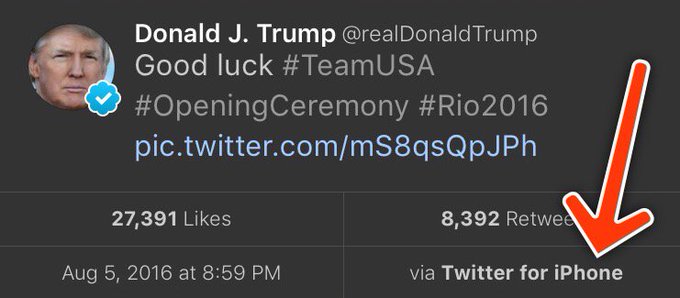
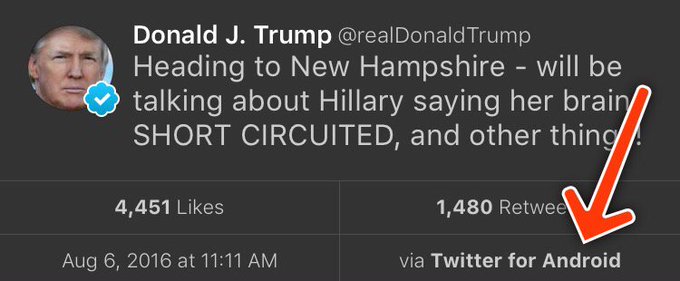
This weekend I saw a hypothesis about Donald Trump’s twitter account that simply begged to be investigated with data:

View image on TwitterView image on Twitter

Every non-hyperbolic tweet is from iPhone (his staff).

Every hyperbolic tweet is from Android (from him).

When Trump wishes the Olympic team good luck, he’s tweeting from his iPhone. When he’s insulting a rival, he’s usually tweeting from an Android. Is this an artefact showing which tweets are Trump’s own and which are by some handler?

Others have explored Trump’s timeline and noticed this tends to hold up- and Trump himself does indeed tweet from a Samsung Galaxy. But how could we examine it quantitatively? I’ve been writing about text mining and sentiment analysis recently, particularly during my development of the tidytext R package with Julia Silge, and this is a great opportunity to apply it again.

My analysis, shown below, concludes that the Android and iPhone tweets are clearly from different people, posting during different times of day and using hashtags, links, and retweets in distinct ways. What’s more, we can see that the Android tweets are angrier and more negative, while the iPhone tweets tend to be benign announcements and pictures. Overall I’d agree with @tvaziri’s analysis: this lets us tell the difference between the campaign’s tweets (iPhone) and Trump’s own (Android).

The dataset

First, we’ll retrieve the content of Donald Trump’s timeline using the userTimelinefunction in the twitteR package:1

library(dplyr)
library(purrr)
library(twitteR)
# You'd need to set global options with an authenticated app
setup_twitter_oauth(getOption("twitter_consumer_key"),
                    getOption("twitter_consumer_secret"),
                    getOption("twitter_access_token"),
                    getOption("twitter_access_token_secret"))

# We can request only 3200 tweets at a time; it will return fewer
# depending on the API
trump_tweets <- userTimeline("realDonaldTrump", n = 3200)
trump_tweets_df <- tbl_df(map_df(trump_tweets, as.data.frame))
# if you want to follow along without setting up Twitter authentication,
# just use my dataset:
load(url("http://varianceexplained.org/files/trump_tweets_df.rda"))

We clean this data a bit, extracting the source application. (We’re looking only at the iPhone and Android tweets- a much smaller number are from the web client or iPad).

library(tidyr)

tweets <- trump_tweets_df %>%
  select(id, statusSource, text, created) %>%
  extract(statusSource, "source", "Twitter for (.*?)<") %>%
  filter(source %in% c("iPhone", "Android"))

Overall, this includes 628 tweets from iPhone, and 762 tweets from Android.

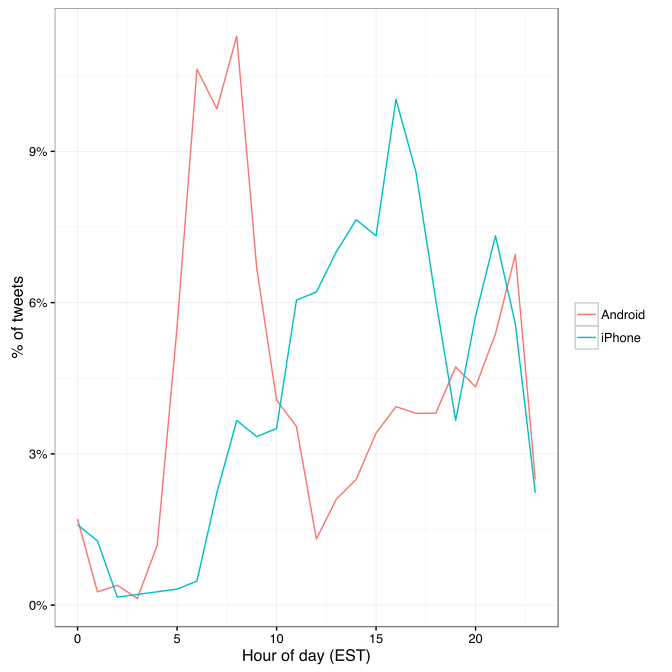
One consideration is what time of day the tweets occur, which we’d expect to be a “signature” of their user. Here we can certainly spot a difference:

library(lubridate)
library(scales)

tweets %>%
  count(source, hour = hour(with_tz(created, "EST"))) %>%
  mutate(percent = n / sum(n)) %>%
  ggplot(aes(hour, percent, color = source)) +
  geom_line() +
  scale_y_continuous(labels = percent_format()) +
  labs(x = "Hour of day (EST)",
       y = "% of tweets",
       color = "")

center

Trump on the Android does a lot more tweeting in the morning, while the campaign posts from the iPhone more in the afternoon and early evening.

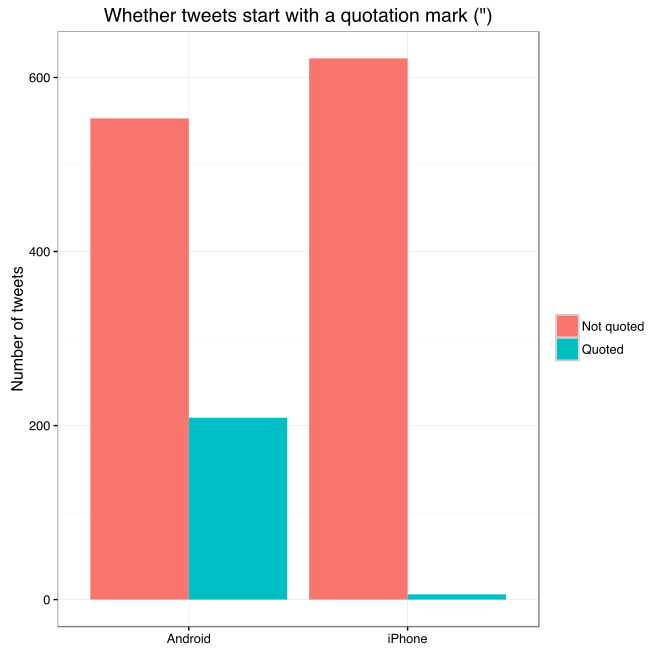
Another place we can spot a difference is in Trump’s anachronistic behavior of “manually retweeting” people by copy-pasting their tweets, then surrounding them with quotation marks:

@trumplican2016@realDonaldTrump @DavidWohl stay the course mr trump your message is resonating with the PEOPLE”

Almost all of these quoted tweets are posted from the Android:

center

In the remaining by-word analyses in this text, I’ll filter these quoted tweets out (since they contain text from followers that may not be representative of Trump’s own tweets).

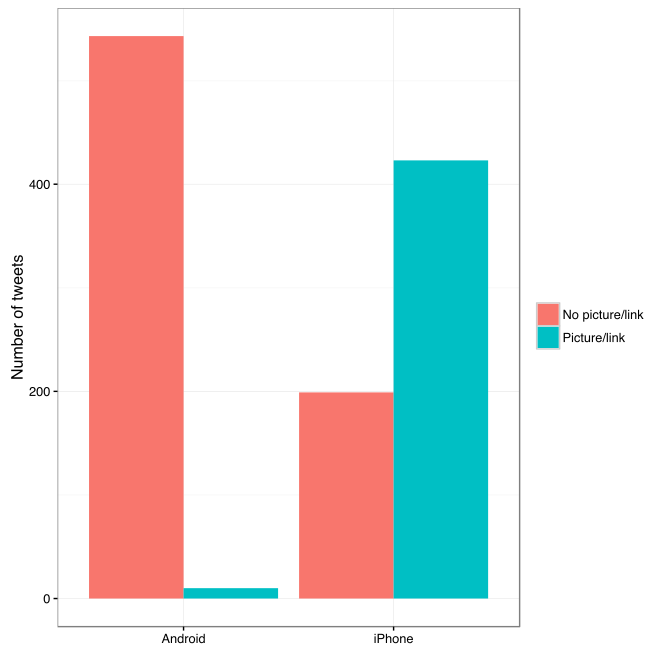
Somewhere else we can see a difference involves sharing links or pictures in tweets.

tweet_picture_counts <- tweets %>%
  filter(!str_detect(text, '^"')) %>%
  count(source,
        picture = ifelse(str_detect(text, "t.co"),
                         "Picture/link", "No picture/link"))

ggplot(tweet_picture_counts, aes(source, n, fill = picture)) +
  geom_bar(stat = "identity", position = "dodge") +
  labs(x = "", y = "Number of tweets", fill = "")

center

It turns out tweets from the iPhone were 38 times as likely to contain either a picture or a link. This also makes sense with our narrative: the iPhone (presumably run by the campaign) tends to write “announcement” tweets about events, like this:
While Android (Trump himself) tends to write picture-less tweets like:

The media is going crazy. They totally distort so many things on purpose. Crimea, nuclear, “the baby” and so much more. Very dishonest!
Comparison of words

Now that we’re sure there’s a difference between these two accounts, what can we say about the difference in the content? We’ll use the tidytext package that Julia Silge and I developed.

We start by dividing into individual words using the unnest_tokens function (see this vignette for more), and removing some common “stopwords”2:

library(tidytext)

reg <- "([^A-Za-z\\d#@']|'(?![A-Za-z\\d#@]))"
tweet_words <- tweets %>%
  filter(!str_detect(text, '^"')) %>%
  mutate(text = str_replace_all(text, "https://t.co/[A-Za-z\\d]+|&", "")) %>%
  unnest_tokens(word, text, token = "regex", pattern = reg) %>%
  filter(!word %in% stop_words$word,
         str_detect(word, "[a-z]"))

tweet_words
## # A tibble: 8,753 x 4
##                    id source             created                   word
##                                                   
## 1  676494179216805888 iPhone 2015-12-14 20:09:15                 record
## 2  676494179216805888 iPhone 2015-12-14 20:09:15                 health
## 3  676494179216805888 iPhone 2015-12-14 20:09:15 #makeamericagreatagain
## 4  676494179216805888 iPhone 2015-12-14 20:09:15             #trump2016
## 5  676509769562251264 iPhone 2015-12-14 21:11:12               accolade
## 6  676509769562251264 iPhone 2015-12-14 21:11:12             @trumpgolf
## 7  676509769562251264 iPhone 2015-12-14 21:11:12                 highly
## 8  676509769562251264 iPhone 2015-12-14 21:11:12              respected
## 9  676509769562251264 iPhone 2015-12-14 21:11:12                   golf
## 10 676509769562251264 iPhone 2015-12-14 21:11:12                odyssey
## # ... with 8,743 more rows

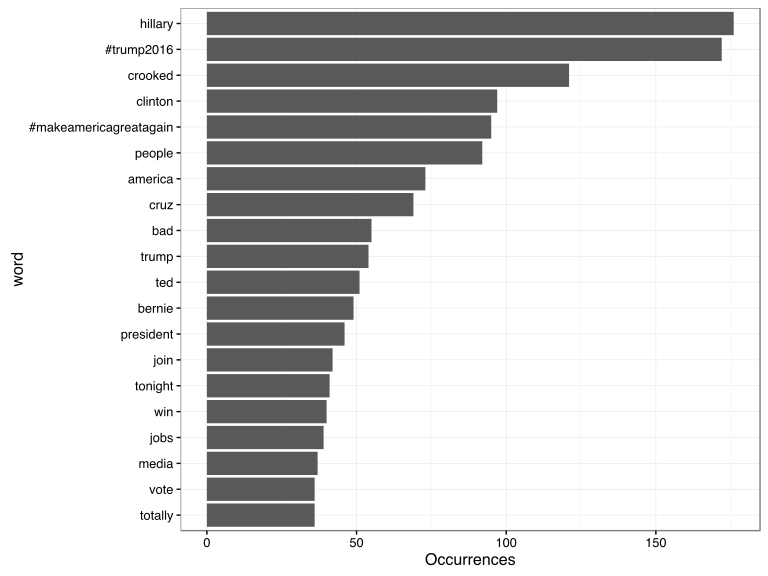
What were the most common words in Trump’s tweets overall?

center

These should look familiar for anyone who has seen the feed. Now let’s consider which words are most common from the Android relative to the iPhone, and vice versa. We’ll use the simple measure of log odds ratio, calculated for each word as:3

log2⁡(# in Android+1Total Android+1# in iPhone+1Total iPhone+1)”>log2(# in Android 1 / Total Android + log2⁡(# in Android+1Total Android+1# in iPhone+1Total iPhone+1)

“>1 / # in iPhone + 1 / Total iPhone 1)

android_iphone_ratios <- tweet_words %>%
  count(word, source) %>%
  filter(sum(n) >= 5) %>%
  spread(source, n, fill = 0) %>%
  ungroup() %>%
  mutate_each(funs((. + 1) / sum(. + 1)), -word) %>%
  mutate(logratio = log2(Android / iPhone)) %>%
  arrange(desc(logratio))

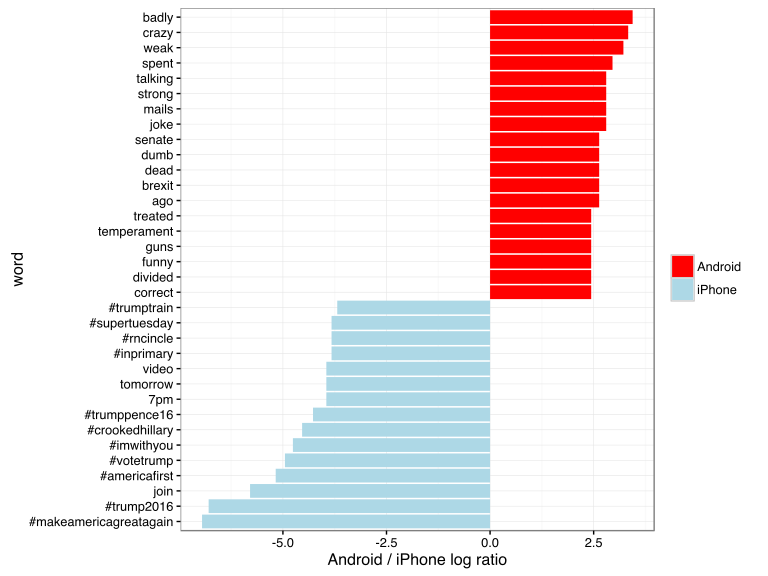
Which are the words most likely to be from Android and most likely from iPhone?

center

A few observations:

  • Most hashtags come from the iPhone. Indeed, almost no tweets from Trump’s Android contained hashtags, with some rare exceptions like this one. (This is true only because we filtered out the quoted “retweets”, as Trump does sometimes quote tweets like this that contain hashtags).
  • Words like “join” and “tomorrow”, and times like “7pm”, also came only from the iPhone. The iPhone is clearly responsible for event announcements like this one (“Join me in Houston, Texas tomorrow night at 7pm!”)
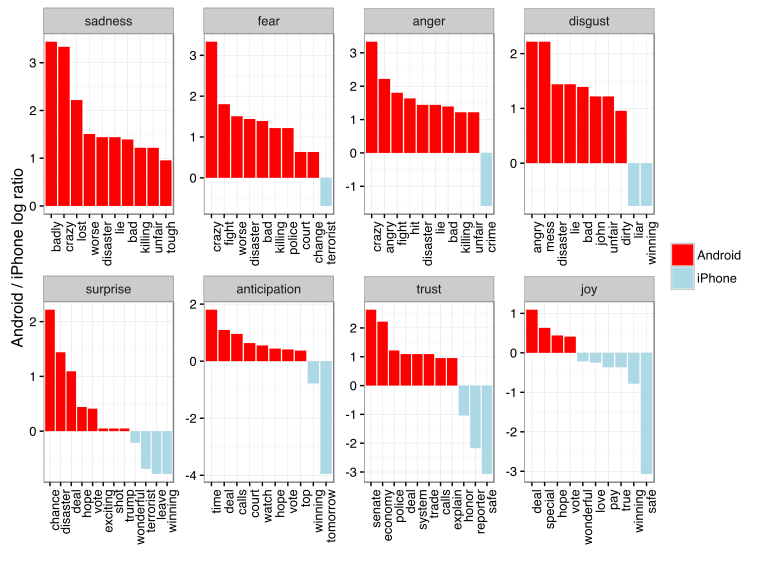
  • A lot of “emotionally charged” words, like “badly”, “crazy”, “weak”, and “dumb”, were overwhelmingly more common on Android. This supports the original hypothesis that this is the “angrier” or more hyperbolic account.

Sentiment analysis: Trump’s tweets are much more negative than his campaign’s

Since we’ve observed a difference in sentiment between the Android and iPhone tweets, let’s try quantifying it. We’ll work with the NRC Word-Emotion Association lexicon, available from the tidytext package, which associates words with 10 sentiments: positivenegativeangeranticipationdisgustfearjoysadnesssurprise, and trust.

nrc <- sentiments %>%
  filter(lexicon == "nrc") %>%
  dplyr::select(word, sentiment)

nrc
## # A tibble: 13,901 x 2
##           word sentiment
##               
## 1       abacus     trust
## 2      abandon      fear
## 3      abandon  negative
## 4      abandon   sadness
## 5    abandoned     anger
## 6    abandoned      fear
## 7    abandoned  negative
## 8    abandoned   sadness
## 9  abandonment     anger
## 10 abandonment      fear
## # ... with 13,891 more rows

To measure the sentiment of the Android and iPhone tweets, we can count the number of words in each category:

sources <- tweet_words %>%
  group_by(source) %>%
  mutate(total_words = n()) %>%
  ungroup() %>%
  distinct(id, source, total_words)

by_source_sentiment <- tweet_words %>%
  inner_join(nrc, by = "word") %>%
  count(sentiment, id) %>%
  ungroup() %>%
  complete(sentiment, id, fill = list(n = 0)) %>%
  inner_join(sources) %>%
  group_by(source, sentiment, total_words) %>%
  summarize(words = sum(n)) %>%
  ungroup()

head(by_source_sentiment)
## # A tibble: 6 x 4
##    source    sentiment total_words words
##                     
## 1 Android        anger        4901   321
## 2 Android anticipation        4901   256
## 3 Android      disgust        4901   207
## 4 Android         fear        4901   268
## 5 Android          joy        4901   199
## 6 Android     negative        4901   560

(For example, we see that 321 of the 4901 words in the Android tweets were associated with “anger”). We then want to measure how much more likely the Android account is to use an emotionally-charged term relative to the iPhone account. Since this is count data, we can use a Poisson test to measure the difference:

library(broom)

sentiment_differences <- by_source_sentiment %>%
  group_by(sentiment) %>%
  do(tidy(poisson.test(.$words, .$total_words)))

sentiment_differences
## Source: local data frame [10 x 9]
## Groups: sentiment [10]
## 
##       sentiment estimate statistic      p.value parameter  conf.low
##           (chr)    (dbl)     (dbl)        (dbl)     (dbl)     (dbl)
## 1         anger 1.492863       321 2.193242e-05  274.3619 1.2353162
## 2  anticipation 1.169804       256 1.191668e-01  239.6467 0.9604950
## 3       disgust 1.677259       207 1.777434e-05  170.2164 1.3116238
## 4          fear 1.560280       268 1.886129e-05  225.6487 1.2640494
## 5           joy 1.002605       199 1.000000e+00  198.7724 0.8089357
## 6      negative 1.692841       560 7.094486e-13  459.1363 1.4586926
## 7      positive 1.058760       555 3.820571e-01  541.4449 0.9303732
## 8       sadness 1.620044       303 1.150493e-06  251.9650 1.3260252
## 9      surprise 1.167925       159 2.174483e-01  148.9393 0.9083517
## 10        trust 1.128482       369 1.471929e-01  350.5114 0.9597478
## Variables not shown: conf.high (dbl), method (fctr), alternative (fctr)

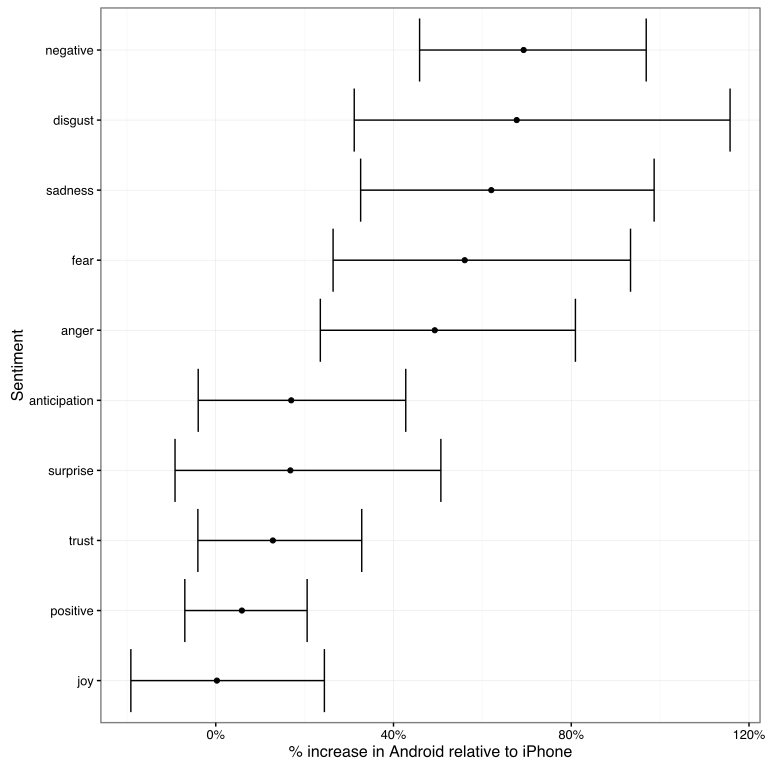
And we can visualize it with a 95% confidence interval:

center

Thus, Trump’s Android account uses about 40-80% more words related to disgustsadnessfearanger, and other “negative” sentiments than the iPhone account does. (The positive emotions weren’t different to a statistically significant extent).

We’re especially interested in which words drove this different in sentiment. Let’s consider the words with the largest changes within each category:

center

This confirms that lots of words annotated as negative sentiments (with a few exceptions like “crime” and “terrorist”) are more common in Trump’s Android tweets than the campaign’s iPhone tweets.

Conclusion: the ghost in the political machine

I was fascinated by the recent New Yorker article about Tony Schwartz, Trump’s ghostwriter for The Art of the Deal. Of particular interest was how Schwartz imitated Trump’s voice and philosophy:

In his journal, Schwartz describes the process of trying to make Trump’s voice palatable in the book. It was kind of “a trick,” he writes, to mimic Trump’s blunt, staccato, no-apologies delivery while making him seem almost boyishly appealing…. Looking back at the text now, Schwartz says, “I created a character far more winning than Trump actually is.”

Like any journalism, data journalism is ultimately about human interest, and there’s one human I’m interested in: who is writing these iPhone tweets?

The majority of the tweets from the iPhone are fairly benign declarations. But consider cases like these, both posted from an iPhone:

Like the worthless @NYDailyNews, looks like @politico will be going out of business. Bad reporting- no money, no cred!

Failing @NYTimes will always take a good story about me and make it bad. Every article is unfair and biased. Very sad!

These tweets certainly sound like the Trump we all know. Maybe our above analysis isn’t complete: maybe Trump has sometimes, however rarely, tweeted from an iPhone (perhaps dictating, or just using it when his own battery ran out). But what if our hypothesis is right, and these weren’t authored by the candidate- just someone trying their best to sound like him?

Or what about tweets like this (also iPhone), which defend Trump’s slogan- but doesn’t really sound like something he’d write?

Our country does not feel ‘great already’ to the millions of wonderful people living in poverty, violence and despair.

A lot has been written about Trump’s mental state. But I’d really rather get inside the head of this anonymous staffer, whose job is to imitate Trump’s unique cadence (“Very sad!”), or to put a positive spin on it, to millions of followers. Are they a true believer, or just a cog in a political machine, mixing whatever mainstream appeal they can into the @realDonaldTrump concoction? Like Tony Schwartz, will they one day regret their involvement?

  1. To keep the post concise I don’t show all of the code, especially code that generates figures. But you can find the full code here.
  2. We had to use a custom regular expression for Twitter, since typical tokenizers would split the # off of hashtags and @ off of usernames. We also removed links and ampersands (&) from the text.
  3. The “plus ones,” called Laplace smoothing are to avoid dividing by zero and to put more trust in common words.

About the author:

David Robinson is a Data Scientist at Stack Overflow. In May 2015, he received his PhD in Quantitative and Computational Biology from Princeton University, where he worked with Professor John Storey. His interests include statistics, data analysis, genomics, education, and programming in R.

Follow this link to the 2017 sequel to this article.

Networks Among #rstats Twitterers

Networks Among #rstats Twitterers

Reposted from Kasia Kulma’s github with minor modifications.

Have you ever wondered whether the most active/popular R-twitterers are virtual friends? 🙂 And by friends here I simply mean mutual followers on Twitter. In this post, I score and pick top 30 #rstats twitter users and analyse their Twitter network. You’ll see a lot of applications of rtweet and ggraph packages, as well as a very useful twist using purrr library, so let’s begin!


IMPORTING #RSTATS USERS

After loading my precious packages…

library(rtweet)
library(dplyr)
library(purrr)
library(igraph)
library(ggraph)

… I searched for Twitter users that have rstats termin their profile description. It definitely doesn’t include ALL active and popular R – users, but it’s a pretty reliable way of picking R – fans.

r_users <- search_users("#rstats", n = 1000)

It’s important to say, that in rtweet::search_users() even if you specify 1000 users to be extracted, you end up with quite a few duplicates and the actual number of users I got was much smaller: 564

r_users %>% summarise(n_users = n_distinct(screen_name))
##   n_users
## 1     564

Funnily enough, even though my profile description contains #rstats I was not included in the search results (@KKulma), sic! Were you? 🙂

SCORING AND CHOOSING TOP #RSTATS USERS

Now, let’s extract some useful information about those users:

r_users_info <- lookup_users(r_users$screen_name)

You’ll notice, that created data frame holds information about the number of followers, friends (users they follow), lists they belong to, the number of tweets (statuses) or how many times were they marked favourite.

r_users_info %>% select(dplyr::contains("count")) %>% head()
##   followers_count friends_count listed_count favourites_count
## 1            8311           366          580             9325
## 2           44474            11         1298                3
## 3           11106           524          467            18495
## 4           12481           431          542             7222
## 5           15345          1872          680            27971
## 6            5122           700          549             2796
##   statuses_count
## 1          66117
## 2           1700
## 3           8853
## 4           6388
## 5          22194
## 6          10010

And these variables that I used for building my ‘top score’: I simply calculate a percentile for each of those variables and sum it all together for each user. Given that each variable’s percentile will give me a value between 0 and 1, The final score can have a maximum value of 5.

r_users_ranking <- r_users_info %>%
  filter(protected == FALSE) %>% 
  select(screen_name, dplyr::contains("count")) %>% 
  unique() %>% 
  mutate(followers_percentile = ecdf(followers_count)(followers_count),
         friends_percentile = ecdf(friends_count)(friends_count),
         listed_percentile = ecdf(listed_count)(listed_count),
         favourites_percentile = ecdf(favourites_count)(favourites_count),
         statuses_percentile = ecdf(statuses_count)(statuses_count)
         ) %>% 
  group_by(screen_name) %>% 
  summarise(top_score = followers_percentile + friends_percentile + listed_percentile + favourites_percentile + statuses_percentile) %>% 
  ungroup() %>% 
  mutate(ranking = rank(-top_score))

Finally, I picked top 30 users based on the score I calculated. Tada!

top_30 <- r_users_ranking %>% arrange(desc(top_score)) %>% head(30) %>% arrange(desc(top_score))
top_30 
## # A tibble: 30 x 3
##        screen_name top_score ranking
##              <chr>     <dbl>   <dbl>
##  1          hspter  4.877005       1
##  2    RallidaeRule  4.839572       2
##  3         DEJPett  4.771836       3
##  4 modernscientist  4.752228       4
##  5 nicoleradziwill  4.700535       5
##  6      tomhouslay  4.684492       6
##  7    ChetanChawla  4.639929       7
##  8   TheSmartJokes  4.627451       8
##  9   Physical_Prep  4.625668       9
## 10       Cataranea  4.602496      10
## # ... with 20 more rows

I must say I’m incredibly impressed by these scores: @hpster, THE top R – twitterer managed to obtain a score of nearly 4.9 out of 5! WOW!

Anyway! To add some more depth to my list, I tried to identify top users’ gender, to see how many of them are women. I had to do it manually (ekhem!), as the Twitter API’s data doesn’t provide this, AFAIK. Let me know if you spot any mistakes!

top30_lookup <- r_users_info %>%
  filter(screen_name %in% top_30$screen_name) %>% 
  select(screen_name, user_id)

top30_lookup$gender <- c("M", "F", "F", "F", "F",
                         "M", "M", "M", "F", "F", 
                         "F", "M", "M", "M", "F", 
                         "F", "M", "M", "M", "M", 
                         "M", "M", "M", "F", "M",
                         "M", "M", "M", "M", "M")

table(top30_lookup$gender)
## 
##  F  M 
## 10 20

It looks like a third of all top users are women, but in the top 10 users, there are 6 women. Better than I expected, to be honest. So, well done, ladies!

GETTING FRIENDS NETWORK

Now, this was the trickiest part of this project: extracting top users’ friends list and putting it all in one data frame. As you may be aware, Twitter API allows you to download information only on 15 accounts in 15 minutes. So for my list, I had to break it up into 2 steps, 15 users each and then I named each list according to the top user they refer to:

top_30_usernames <- top30_lookup$screen_name

friends_top30a <-   map(top_30_usernames[1:15 ], get_friends)
names(friends_top30a) <- top_30_usernames[1:15]

# 15 minutes later....
friends_top30b <- map(top_30_usernames[16:30], get_friends)

After this I end up with two lists, each containing all friends’ IDs for top and bottom 15 users respectively. So what I need to do now is i) append the two lists, ii) create a variable stating top users’ name in each of those lists and iii) turn lists into data frames. All this can be done in 3 lines of code. And brace yourself: here comes the purrr trick I’ve been going on about! Simply using purrr:::map2_df I can take a single list of lists, create a name variable in each of those lists based on the list name (twitter_top_user) and convert the result into the data frame. BRILLIANT!!

# turning lists into data frames and putting them together
friends_top30 <- append(friends_top30a, friends_top30b)
names(friends_top30) <- top_30_usernames

# purrr - trick I've been banging on about!
friends_top <- map2_df(friends_top30, names(friends_top30), ~ mutate(.x, twitter_top_user = .y)) %>% 
  rename(friend_id = user_id) %>% select(twitter_top_user, friend_id)

Here’s the last bit that I need to correct before we move on to plotting the friends networks: for some reason, using purrr::map() with rtweet:::get_friends() gives me max only 5000 friends, but in case of @TheSmartJokes the true value is over 8000. As it’s the only top user with more than 5000 friends, I’ll download his friends separately…

# getting a full list of friends
SJ1 <- get_friends("TheSmartJokes")
SJ2 <- get_friends("TheSmartJokes", page = next_cursor(SJ1))

# putting the data frames together 
SJ_friends <-rbind(SJ1, SJ2) %>%  
  rename(friend_id = user_id) %>% 
  mutate(twitter_top_user = "TheSmartJokes") %>% 
  select(twitter_top_user, friend_id)

# the final results - over 8000 friends, rather than 5000
str(SJ_friends) 
## 'data.frame':    8611 obs. of  2 variables:
##  $ twitter_top_user: chr  "TheSmartJokes" "TheSmartJokes" "TheSmartJokes" "TheSmartJokes" ...
##  $ friend_id       : chr  "390877754" "6085962" "88540151" "108186743" ...

… and use it to replace those friends that are already in the final friends list.

friends_top30 <- friends_top %>% 
  filter(twitter_top_user != "TheSmartJokes") %>% 
  rbind(SJ_friends) 

Finally, let me do some last data cleaning: filtering out friends that are not among the top 30 R – users, replacing their IDs with twitter names and adding gender for top users and their friends… Tam, tam, tam: here we are! Here’s the final data frame we’ll use for visualising the friend networks!

# select friends that are top30 users
final_friends_top30 <- friends_top  %>% 
  filter(friend_id %in% top30_lookup$user_id)

# add friends' screen_name
final_friends_top30$friend_name <- top30_lookup$screen_name[match(final_friends_top30$friend_id, top30_lookup$user_id)]

# add users' and friends' gender
final_friends_top30$user_gender <- top30_lookup$gender[match(final_friends_top30$twitter_top_user, top30_lookup$screen_name)]
final_friends_top30$friend_gender <- top30_lookup$gender[match(final_friends_top30$friend_name, top30_lookup$screen_name)]

## final product!!!
final <- final_friends_top30 %>% select(-friend_id)

head(final)
##   twitter_top_user     friend_name user_gender friend_gender
## 1         hrbrmstr nicoleradziwill           M             F
## 2         hrbrmstr        kara_woo           M             F
## 3         hrbrmstr      juliasilge           M             F
## 4         hrbrmstr        noamross           M             M
## 5         hrbrmstr      JennyBryan           M             F
## 6         hrbrmstr     thosjleeper           M             M

VISUALIZING FRIENDS NETWORKS

After turning our data frame into something more usable by igraph and ggraph

f1 <- graph_from_data_frame(final, directed = TRUE, vertices = NULL)
V(f1)$Popularity <- degree(f1, mode = 'in')

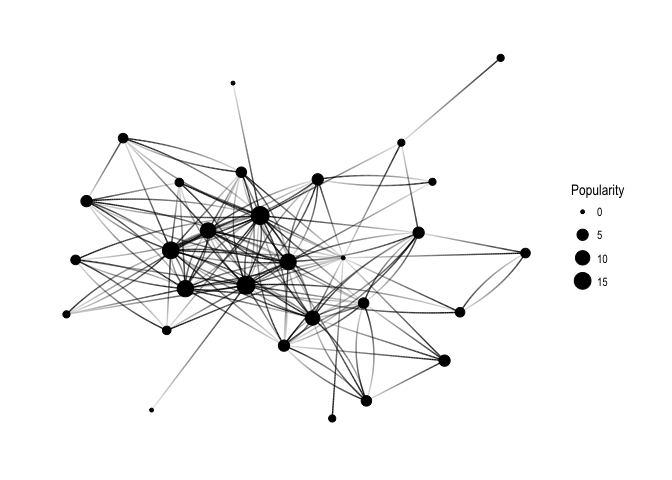
… let’s have a quick overview of all the connections:

ggraph(f1, layout='kk') + 
  geom_edge_fan(aes(alpha = ..index..), show.legend = FALSE) +
  geom_node_point(aes(size = Popularity)) +
  theme_graph( fg_text_colour = 'black') 

generic_pure

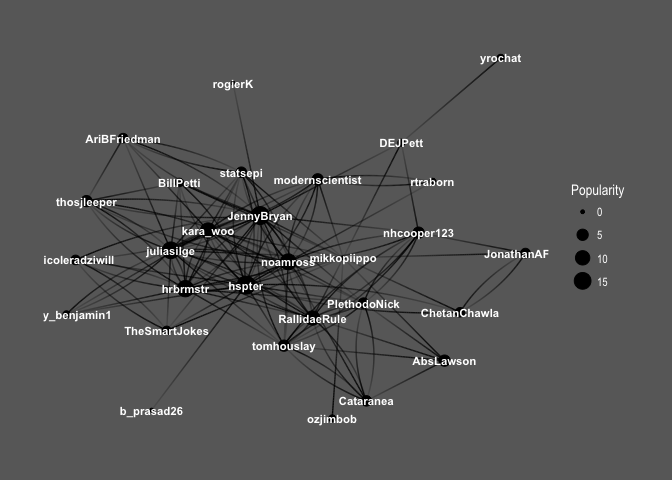
Keep in mind that Popularity – defined as the number of edges that go into the node – determines node size. It’s all very pretty, but I’d like to see how nodes correspond to Twitter users’ names:

ggraph(f1, layout='kk') + 
  geom_edge_fan(aes(alpha = ..index..), show.legend = FALSE) +
  geom_node_point(aes(size = Popularity)) +
  geom_node_text(aes(label = name, fontface='bold'), 
                 color = 'white', size = 3) +
  theme_graph(background = 'dimgray', text_colour = 'white',title_size = 30) 

generic_names

So interesting! You can see the core of the graph consists mainly of female users: @hpster, @JennyBryan, @juliasilge, @karawoo, but also a couple of male R – users: @hrbrmstr and @noamross. Who do they follow? Men or women?

ggraph(f1, layout='kk') + 
  geom_edge_fan(aes(alpha = ..index..), show.legend = FALSE) +
  geom_node_point(aes(size = Popularity)) +
  theme_graph( fg_text_colour = 'black') +
  geom_edge_link(aes(colour = friend_gender)) +
  scale_edge_color_brewer(palette = 'Set1') + 
  labs(title='Top 30 #rstats users and gender of their friends')

generic_with_gender

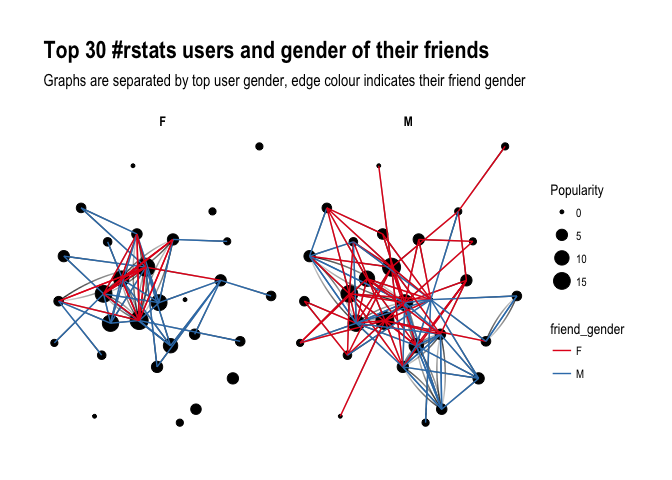
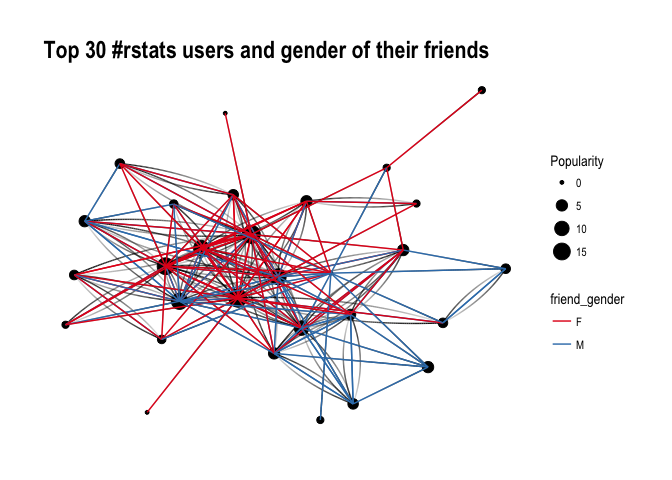
It’s difficult to say definitely, but superficially I see A LOT of red, suggesting that our top R – users often follow female top twitterers. Let’s have a closer look and split graphs by user gender and see if there’s any difference in the gender of users they follow:

ggraph(f1, layout='kk') + 
  geom_edge_fan(aes(alpha = ..index..), show.legend = FALSE) +
  geom_node_point(aes(size = Popularity)) +
  theme_graph( fg_text_colour = 'black') +
  facet_edges(~user_gender) +
  geom_edge_link(aes(colour = friend_gender)) +
  scale_edge_color_brewer(palette = 'Set1') +
  labs(title='Top 30 #rstats users and gender of their friends', subtitle='Graphs are separated by top user gender, edge colour indicates their friend gender' )

gender_with_gender

Ha! look at this! Obviously, female users’ graph will be less dense as there are fewer of them in the dataset, however, you can see that they tend to follow male users more often than male top users do. Is that impression supported by raw numbers?

final %>% 
  group_by(user_gender, friend_gender) %>% 
  summarize(n = n()) %>% 
  group_by(user_gender) %>% 
  mutate(sum = sum(n),
         percent = round(n/sum, 2)) 
## # A tibble: 4 x 5
## # Groups:   user_gender [2]
##   user_gender friend_gender     n   sum percent
##         <chr>         <chr> <int> <int>   <dbl>
## 1           F             F    26    57    0.46
## 2           F             M    31    57    0.54
## 3           M             F    55   101    0.54
## 4           M             M    46   101    0.46

It seems so, although to the lesser extent than suggested by the network graphs: Female top users follow other female top users 46% of the time, whereas male top users follow female top user 54% of the time. So what do you have to say about that?

About the author:

Kasia Kulma states she’s an overall, enthusiastic science enthusiast. Formally, a doctor in evolutionary biology, professionally, a data scientist, and, privately, a soppy mum and outdoors lover.

R resources (free courses, books, tutorials, & cheat sheets)

R resources (free courses, books, tutorials, & cheat sheets)

Help yourself to these free books, tutorials, packages, cheat sheets, and many more materials for R programming. There’s a separate overview for handy R programming tricks. If you have additions, please comment below or contact me!


Join 385 other subscribers

LAST UPDATED: 2021-09-24


Table of Contents (clickable)

Completely new to R? → Start learning here!


Introductory R

Introductory Books

Online Courses

Style Guides

BACK TO TABLE OF CONTENTS


Advanced R

Package Development

Non-standard Evaluation

Functional Programming

BACK TO TABLE OF CONTENTS

Cheat Sheets

Many of the above cheat sheets are hosted in the official RStudio cheat sheet overview.


Data Manipulation


Data Visualization

Colors

Interactive / HTML / JavaScript widgets

ggplot2

ggplot2 extensions

Miscellaneous

  • coefplot – visualizes model statistics
  • circlize – circular visualizations for categorical data
  • clustree – visualize clustering analysis
  • quantmod – candlestick financial charts
  • dabestr– Data Analysis using Bootstrap-Coupled ESTimation
  • devoutsvg – an SVG graphics device (with pattern fills)
  • devoutpdf – an PDF graphics device
  • cartography – create and integrate maps in your R workflow
  • colorspace – HSL based color palettes
  • viridis – Matplotlib viridis color pallete for R
  • munsell – Munsell color palettes for R
  • Cairo – high-quality display output
  • igraph – Network Analysis and Visualization
  • graphlayouts – new layout algorithms for network visualization
  • lattice – Trellis graphics
  • tmap – thematic maps
  • trelliscopejs – interactive alternative for facet_wrap
  • rgl – interactive 3D plots
  • corrplot – graphical display of a correlation matrix
  • googleVis – Google Charts API
  • plotROC – interactive ROC plots
  • extrafont – fonts in R graphics
  • rvg – produces Vector Graphics that allow further editing in PowerPoint or Excel
  • showtext – text using system fonts
  • animation – animated graphics using ImageMagick.
  • misc3d – 3d plots, isosurfaces, etc.
  • xkcd – xkcd style graphics
  • imager – CImg library to work with images
  • ungeviz – tools for visualize uncertainty
  • waffle – square pie charts a.k.a. waffle charts
  • Creating spectograms in R with hht, warbleR, soundgen, signal, seewave, or phonTools

BACK TO TABLE OF CONTENTS


Shiny, Dashboards, & Apps


Markdown & Other Output Formats

  • tidystats – automating updating of model statistics
  • papaja – preparing APA journal articles
  • blogdown – build websites with Markdown & Hugo
  • huxtable – create Excel, html, & LaTeX tables
  • xaringan – make slideshows via remark.js and markdown
  • summarytools – produces neat, quick data summary tables
  • citr – RStudio Addin to Insert Markdown Citations

Cloud, Server, & Database

BACK TO TABLE OF CONTENTS


Statistical Modeling & Machine Learning

Books

Courses

Cheat sheets

Time series

Survival analysis

Bayesian

Miscellaneous

  • corrr – easier correlation matrix management and exploration

BACK TO TABLE OF CONTENTS


Natural Language Processing & Text Mining

Regular Expressions

BACK TO TABLE OF CONTENTS


Geographic & Spatial mapping


Bioinformatics & Computational Biology

BACK TO TABLE OF CONTENTS


Integrated Development Environments (IDEs) &
Graphical User Inferfaces (GUIs)

Descriptions mostly taken from their own websites:

  • RStudio*** – Open source and enterprise ready professional software
  • Jupyter Notebook*** – open-source web application that allows you to create and share documents that contain live code, equations, visualizations and narrative text across dozens of programming languages.
  • Microsoft R tools for Visual Studio – turn Visual Studio into a powerful R IDE
  • R Plugins for Vim, Emax, and Atom editors
  • Rattle*** – GUI for data mining
  • equisse – RStudio add-in to interactively explore and visualize data
  • R Analytic Flow – data flow diagram-based IDE
  • RKWard – easy to use and easily extensible IDE and GUI
  • Eclipse StatET – Eclipse-based IDE
  • OpenAnalytics Architect – Eclipse-based IDE
  • TinnR – open source GUI and IDE
  • DisplayR – cloud-based GUI
  • BlueSkyStatistics – GUI designed to look like SPSS and SAS 
  • ducer – GUI for everyone
  • R commander (Rcmdr) – easy and intuitive GUI
  • JGR – Java-based GUI for R
  • jamovi & jmv – free and open statistical software to bridge the gap between researcher and statistician
  • Exploratory.io – cloud-based data science focused GUI
  • Stagraph – GUI for ggplot2 that allows you to visualize and connect to databases and/or basic file types
  • ggraptr – GUI for visualization (Rapid And Pretty Things in R)
  • ML Studio – interactive Shiny platform for data visualization, statistical modeling and machine learning

R & other software and languages

R & Excel

R & Python

R & SQL

  • sqldf – running SQL statements on R data frames

BACK TO TABLE OF CONTENTS


Join 385 other subscribers

R Help, Connect, & Inspiration


R Blogs


R Conferences, Events, & Meetups

R Jobs

BACK TO TABLE OF CONTENTS

Harry Plotter: Celebrating the 20 year anniversary with tidytext and the tidyverse in R

Harry Plotter: Celebrating the 20 year anniversary with tidytext and the tidyverse in R

It has been twenty years since the first Harry Potter novel, the sorcerer’s/philosopher’s stone, was published. To honour the series, I started a text analysis and visualization project, which my other-half wittily dubbed Harry Plotter. In several blogs, I intend to demonstrate how Hadley Wickham’s tidyverse and packages that build on its principles, such as tidytext (free book), have taken programming in R to an all-new level. Moreover, I just enjoy making pretty graphs : )

In this first blog (easier read), we will look at the sentiment throughout the books. In a second blog, we have examined the stereotypes behind the Hogwarts houses.

Setup

First, we need to set up our environment in RStudio. We will be needing several packages for our analyses. Most importantly, Bradley Boehmke was nice enough to gather all Harry Potter books in his harrypotter package on GitHub. We need devtools to install that package the first time, but from then on can load it in normally. Next, we load the tidytext package, which automates and tidies a lot of the text mining functionalities. We also need plyr for a specific function (ldply()). Other tidyverse packages we can load in a single bundle, including ggplot2dplyr, and tidyr, which I use in almost every of my projects. Finally, we load the wordcloud visualization package which draws on tm.

After loading these packages, I set some additional default options.

# LOAD IN PACKAGES
# library(devtools)
# devtools::install_github("bradleyboehmke/harrypotter")
library(harrypotter)
library(tidytext)
library(plyr)
library(tidyverse)
library(wordcloud)

# OPTIONS
options(stringsAsFactors = F, # do not convert upon loading
        scipen = 999, # do not convert numbers to e-values
        max.print = 200) # stop printing after 200 values

# VIZUALIZATION SETTINGS
theme_set(theme_light()) # set default ggplot theme to light
fs = 12 # default plot font size

Data preparation

With RStudio set, its time to the text of each book from the harrypotter package which we then “pipe” (%>% – another magical function from the tidyverse – specifically magrittr) along to bind all objects into a single dataframe. Here, each row represents a book with the text for each chapter stored in a separate columns. We want tidy data, so we use tidyr’s gather() function to turn each column into grouped rows. With tidytext’s unnest_tokens() function we can separate the tokens (in this case, single words) from these chapters.

# LOAD IN BOOK CHAPTERS
# TRANSFORM TO TOKENIZED DATASET
hp_words <- list(
 philosophers_stone = philosophers_stone,
 chamber_of_secrets = chamber_of_secrets,
 prisoner_of_azkaban = prisoner_of_azkaban,
 goblet_of_fire = goblet_of_fire,
 order_of_the_phoenix = order_of_the_phoenix,
 half_blood_prince = half_blood_prince,
 deathly_hallows = deathly_hallows
) %>%
 ldply(rbind) %>% # bind all chapter text to dataframe columns
 mutate(book = factor(seq_along(.id), labels = .id)) %>% # identify associated book
 select(-.id) %>% # remove ID column
 gather(key = 'chapter', value = 'text', -book) %>% # gather chapter columns to rows
 filter(!is.na(text)) %>% # delete the rows/chapters without text
 mutate(chapter = as.integer(chapter)) %>% # chapter id to numeric
 unnest_tokens(word, text, token = 'words') # tokenize data frame

Let’s inspect our current data format with head(), which prints the first rows (default n = 6).

# EXAMINE FIRST AND LAST WORDS OF SAGA
hp_words %>% head()
##                   book chapter  word
## 1   philosophers_stone       1   the
## 1.1 philosophers_stone       1   boy
## 1.2 philosophers_stone       1   who
## 1.3 philosophers_stone       1 lived
## 1.4 philosophers_stone       1    mr
## 1.5 philosophers_stone       1   and

Word frequency

A next step would be to examine word frequencies.

# PLOT WORD FREQUENCY PER BOOK
hp_words %>%
  group_by(book, word) %>%
  anti_join(stop_words, by = "word") %>% # delete stopwords
  count() %>% # summarize count per word per book
  arrange(desc(n)) %>% # highest freq on top
  group_by(book) %>% # 
  mutate(top = seq_along(word)) %>% # identify rank within group
  filter(top <= 15) %>% # retain top 15 frequent words
  # create barplot
  ggplot(aes(x = -top, fill = book)) + 
  geom_bar(aes(y = n), stat = 'identity', col = 'black') +
  # make sure words are printed either in or next to bar
  geom_text(aes(y = ifelse(n > max(n) / 2, max(n) / 50, n + max(n) / 50),
                label = word), size = fs/3, hjust = "left") +
  theme(legend.position = 'none', # get rid of legend
        text = element_text(size = fs), # determine fontsize
        axis.text.x = element_text(angle = 45, hjust = 1, size = fs/1.5), # rotate x text
        axis.ticks.y = element_blank(), # remove y ticks
        axis.text.y = element_blank()) + # remove y text
  labs(y = "Word count", x = "", # add labels
       title = "Harry Plotter: Most frequent words throughout the saga") +
  facet_grid(. ~ book) + # separate plot for each book
  coord_flip() # flip axes

download.png

Unsuprisingly, Harry is the most common word in every single book and Ron and Hermione are also present. Dumbledore’s role as an (irresponsible) mentor becomes greater as the storyline progresses. The plot also nicely depicts other key characters:

  • Lockhart and Dobby in book 2,
  • Lupin in book 3,
  • Moody and Crouch in book 4,
  • Umbridge in book 5,
  • Ginny in book 6,
  • and the final confrontation with He who must not be named in book 7.

Finally, why does J.K. seem obsessively writing about eyes that look at doors?

Estimating sentiment

Next, we turn to the sentiment of the text. tidytext includes three famous sentiment dictionaries:

  • AFINN: including bipolar sentiment scores ranging from -5 to 5
  • bing: including bipolar sentiment scores
  • nrc: including sentiment scores for many different emotions (e.g., anger, joy, and surprise)

The following script identifies all words that occur both in the books and the dictionaries and combines them into a long dataframe:

# EXTRACT SENTIMENT WITH THREE DICTIONARIES
hp_senti <- bind_rows(
  # 1 AFINN 
  hp_words %>% 
    inner_join(get_sentiments("afinn"), by = "word") %>%
    filter(score != 0) %>% # delete neutral words
    mutate(sentiment = ifelse(score < 0, 'negative', 'positive')) %>% # identify sentiment
    mutate(score = sqrt(score ^ 2)) %>% # all scores to positive
    group_by(book, chapter, sentiment) %>% 
    mutate(dictionary = 'afinn'), # create dictionary identifier
  # 2 BING 
  hp_words %>% 
    inner_join(get_sentiments("bing"), by = "word") %>%
    group_by(book, chapter, sentiment) %>%
    mutate(dictionary = 'bing'), # create dictionary identifier
  # 3 NRC 
  hp_words %>% 
    inner_join(get_sentiments("nrc"), by = "word") %>%
    group_by(book, chapter, sentiment) %>%
    mutate(dictionary = 'nrc') # create dictionary identifier
)

# EXAMINE FIRST SENTIMENT WORDS
hp_senti %>% head()
## # A tibble: 6 x 6
## # Groups:   book, chapter, sentiment [2]
##                 book chapter      word score sentiment dictionary
##                                   
## 1 philosophers_stone       1     proud     2  positive      afinn
## 2 philosophers_stone       1 perfectly     3  positive      afinn
## 3 philosophers_stone       1     thank     2  positive      afinn
## 4 philosophers_stone       1   strange     1  negative      afinn
## 5 philosophers_stone       1  nonsense     2  negative      afinn
## 6 philosophers_stone       1       big     1  positive      afinn

Wordcloud

Although wordclouds are not my favorite visualizations, they do allow for a quick display of frequencies among a large body of words.

hp_senti %>%
  group_by(word) %>%
  count() %>% # summarize count per word
  mutate(log_n = sqrt(n)) %>% # take root to decrease outlier impact
  with(wordcloud(word, log_n, max.words = 100))

download (1)

It appears we need to correct for some words that occur in the sentiment dictionaries but have a different meaning in J.K. Rowling’s books. Most importantly, we need to filter two character names.

# DELETE SENTIMENT FOR CHARACTER NAMES
hp_senti_sel <- hp_senti %>% filter(!word %in% c("harry","moody"))

Words per sentiment

Let’s quickly sketch the remaining words per sentiment.

# VIZUALIZE MOST FREQUENT WORDS PER SENTIMENT
hp_senti_sel %>% # NAMES EXCLUDED
  group_by(word, sentiment) %>%
  count() %>% # summarize count per word per sentiment
  group_by(sentiment) %>%
  arrange(sentiment, desc(n)) %>% # most frequent on top
  mutate(top = seq_along(word)) %>% # identify rank within group
  filter(top <= 15) %>% # keep top 15 frequent words
  ggplot(aes(x = -top, fill = factor(sentiment))) + 
  # create barplot
  geom_bar(aes(y = n), stat = 'identity', col = 'black') +
  # make sure words are printed either in or next to bar
  geom_text(aes(y = ifelse(n > max(n) / 2, max(n) / 50, n + max(n) / 50),
                label = word), size = fs/3, hjust = "left") +
  theme(legend.position = 'none', # remove legend
        text = element_text(size = fs), # determine fontsize
        axis.text.x = element_text(angle = 45, hjust = 1), # rotate x text
        axis.ticks.y = element_blank(), # remove y ticks
        axis.text.y = element_blank()) + # remove y text
  labs(y = "Word count", x = "", # add manual labels
       title = "Harry Plotter: Words carrying sentiment as counted throughout the saga",
       subtitle = "Using tidytext and the AFINN, bing, and nrc sentiment dictionaries") +
  facet_grid(. ~ sentiment) + # separate plot for each sentiment
  coord_flip() # flip axes

download (2).png

This seems ok. Let’s continue to plot the sentiment over time.

Positive and negative sentiment throughout the series

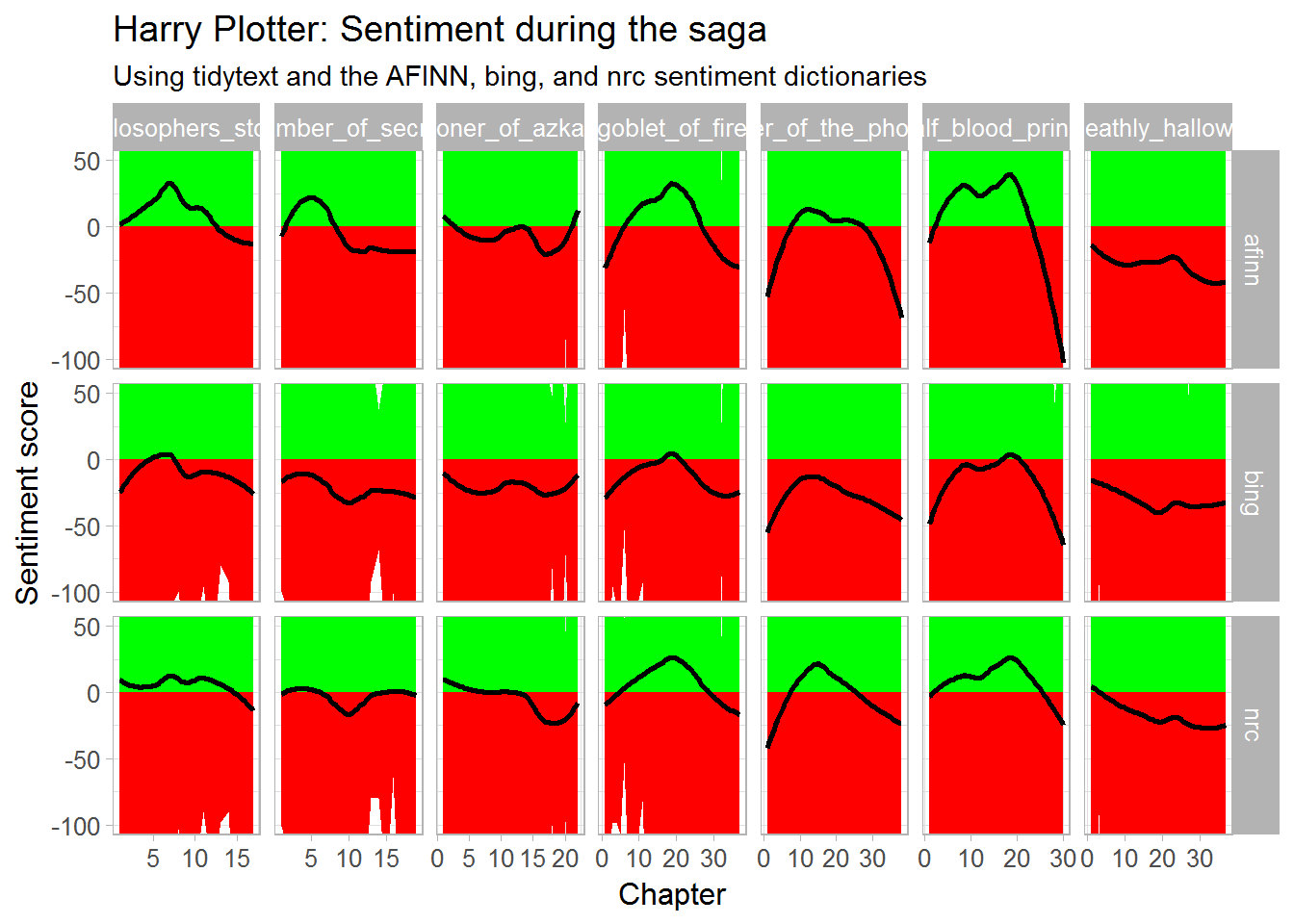
As positive and negative sentiment is included in each of the three dictionaries we can to compare and contrast scores.

# VIZUALIZE POSTIVE/NEGATIVE SENTIMENT OVER TIME
plot_sentiment <- hp_senti_sel %>% # NAMES EXCLUDED
  group_by(dictionary, sentiment, book, chapter) %>%
  summarize(score = sum(score), # summarize AFINN scores
            count = n(), # summarize bing and nrc counts
            # move bing and nrc counts to score 
            score = ifelse(is.na(score), count, score))  %>%
  filter(sentiment %in% c('positive','negative')) %>%   # only retain bipolar sentiment
  mutate(score = ifelse(sentiment == 'negative', -score, score)) %>% # reverse negative values
  # create area plot
  ggplot(aes(x = chapter, y = score)) +    
  geom_area(aes(fill = score > 0),stat = 'identity') +
  scale_fill_manual(values = c('red','green')) + # change colors
  # add black smoothed line without standard error
  geom_smooth(method = "loess", se = F, col = "black") + 
  theme(legend.position = 'none', # remove legend
        text = element_text(size = fs)) + # change font size
  labs(x = "Chapter", y = "Sentiment score", # add labels
       title = "Harry Plotter: Sentiment during the saga",
       subtitle = "Using tidytext and the AFINN, bing, and nrc sentiment dictionaries") +
     # separate plot per book and dictionary and free up x-axes
  facet_grid(dictionary ~ book, scale = "free_x")
plot_sentiment

download (3).png

Let’s zoom in on the smoothed average.

plot_sentiment + coord_cartesian(ylim = c(-100,50)) # zoom in plot

download (4).png

Sentiment seems overly negative throughout the series. Particularly salient is that every book ends on a down note, except the Prisoner of Azkaban. Moreover, sentiment becomes more volatile in books four through six. These start out negative, brighten up in the middle, just to end in misery again. In her final book, J.K. Rowling depicts a world about to be conquered by the Dark Lord and the average negative sentiment clearly resembles this grim outlook.

The bing sentiment dictionary estimates the most negative sentiment on average, but that might be due to this specific text.

Other emotions throughout the series

Finally, let’s look at the other emotions that are included in the nrc dictionary.

# VIZUALIZE EMOTIONAL SENTIMENT OVER TIME
hp_senti_sel %>% # NAMES EXCLUDED 
  filter(!sentiment %in% c('negative','positive')) %>% # only retain other sentiments (nrc)
  group_by(sentiment, book, chapter) %>%
  count() %>% # summarize count
  # create area plot
  ggplot(aes(x = chapter, y = n)) +
  geom_area(aes(fill = sentiment), stat = 'identity') + 
  # add black smoothing line without standard error
  geom_smooth(aes(fill = sentiment), method = "loess", se = F, col = 'black') + 
  theme(legend.position = 'none', # remove legend
        text = element_text(size = fs)) + # change font size
  labs(x = "Chapter", y = "Emotion score", # add labels
       title = "Harry Plotter: Emotions during the saga",
       subtitle = "Using tidytext and the nrc sentiment dictionary") +
  # separate plots per sentiment and book and free up x-axes
  facet_grid(sentiment ~ book, scale = "free_x") 

download (5).png

This plot is less insightful as either the eight emotions are represented by similar words or J.K. Rowling combines all in her writing simultaneously. Patterns across emotions are highly similar, evidenced especially by the patterns in the Chamber of Secrets. In a next post, I will examine sentiment in a more detailed fashion, testing the differences over time and between characters statistically. For now, I hope you enjoyed these visualizations. Feel free to come back or subscribe to read my subsequent analyses.

The second blog in the Harry Plotter series examines the stereotypes behind the Hogwarts houses.