Tag: ggplot2

Network Visualization with igraph and ggraph

Network Visualization with igraph and ggraph

Eiko Fried, researcher at the University of Amsterdam, recently blogged about personal collaborator networks. I came across his post on twitter, discussing how to conduct such analysis in R, and got inspired.

Unfortunately, my own publication record is quite boring to analyse, containing only a handful of papers. However, my promotors – Prof. dr. Jaap Paauwe and Prof. dr. Marc van Veldhoven – have more extensive publication lists. Although I did not manage to retrieve those using the scholarpackage, I was able to scrape Jaap Paauwe’s publication list from his Google Scholar page. Jaap has 141 publications listed with one or more citation on Google Scholar. More than enough for an analysis!

While Eiko uses his colleague Sacha Epskamp’s R package qgraph, I found an alternative in the packages igraph and ggraph.

### PAUL VAN DER LAKEN
### 2017-10-31
### COAUTHORSHIP NETWORK VISUALIZATION

# LOAD IN PACKAGES
library(readxl)
library(dplyr)
library(ggraph)
library(igraph)

# STANDARDIZE VISUALIZATIONS
w = 14
h = 7
dpi = 900

# LOAD IN DATA
pub_history <- read_excel("paauwe_wos.xlsx")

# RETRIEVE AUTHORS
pub_history %>%
  filter(condition == 1) %>%
  select(name) %>%
  .$name %>%
  gsub("[A-Z]{2,}|[A-Z][ ]", "", .) %>%
  strsplit(",") %>%
  lapply(function(x) gsub("\\..*", "", x)) %>%
  lapply(function(x) gsub("^[ ]+","",x)) %>%
  lapply(function(x) x[x != ""]) %>%
  lapply(function(x) tolower(x))->
  authors

# ADD JAAP PAAUWE WHERE MISSING
authors <- lapply(authors, function(x){
  if(!"paauwe" %in% x){
    return(c(x,"paauwe"))
  } else{
    return(x)
  }
})

# EXTRACT UNIQUE AUTHORS
authors_unique <- authors %>% unlist() %>% unique() %>% sort(F)

# FORMAT AUTHOR NAMES 
# CAPATILIZE
simpleCap <- function(x) {
  s <- strsplit(x, " ")[[1]]
  names(s) <- NULL
  paste(toupper(substring(s, 1,1)), substring(s, 2),
        sep="", collapse=" ")
}
authors_unique_names <- sapply(authors_unique, simpleCap)

The above retrieve the names of every unique author from the excel file I got from Google Scholar. Now we need to examine to what extent the author names co-occur. We do that with the below code, storing all co-occurance data in a matrix, which we then transform to an adjacency matrix igraph can deal with. The output graph data looks like this:

# CREATE COAUTHORSHIP MATRIX
coauthorMatrix <- do.call(
  cbind,
  lapply(authors, function(x){
  1*(authors_unique %in% x)
}))

# TRANSFORM TO ADJECENY MATRIX
adjacencyMatrix <- coauthorMatrix %*% t(coauthorMatrix)

# CREATE NETWORK GRAPH
g <- graph.adjacency(adjacencyMatrix, 
                     mode = "undirected", 
                     diag = FALSE)
V(g)$Degree <- degree(g, mode = 'in') # CALCULATE DEGREE
V(g)$Name <- authors_unique_names # ADD NAMES
g # print network
## IGRAPH f1b50a7 U--- 168 631 -- 
## + attr: Degree (v/n), Name (v/c)
## + edges from f1b50a7:
##  [1]  1-- 21  1--106  2-- 44  2-- 52  2--106  2--110  3-- 73  3--106
##  [9]  4-- 43  4-- 61  4-- 78  4-- 84  4--106  5-- 42  5--106  6-- 42
## [17]  6-- 42  6-- 97  6-- 97  6--106  6--106  6--125  6--125  6--127
## [25]  6--127  6--129  6--129  7--106  7--106  7--150  7--150  8-- 24
## [33]  8-- 38  8-- 79  8-- 98  8-- 99  8--106  9-- 88  9--106  9--133
## [41] 10-- 57 10--106 10--128 11-- 76 11-- 85 11--106 12-- 30 12-- 80
## [49] 12--106 12--142 12--163 13-- 16 13-- 16 13-- 22 13-- 36 13-- 36
## [57] 13--106 13--106 13--106 13--166 14-- 70 14-- 94 14--106 14--114
## + ... omitted several edges

This graph data we can now feed into ggraph:

# SET THEME FOR NETWORK VISUALIZATION
theme_networkMap <- theme(
  plot.background = element_rect(fill = "beige"),
  panel.border = element_blank(),
  panel.grid = element_blank(),
  panel.background = element_blank(),
  legend.background = element_blank(),
  legend.position = "none",
  legend.title = element_text(colour = "black"),
  legend.text = element_text(colour = "black"),
  legend.key = element_blank(),
  axis.text = element_blank(), 
  axis.title = element_blank(),
  axis.ticks = element_blank()
)
# VISUALIZE NETWORK
ggraph(g, layout = "auto") +
  # geom_edge_density() +
  geom_edge_diagonal(alpha = 1, label_colour = "blue") +
  geom_node_label(aes(label = Name, size = sqrt(Degree), fill = sqrt(Degree))) +
  theme_networkMap +
  scale_fill_gradient(high = "blue", low = "lightblue") +
  labs(title = "Coauthorship Network of Jaap Paauwe",
       subtitle = "Publications with more than one Google Scholar citation included",
       caption = "paulvanderlaken.com") +
  ggsave("Paauwe_Coauthorship_Network.png", dpi = dpi, width = w, height = h)

Paauwe_Coauthorship_Network

Feel free to use the code to look at your own coauthorship networks or to share this further.

Kaggle Data Science Survey 2017: Worldwide Preferences for Python & R

Kaggle Data Science Survey 2017: Worldwide Preferences for Python & R

Kaggle conducts industry-wide surveys to assess the state of data science and machine learning. Over 17,000 individuals worldwide participated in the survey, myself included, and 171 countries and territories are represented in the data.

There is an ongoing debate regarding whether R or Python is better suited for Data Science (probably the latter, but I nevertheless prefer the former). The thousands of responses to the Kaggle survey may provide some insights into how the preferences for each of these languages are dispersed over the globe. At least, that was what I thought when I wrote the code below.

View the Kaggle Kernel here.

### PAUL VAN DER LAKEN
### 2017-10-31
### KAGGLE DATA SCIENCE SURVEY
### VISUALIZING WORLD WIDE RESPONSES
### AND PYTHON/R PREFERENCES

# LOAD IN LIBRARIES
library(ggplot2)
library(dplyr)
library(tidyr)
library(tibble)

# OPTIONS & STANDARDIZATION
options(stringsAsFactors = F)
theme_set(theme_light())
dpi = 600
w = 12
h = 8
wm_cor = 0.8
hm_cor = 0.8
capt = "Kaggle Data Science Survey 2017 by paulvanderlaken.com"

# READ IN KAGGLE DATA
mc <- read.csv("multipleChoiceResponses.csv") %>%
  as.tibble()

# READ IN WORLDMAP DATA
worldMap <- map_data(map = "world") %>% as.tibble()

# ALIGN KAGGLE AND WORLDMAP COUNTRY NAMES
mc$Country[!mc$Country %in% worldMap$region] %>% unique()
worldMap$region %>% unique() %>% sort(F)
mc$Country[mc$Country == "United States"] <- "USA"
mc$Country[mc$Country == "United Kingdom"] <- "UK"
mc$Country[grepl("China|Hong Kong", mc$Country)] <- "China"


# CLEAN UP KAGGLE DATA
lvls = c("","Rarely", "Sometimes", "Often", "Most of the time")
labels = c("NA", lvls[-1])
ind_data <- mc %>% 
  select(Country, WorkToolsFrequencyR, WorkToolsFrequencyPython) %>%
  mutate(WorkToolsFrequencyR = factor(WorkToolsFrequencyR, 
                                      levels = lvls, labels = labels)) %>% 
  mutate(WorkToolsFrequencyPython = factor(WorkToolsFrequencyPython, 
                                           levels = lvls, labels = labels)) %>% 
  filter(!(Country == "" | is.na(WorkToolsFrequencyR) | is.na(WorkToolsFrequencyPython)))

# AGGREGATE TO COUNTRY LEVEL
country_data <- ind_data %>%
  group_by(Country) %>%
  summarize(N = n(),
            R = sum(WorkToolsFrequencyR %>% as.numeric()),
            Python = sum(WorkToolsFrequencyPython %>% as.numeric()))

# CREATE THEME FOR WORLDMAP PLOT
theme_worldMap <- theme(
    plot.background = element_rect(fill = "white"),
    panel.border = element_blank(),
    panel.grid = element_blank(),
    panel.background = element_blank(),
    legend.background = element_blank(),
    legend.position = c(0, 0.2),
    legend.justification = c(0, 0),
    legend.title = element_text(colour = "black"),
    legend.text = element_text(colour = "black"),
    legend.key = element_blank(),
    legend.key.size = unit(0.04, "npc"),
    axis.text = element_blank(), 
    axis.title = element_blank(),
    axis.ticks = element_blank()
  )

After aligning some country names (above), I was able to start visualizing the results. A first step was to look at the responses across the globe. The greener the more responses and the grey countries were not represented in the dataset. A nice addition would have been to look at the response rate relative to country population.. any volunteers?

# PLOT WORLDMAP OF RESPONSE RATE
ggplot(country_data) + 
  geom_map(data = worldMap, 
           aes(map_id = region, x = long, y = lat),
           map = worldMap, fill = "grey") +
  geom_map(aes(map_id = Country, fill = N),
           map = worldMap, size = 0.3) +
  scale_fill_gradient(low = "green", high = "darkgreen", name = "Response") +
  theme_worldMap +
  labs(title = "Worldwide Response Kaggle DS Survey 2017",
       caption = capt) +
  coord_equal()

Worldmap_response.png

Now, let’s look at how frequently respondents use Python and R in their daily work. I created two heatmaps: one excluding the majority of respondents who indicated not using either Python or R, probably because they didn’t complete the survey.

# AGGREGATE DATA TO WORKTOOL RESPONSES
worktool_data <- ind_data %>%
  group_by(WorkToolsFrequencyR, WorkToolsFrequencyPython) %>%
  count()

# HEATMAP OF PREFERRED WORKTOOLS
ggplot(worktool_data, aes(x = WorkToolsFrequencyR, y = WorkToolsFrequencyPython)) +
  geom_tile(aes(fill = log(n))) +
  geom_text(aes(label = n), col = "black") +
  scale_fill_gradient(low = "red", high = "yellow") +
  labs(title = "Heatmap of Python and R usage",
       subtitle = "Most respondents indicate not using Python or R (or did not complete the survey)",
       caption = capt, 
       fill = "Log(N)") 

heatmap_worktools.png

# HEATMAP OF PREFERRED WORKTOOLS
# EXCLUSING DOUBLE NA'S
worktool_data %>%
  filter(!(WorkToolsFrequencyPython == "NA" & WorkToolsFrequencyR == "NA")) %>%
  ungroup() %>%
  mutate(perc = n / sum(n)) %>%
  ggplot(aes(x = WorkToolsFrequencyR, y = WorkToolsFrequencyPython)) +
  geom_tile(aes(fill = n)) +
  geom_text(aes(label = paste0(round(perc,3)*100,"%")), col = "black") +
  scale_fill_gradient(low = "red", high = "yellow") +
  labs(title = "Heatmap of Python and R usage (non-users excluded)",
       subtitle = "There is a strong reliance on Python and less users focus solely on R",
       caption = capt, 
       fill = "N") 

heatmap_worktools_usersonly.png

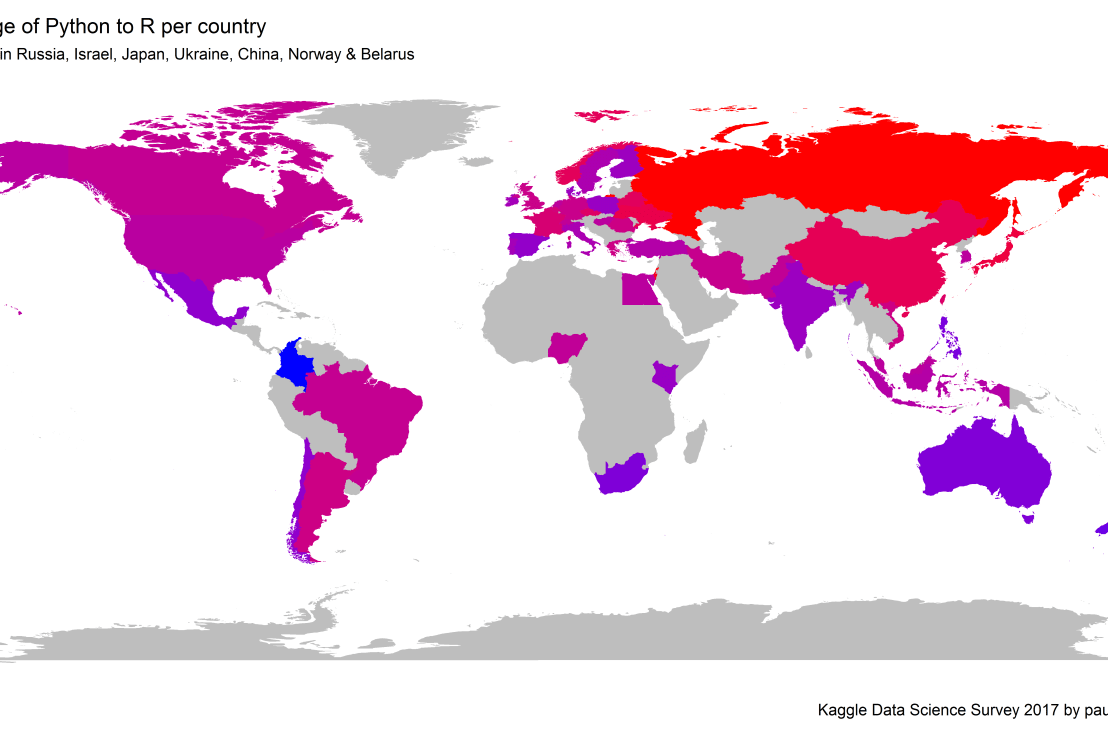
Okay, now let’s map these frequency data on a worldmap. Because I’m interested in the country level differences in usage, I look at the relative usage of Python compared to R. So the redder the country, the more Python is used by Data Scientists in their workflow whereas R is the preferred tool in the bluer countries. Interesting to see, there is no country where respondents really use R much more than Python.

# WORLDMAP OF RELATIVE WORKTOOL PREFERENCE
ggplot(country_data) + 
  geom_map(data = worldMap, 
           aes(map_id = region, x = long, y = lat),
           map = worldMap, fill = "grey") +
  geom_map(aes(map_id = Country, fill = Python/R),
           map = worldMap, size = 0.3) +
  scale_fill_gradient(low = "blue", high = "red", name = "Python/R") +
  theme_worldMap +
  labs(title = "Relative usage of Python to R per country",
       subtitle = "Focus on Python in Russia, Israel, Japan, Ukraine, China, Norway & Belarus",
       caption = capt) +
  coord_equal() 
Worldmap_relative_usage.png
Countries are color-coded for their relative preference for Python (red/purple) or R (blue) as a Data Science tool. 167 out of 171 countries (98%) demonstrate a value of > 1, indicating a preference for Python over R.

Thank you for reading my visualization report. Please do try and extract some other interesting insights from the data yourself.

If you liked my analysis, please upvote my Kaggle Kernel here!

Geographical Maps in ggplot2: Rectangle World Map

Geographical Maps in ggplot2: Rectangle World Map

Maarten Lambrechts posted a tutorial where he demonstrates the steps through which he created a Eurovision Song Festival map in R.

Maarten’s ggplot2 Songfestival map
Maarten’s ggplot2 worldmap

Inspired by his tutorial, I decided to create a worldmap of my own, the R code for which you may find below.

options(stringsAsFactors = F) # options
library(tidyverse# packages
# retrieve data file
link = "https://gist.githubusercontent.com/maartenzam/787498bbc07ae06b637447dbd430ea0a/raw/9a9dafafb44d8990f85243a9c7ca349acd3a0d07/worldtilegrid.csv"

geodata <- read.csv(link) %>% as.tibble() # load in geodata
str(geodata) # examine geodata
## Classes 'tbl_df', 'tbl' and 'data.frame':    192 obs. of  11 variables:
##  $ name           : chr  "Afghanistan" "Albania" "Algeria" "Angola" ...
##  $ alpha.2        : chr  "AF" "AL" "DZ" "AO" ...
##  $ alpha.3        : chr  "AFG" "ALB" "DZA" "AGO" ...
##  $ country.code   : int  4 8 12 24 10 28 32 51 36 40 ...
##  $ iso_3166.2     : chr  "ISO 3166-2:AF" "ISO 3166-2:AL" "ISO 3166-2:DZ" "ISO 3166-2:AO" ...
##  $ region         : chr  "Asia" "Europe" "Africa" "Africa" ...
##  $ sub.region     : chr  "Southern Asia" "Southern Europe" "Northern Africa" "Middle Africa" ...
##  $ region.code    : int  142 150 2 2 NA 19 19 142 9 150 ...
##  $ sub.region.code: int  34 39 15 17 NA 29 5 145 53 155 ...
##  $ x              : int  22 15 13 13 15 7 6 20 24 15 ...
##  $ y              : int  8 9 11 17 23 4 14 6 19 6 ...
# create worldmap
worldmap <- ggplot(geodata)

# add rectangle grid + labels
worldmap + 
  geom_rect(aes(xmin = x, ymin = y, 
                xmax = x + 1, ymax = y + 1)) +
  geom_text(aes(x = x, y = y, 
                label = alpha.3))

download (13)

# improve geoms
worldmap + 
  geom_rect(aes(xmin = x, ymin = y, 
                xmax = x + 1, ymax = y + 1,
                fill = region)) +
  geom_text(aes(x = x, y = y, 
                label = alpha.3),
            size = 2, 
            nudge_x = 0.5, nudge_y = -0.5,
            vjust = 0.5, hjust = 0.5) +
  scale_y_reverse() 

download (12)

# finalize plot look
colors = c('yellow', 'red', 'white', 'pink', 'green', 'orange')
worldmap + 
  geom_rect(aes(xmin = x, ymin = y, 
                xmax = x + 1, ymax = y + 1,
                fill = region)) +
  geom_text(aes(x = x, y = y, 
                label = alpha.3),
            size = 3,
            nudge_x = 0.5, nudge_y = -0.5,
            vjust = 0.5, hjust = 0.5) +
  scale_y_reverse() +
  scale_fill_manual(values = colors) +
  guides(fill = guide_legend(ncol = 2), col = F) +
  theme(plot.background = element_rect(fill = "blue"),
        panel.grid = element_blank(),
        panel.background = element_blank(),
        legend.background = element_blank(),
        legend.position = c(0, 0),
        legend.justification = c(0, 0),
        legend.title = element_text(colour = "white"),
        legend.text = element_text(colour = "white"),
        legend.key = element_blank(),
        legend.key.size = unit(0.06, "npc"),
        axis.text = element_blank(), 
        axis.title = element_blank(),
        axis.ticks = element_blank(),
        text = element_text(colour = "white", size = 16)
        ) +
  labs(title = "ggplot2: Worldmap",
       fill = "Region", 
       caption = "paulvanderlaken.com")

ggplo2 Rectangle Worldmap

What would you add to your worldmap? If you end up making one, please send me a copy on paulvanderlaken@gmail.com!

Improved Twitter Mining in R

Improved Twitter Mining in R

R users have been using the twitter package by Geoff Jentry to mine tweets for several years now. However, a recent blog suggests a novel package provides a better mining tool: rtweet by Michael Kearney (GitHub).

Both packages use a similar setup and require you to do some prep-work by creating a Twitter “app” (see the package instructions). However, rtweet will save you considerable API-time and post-API munging time. This is demonstrated by the examples below, where Twitter is searched for #rstats-tagged tweets, first using twitteR, then using rtweet.

library(twitteR)

# this relies on you setting up an app in apps.twitter.com
setup_twitter_oauth(
  consumer_key = Sys.getenv("TWITTER_CONSUMER_KEY"), 
  consumer_secret = Sys.getenv("TWITTER_CONSUMER_SECRET")
)

r_folks <- searchTwitter("#rstats", n=300)

str(r_folks, 1)
## List of 300
##  $ :Reference class 'status' [package "twitteR"] with 17 fields
##   ..and 53 methods, of which 39 are  possibly relevant
##  $ :Reference class 'status' [package "twitteR"] with 17 fields
##   ..and 53 methods, of which 39 are  possibly relevant
##  $ :Reference class 'status' [package "twitteR"] with 17 fields
##   ..and 53 methods, of which 39 are  possibly relevant

str(r_folks[1])
## List of 1
##  $ :Reference class 'status' [package "twitteR"] with 17 fields
##   ..$ text         : chr "RT @historying: Wow. This is an enormously helpful tutorial by @vivalosburros for anyone interested in mapping "| __truncated__
##   ..$ favorited    : logi FALSE
##   ..$ favoriteCount: num 0
##   ..$ replyToSN    : chr(0) 
##   ..$ created      : POSIXct[1:1], format: "2017-10-22 17:18:31"
##   ..$ truncated    : logi FALSE
##   ..$ replyToSID   : chr(0) 
##   ..$ id           : chr "922150185916157952"
##   ..$ replyToUID   : chr(0) 
##   ..$ statusSource : chr "Twitter for Android"
##   ..$ screenName   : chr "jasonrhody"
##   ..$ retweetCount : num 3
##   ..$ isRetweet    : logi TRUE
##   ..$ retweeted    : logi FALSE
##   ..$ longitude    : chr(0) 
##   ..$ latitude     : chr(0) 
##   ..$ urls         :'data.frame': 0 obs. of  4 variables:
##   .. ..$ url         : chr(0) 
##   .. ..$ expanded_url: chr(0) 
##   .. ..$ dispaly_url : chr(0) 
##   .. ..$ indices     : num(0) 
##   ..and 53 methods, of which 39 are  possibly relevant:
##   ..  getCreated, getFavoriteCount, getFavorited, getId, getIsRetweet, getLatitude, getLongitude, getReplyToSID,
##   ..  getReplyToSN, getReplyToUID, getRetweetCount, getRetweeted, getRetweeters, getRetweets, getScreenName,
##   ..  getStatusSource, getText, getTruncated, getUrls, initialize, setCreated, setFavoriteCount, setFavorited, setId,
##   ..  setIsRetweet, setLatitude, setLongitude, setReplyToSID, setReplyToSN, setReplyToUID, setRetweetCount,
##   ..  setRetweeted, setScreenName, setStatusSource, setText, setTruncated, setUrls, toDataFrame, toDataFrame#twitterObj

The above operations required only several seconds to completely. The returned data is definitely usable, but not in the most handy format: the package models the Twitter API on to custom R objects. It’s elegant, but also likely overkill for most operations. Here’s the rtweet version:

library(rtweet)

# this relies on you setting up an app in apps.twitter.com
create_token(
  app = Sys.getenv("TWITTER_APP"),
  consumer_key = Sys.getenv("TWITTER_CONSUMER_KEY"), 
  consumer_secret = Sys.getenv("TWITTER_CONSUMER_SECRET")
) -> twitter_token

saveRDS(twitter_token, "~/.rtweet-oauth.rds")

# ideally put this in ~/.Renviron
Sys.setenv(TWITTER_PAT=path.expand("~/.rtweet-oauth.rds"))

rtweet_folks <- search_tweets("#rstats", n=300)

dplyr::glimpse(rtweet_folks)
## Observations: 300
## Variables: 35
## $ screen_name                     "AndySugs", "jsbreker", "__rahulgupta__", "AndySugs", "jasonrhody", "sibanjan...
## $ user_id                         "230403822", "703927710", "752359265394909184", "230403822", "14184263", "863...
## $ created_at                      2017-10-22 17:23:13, 2017-10-22 17:19:48, 2017-10-22 17:19:39, 2017-10-22 17...
## $ status_id                       "922151366767906819", "922150507745079297", "922150470382125057", "9221504090...
## $ text                            "RT:  (Rbloggers)Markets Performance after Election: Day 239  https://t.co/D1...
## $ retweet_count                   0, 0, 9, 0, 3, 1, 1, 57, 57, 103, 10, 10, 0, 0, 0, 34, 0, 0, 642, 34, 1, 1, 1...
## $ favorite_count                  0, 0, 0, 0, 0, 0, 0, 0, 0, 0, 0, 0, 0, 0, 2, 0, 0, 1, 0, 0, 0, 0, 0, 0, 0, 0,...
## $ is_quote_status                 FALSE, FALSE, FALSE, FALSE, FALSE, FALSE, FALSE, FALSE, FALSE, FALSE, FALSE, ...
## $ quote_status_id                 NA, NA, NA, NA, NA, NA, NA, NA, NA, NA, NA, NA, NA, NA, NA, NA, NA, NA, NA, N...
## $ is_retweet                      FALSE, FALSE, TRUE, FALSE, TRUE, TRUE, FALSE, TRUE, TRUE, TRUE, TRUE, TRUE, F...
## $ retweet_status_id               NA, NA, "922085241493360642", NA, "921782329936408576", "922149318550843393",...
## $ in_reply_to_status_status_id    NA, NA, NA, NA, NA, NA, NA, NA, NA, NA, NA, NA, NA, NA, NA, NA, NA, NA, NA, N...
## $ in_reply_to_status_user_id      NA, NA, NA, NA, NA, NA, NA, NA, NA, NA, NA, NA, NA, NA, NA, NA, NA, NA, NA, N...
## $ in_reply_to_status_screen_name  NA, NA, NA, NA, NA, NA, NA, NA, NA, NA, NA, NA, NA, NA, NA, NA, NA, NA, NA, N...
## $ lang                            "en", "en", "en", "en", "en", "en", "en", "en", "en", "en", "en", "en", "ro",...
## $ source                          "IFTTT", "Twitter for iPhone", "GaggleAMP", "IFTTT", "Twitter for Android", "...
## $ media_id                        NA, "922150500237062144", NA, NA, NA, NA, NA, NA, NA, NA, NA, NA, NA, NA, "92...
## $ media_url                       NA, "http://pbs.twimg.com/media/DMwi_oQUMAAdx5A.jpg", NA, NA, NA, NA, NA, NA,...
## $ media_url_expanded              NA, "https://twitter.com/jsbreker/status/922150507745079297/photo/1", NA, NA,...
## $ urls                            NA, NA, NA, NA, NA, NA, NA, NA, NA, NA, NA, NA, NA, NA, NA, NA, NA, NA, NA, N...
## $ urls_display                    "ift.tt/2xe1xrR", NA, NA, "ift.tt/2xe1xrR", NA, "bit.ly/2yAAL0M", "bit.ly/2yA...
## $ urls_expanded                   "http://ift.tt/2xe1xrR", NA, NA, "http://ift.tt/2xe1xrR", NA, "http://bit.ly/...
## $ mentions_screen_name            NA, NA, "DataRobot", NA, "historying vivalosburros", "NoorDinTech ikashnitsky...
## $ mentions_user_id                NA, NA, "622519917", NA, "18521423 304837258", "2511247075 739773414316118017...
## $ symbols                         NA, NA, NA, NA, NA, NA, NA, NA, NA, NA, NA, NA, NA, NA, NA, NA, NA, NA, NA, N...
## $ hashtags                        "rstats DataScience", "Rstats ACSmtg", "rstats", "rstats DataScience", "rstat...
## $ coordinates                     NA, NA, NA, NA, NA, NA, NA, NA, NA, NA, NA, NA, NA, NA, NA, NA, NA, NA, NA, N...
## $ place_id                        NA, NA, NA, NA, NA, NA, NA, NA, NA, NA, NA, NA, NA, NA, NA, NA, NA, NA, NA, N...
## $ place_type                      NA, NA, NA, NA, NA, NA, NA, NA, NA, NA, NA, NA, NA, NA, NA, NA, NA, NA, NA, N...
## $ place_name                      NA, NA, NA, NA, NA, NA, NA, NA, NA, NA, NA, NA, NA, NA, NA, NA, NA, NA, NA, N...
## $ place_full_name                 NA, NA, NA, NA, NA, NA, NA, NA, NA, NA, NA, NA, NA, NA, NA, NA, NA, NA, NA, N...
## $ country_code                    NA, NA, NA, NA, NA, NA, NA, NA, NA, NA, NA, NA, NA, NA, NA, NA, NA, NA, NA, N...
## $ country                         NA, NA, NA, NA, NA, NA, NA, NA, NA, NA, NA, NA, NA, NA, NA, NA, NA, NA, NA, N...
## $ bounding_box_coordinates        NA, NA, NA, NA, NA, NA, NA, NA, NA, NA, NA, NA, NA, NA, NA, NA, NA, NA, NA, N...
## $ bounding_box_type               NA, NA, NA, NA, NA, NA, NA, NA, NA, NA, NA, NA, NA, NA, NA, NA, NA, NA, NA, N...

This operation took equal to less time but provides the data in a tidy, immediately usable structure.

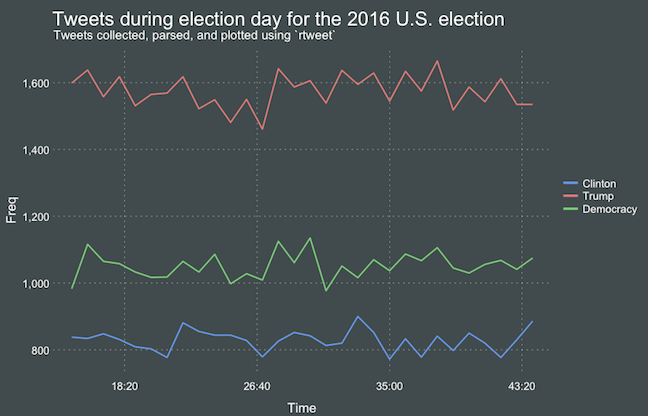
On the rtweet website, you can read about the additional functionalities this new package provides. For instance,ts_plot() provides a quick visual of the frequency of tweets. It’s possible to aggregate by the minute, i.e., by = "mins", or by some value of seconds, e.g.,by = "15 secs".

## Plot time series of all tweets aggregated by second
ts_plot(rt, by = "secs")

stream-ts

ts_filter() creates a time series-like data structure, which consists of “time” (specific interval of time determined via the by argument), “freq” (the number of observations, or tweets, that fall within the corresponding interval of time), and “filter” (a label representing the filtering rule used to subset the data). If no filter is provided, the returned data object includes a “filter” variable, but all of the entries will be blank "", indicating that no filter filter was used. Otherwise, ts_filter() uses the regular expressions supplied to the filter argument as values for the filter variable. To make the filter labels pretty, users may also provide a character vector using the key parameter.

## plot multiple time series by first filtering the data using
## regular expressions on the tweet "text" variable
rt %>%
  dplyr::group_by(screen_name) %>%
  ## The pipe operator allows you to combine this with ts_plot
  ## without things getting too messy.
  ts_plot() + 
  ggplot2::labs(
    title = "Tweets during election day for the 2016 U.S. election",
    subtitle = "Tweets collected, parsed, and plotted using `rtweet`"
  )

The developer cautions that these plots often resemble frowny faces: the first and last points appear significantly lower than the rest. This is caused by the first and last intervals of time to be artificially shrunken by connection and disconnection processes. To remedy this, users may specify trim = TRUE to drop the first and last observation for each time series.

stream-filter

Give rtweet a try and let me know whether you prefer it over twitter.

Simpson’s Paradox: Two HR examples with R code.

Simpson’s Paradox: Two HR examples with R code.

Simpson (1951) demonstrated that a statistical relationship observed within a population—i.e., a group of individuals—could be reversed within all subgroups that make up that population. This phenomenon, where X seems to relate to Y in a certain way, but flips direction when the population is split for W, has since been referred to as Simpson’s paradox. Others names, according to Wikipedia, include the Simpson-Yule effect, reversal paradox or amalgamation paradox.

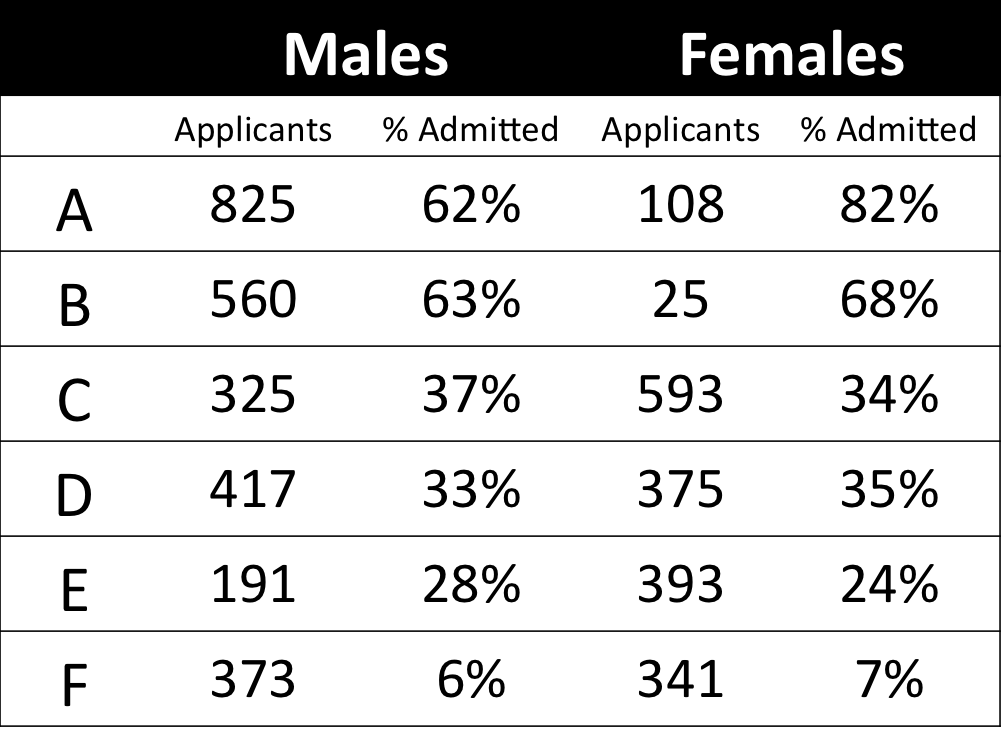
The most famous example has to be the seemingly gender-biased Berkeley admission rates:

“Examination of aggregate data on graduate admissions to the University of California, Berkeley, for fall 1973 shows a clear but misleading pattern of bias against female applicants. Examination of the disaggregated data reveals few decision-making units that show statistically significant departures from expected frequencies of female admissions, and about as many units appear to favor women as to favor men. If the data are properly pooled, taking into account the autonomy of departmental decision making, thus correcting for the tendency of women to apply to graduate departments that are more difficult for applicants of either sex to enter, there is a small but statistically significant bias in favor of women. […] The bias in the aggregated data stems not from any pattern of discrimination on the part of admissions committees, which seem quite fair on the whole, but apparently from prior screening at earlier levels of the educational system.” – part of abstract of Bickel, Hammel, & O’Connel (1975)

In a table, the effect becomes clear. While it seems as if women are rejected more often overall, women are actually less often rejected on a departmental level. Women simply applied to more selective departments more often (E & C below), resulting in the overall lower admission rate for women (35% as opposed to 44% for men).

Afbeeldingsresultaat voor berkeley simpson's paradox
Copied from Bits of Pi

Examples in HR

Simpsons Paradox can easily occur in organizational or human resources settings as well. Let me run you through two illustrated examples, I simulated:

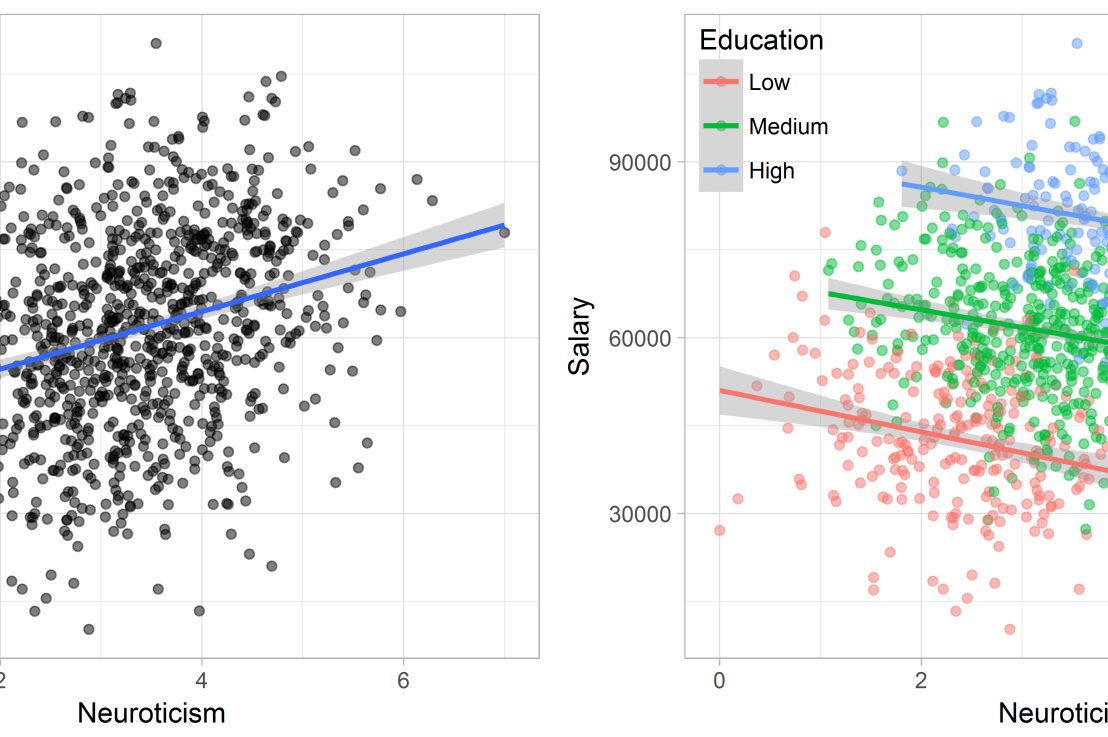
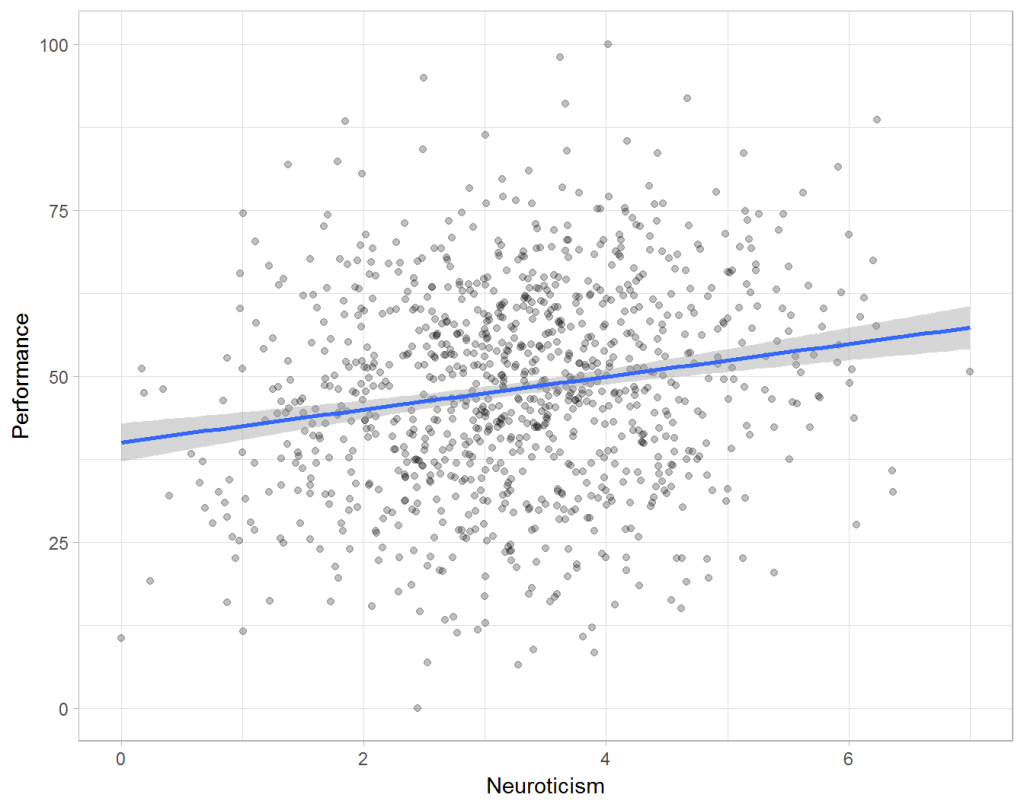
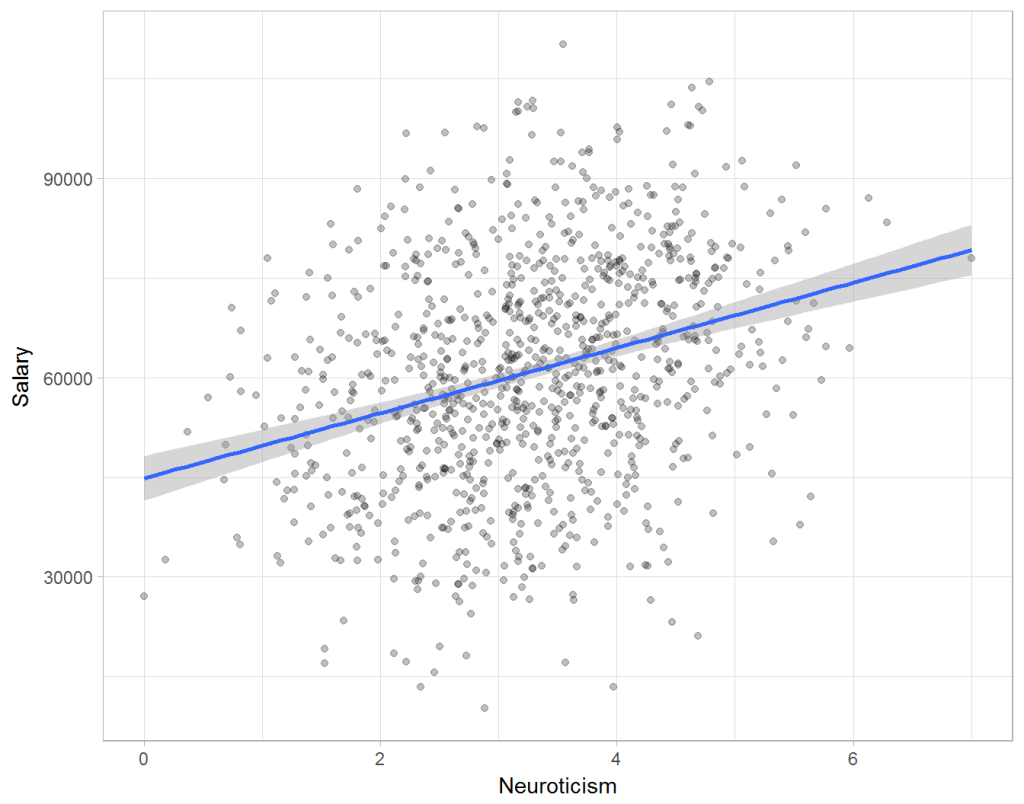
Assume you run a company of 1000 employees and you have asked all of them to fill out a Big Five personality survey. Per individual, you therefore have a score depicting his/her personality characteristic Neuroticism, which can run from 0 (not at all neurotic) to 7 (very neurotic). Now you are interested in the extent to which this Neuroticism of employees relates to their Job Performance (measured 0 – 100) and their Salary (measured in Euro’s per Year). In order to get a sense of the effects, you may decide to visualize both these relations in scatter plots:

downloaddownload (6)

From these visualizations it would look like Neuroticism relates significantly and positively to both employees’ performance and their yearly salary. Should you select more neurotic people to improve your overall company performance? Or are you discriminating emotionally-stable (non-neurotic) employees when it comes to salary?

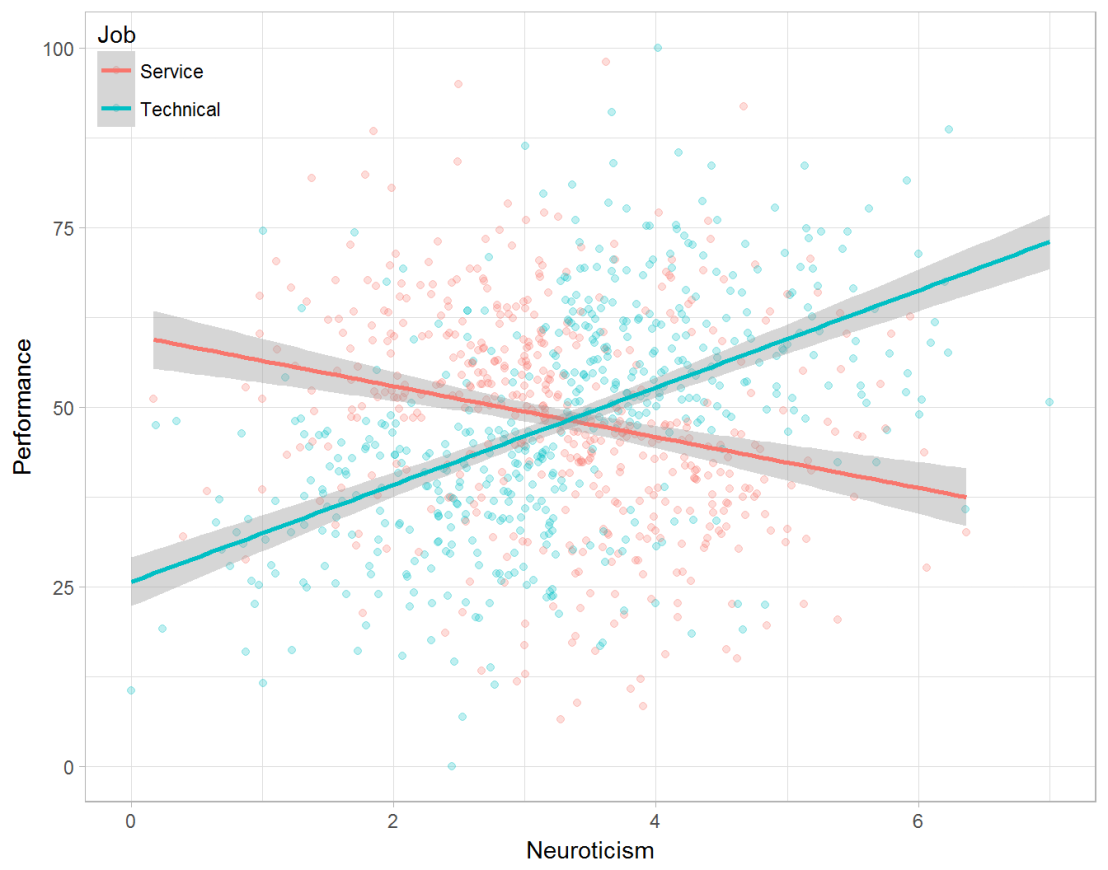
Taking a closer look at the subgroups in your data, you might however find very different relationships. For instance, the positive relationship between neuroticism and performance may only apply to technical positions, but not to those employees’ in service-oriented jobs.

download (7).png

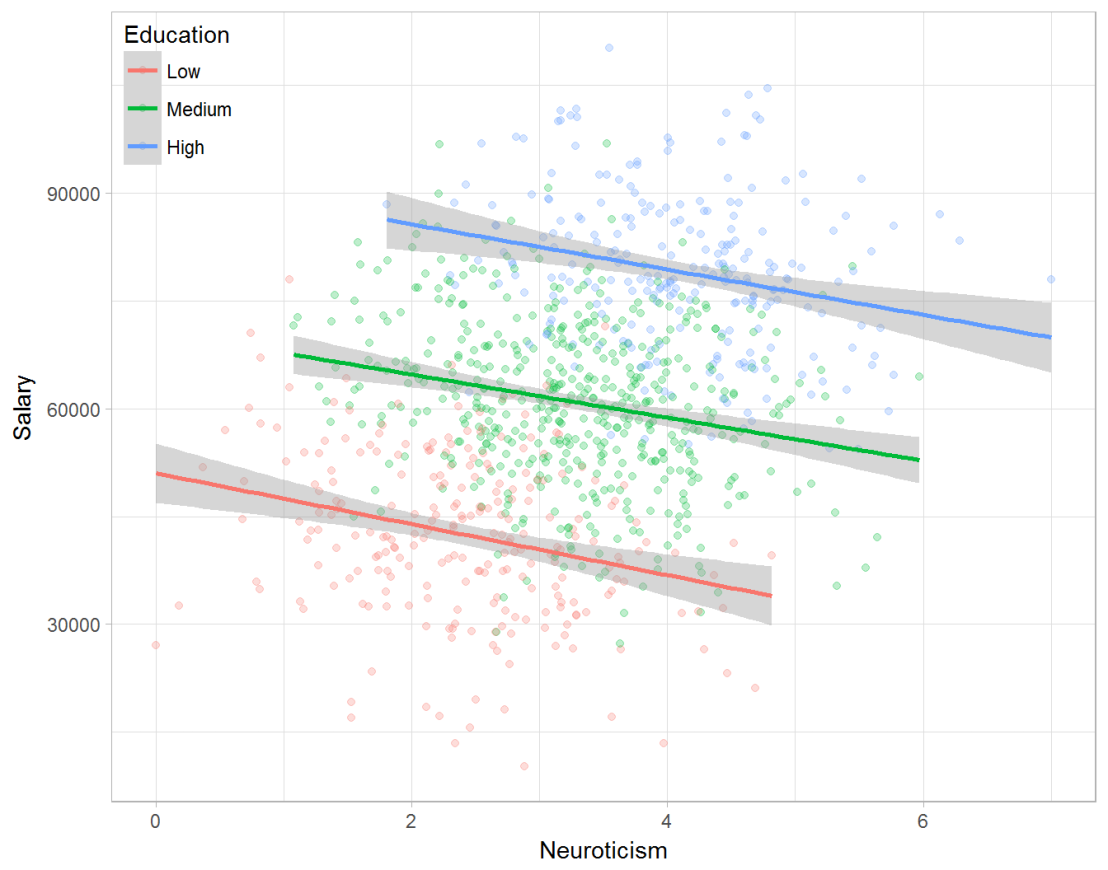
Similarly, splitting the employees by education level, it becomes clear that there is a relationship between neuroticism and education level that may explain the earlier association with salary. More educated employees receive higher salaries and within these groups, neuroticism is actually related to lower yearly income.

download (8).png

If you’d like to see the code used to simulate these data and generate the examples, you can find the R markdown file here on Rpubs.

Solving the paradox

Kievit and colleagues (2013) argue that Simpsons paradox may occur in a wide variety of research designs, methods, and questions, particularly within the social and medical sciences. As such, they propose several means to “control” or minimize the risk of it occurring. The paradox may be prevented from occurring altogether by more rigorous research design: testing mechanisms in longitudinal or intervention studies. However, this is not always feasible. Alternatively, the researchers pose that data visualization may help recognize the patterns and subgroups and thereby diagnose paradoxes. This may be easy if your data looks like this:

An external file that holds a picture, illustration, etc. Object name is fpsyg-04-00513-g0001.jpg

But rather hard, or even impossible, when your data looks more like the below:

An external file that holds a picture, illustration, etc. Object name is fpsyg-04-00513-g0003.jpg

Clustering may nevertheless help to detect Simpson’s paradox when it is not directly observable in the data. To this end, Kievit and Epskamp (2012) have developed a tool to facilitate the detection of hitherto undetected patterns of association in existing datasets. It is written in R, a language specifically tailored for a wide variety of statistical analyses which makes it very suitable for integration into the regular analysis workflow. As an R package, the tool is is freely available and specializes in the detection of cases of Simpson’s paradox for bivariate continuous data with categorical grouping variables (also known as Robinson’s paradox), a very common inference type for psychologists. Finally, its code is open source and can be extended and improved upon depending on the nature of the data being studied.

One example of application is provided in the paper, for a dataset on coffee and neuroticism. A regression analysis would suggest a significant positive association between coffee and neuroticism overall. However, when the detection algorithm of the R package is applied, a different picture appears: the analysis shows that there are three latent clusters present and that the purported positive relationship only holds for one cluster whereas it is negative in the others.

An external file that holds a picture, illustration, etc. Object name is fpsyg-04-00513-g0006.jpg

Update 24-10-2017: minutephysics – one of my favorite YouTube channels – uploaded a video explaining Simpson’s paradox very intuitively in a medical context:

Update 01-11-2017: minutephysics uploaded a follow-up video:

The paradox is that we remain reluctant to fight our bias, even when they are put in plain sight.

Short ggplot2 tutorial by MiniMaxir

Short ggplot2 tutorial by MiniMaxir

The following was reposted from minimaxir.com


QUICK INTRODUCTION TO GGPLOT2

ggplot2 uses a more concise setup toward creating charts as opposed to the more declarative style of Python’s matplotlib and base R. And it also includes a few example datasets for practicing ggplot2 functionality; for example, the mpg dataset is a dataset of the performance of popular models of cars in 1998 and 2008.

Let’s say you want to create a scatter plot. Following a great example from the ggplot2 documentation, let’s plot the highway mileage of the car vs. the volume displacement of the engine. In ggplot2, first you instantiate the chart with the ggplot() function, specifying the source dataset and the core aesthetics you want to plot, such as x, y, color, and fill. In this case, we set the core aesthetics to x = displacement and y = mileage, and add a geom_point() layer to make a scatter plot:

p <- ggplot(mpg, aes(x = displ, y = hwy)) +
            geom_point()

As we can see, there is a negative correlation between the two metrics. I’m sure you’ve seen plots like these around the internet before. But with only a couple of lines of codes, you can make them look more contemporary.

ggplot2 lets you add a well-designed theme with just one line of code. Relatively new to ggplot2 is theme_minimal(), which generates a muted style similar to FiveThirtyEight’s modern data visualizations:

p <- p +
    theme_minimal()

But we can still add color. Setting a color aesthetic on a character/categorical variable will set the colors of the corresponding points, making it easy to differentiate at a glance.

p <- ggplot(mpg, aes(x = displ, y = hwy, color=class)) +
            geom_point() +
            theme_minimal()

Adding the color aesthetic certainly makes things much prettier. ggplot2 automatically adds a legend for the colors as well. However, for this particular visualization, it is difficult to see trends in the points for each class. A easy way around this is to add a least squares regression trendline for each class using geom_smooth() (which normally adds a smoothed line, but since there isn’t a lot of data for each group, we force it to a linear model and do not plot confidence intervals)

p <- p +
    geom_smooth(method = "lm", se = F)

Pretty neat, and now comparative trends are much more apparent! For example, pickups and SUVs have similar efficiency, which makes intuitive sense.

The chart axes should be labeled (always label your charts!). All the typical labels, like titlex-axis, and y-axis can be done with the labs() function. But relatively new to ggplot2 are the subtitle and caption fields, both of do what you expect:

p <- p +
    labs(title="Efficiency of Popular Models of Cars",
         subtitle="By Class of Car",
         x="Engine Displacement (liters)",
         y="Highway Miles per Gallon",
         caption="by Max Woolf — minimaxir.com")

That’s a pretty good start. Now let’s take it to the next level.

HOW TO SAVE A GGPLOT2 CHART FOR WEB

Something surprisingly undiscussed in the field of data visualization is how to save a chart as a high quality image file. For example, with Excel charts, Microsoft officially recommends to copy the chart, paste it as an image back into Excel, then save the pasted image, without having any control over image quality and size in the browser (the real best way to save an Excel/Numbers chart as an image for a webpage is to copy/paste the chart object into a PowerPoint/Keynote slide, and export the slideas an image. This also makes it extremely easy to annotate/brand said chart beforehand in PowerPoint/Keynote).

R IDEs such as RStudio have a chart-saving UI with the typical size/filetype options. But if you save an image from this UI, the shapes and texts of the resulting image will be heavily aliased (R renders images at 72 dpi by default, which is much lower than that of modern HiDPI/Retina displays).

The data visualizations used earlier in this post were generated in-line as a part of an R Notebook, but it is surprisingly difficult to extract the generated chart as a separate file. But ggplot2 also has ggsave(), which saves the image to disk using antialiasing and makes the fonts/shapes in the chart look much better, and assumes a default dpi of 300. Saving charts using ggsave(), and adjusting the sizes of the text and geoms to compensate for the higher dpi, makes the charts look very presentable. A width of 4 and a height of 3 results in a 1200x900px image, which if posted on a blog with a content width of ~600px (like mine), will render at full resolution on HiDPI/Retina displays, or downsample appropriately otherwise. Due to modern PNG compression, the file size/bandwidth cost for using larger images is minimal.

p <- ggplot(mpg, aes(x = displ, y = hwy, color=class)) + 
    geom_smooth(method = "lm", se=F, size=0.5) +
    geom_point(size=0.5) +
    theme_minimal(base_size=9) +
    labs(title="Efficiency of Popular Models of Cars",
         subtitle="By Class of Car",
         x="Engine Displacement (liters)",
         y="Highway Miles per Gallon",
         caption="by Max Woolf — minimaxir.com")

ggsave("tutorial-0.png", p, width=4, height=3)

Compare to the previous non-ggsave chart, which is more blurry around text/shapes:

For posterity, here’s the same chart saved at 1200x900px using the RStudio image-saving UI:

Note that the antialiasing optimizations assume that you are not uploading the final chart to a service like Medium or WordPress.com, which will compress the images and reduce the quality anyways. But if you are uploading it to Reddit or self-hosting your own blog, it’s definitely worth it.

FANCY FONTS

Changing the chart font is another way to add a personal flair. Theme functions like theme_minimal()accept a base_family parameter. With that, you can specify any font family as the default instead of the base sans-serif. (On Windows, you may need to install the extrafont package first). Fonts from Google Fonts are free and work easily with ggplot2 once installed. For example, we can use Roboto, Google’s modern font which has also been getting a lot of usage on Stack Overflow’s great ggplot2 data visualizations.

p <- p +
    theme_minimal(base_size=9, base_family="Roboto")

A general text design guideline is to use fonts of different weights/widths for different hierarchies of content. In this case, we can use a bolder condensed font for the title, and deemphasize the subtitle and caption using lighter colors, all done using the theme() function.

p <- p + 
    theme(plot.subtitle = element_text(color="#666666"),
          plot.title = element_text(family="Roboto Condensed Bold"),
          plot.caption = element_text(color="#AAAAAA", size=6))

It’s worth nothing that data visualizations posted on websites should be easily legible for mobile-device users as well, hence the intentional use of larger fonts relative to charts typically produced in the desktop-oriented Excel.

Additionally, all theming options can be set as a session default at the beginning of a script using theme_set(), saving even more time instead of having to recreate the theme for each chart.

THE “GGPLOT2 COLORS”

The “ggplot2 colors” for categorical variables are infamous for being the primary indicator of a chart being made with ggplot2. But there is a science to it; ggplot2 by default selects colors using the scale_color_hue() function, which selects colors in the HSL space by changing the hue [H] between 0 and 360, keeping saturation [S] and lightness [L] constant. As a result, ggplot2 selects the most distinct colors possible while keeping lightness constant. For example, if you have 2 different categories, ggplot2 chooses the colors with h = 0 and h = 180; if 3 colors, h = 0, h = 120, h = 240, etc.

It’s smart, but does make a given chart lose distinctness when many other ggplot2 charts use the same selection methodology. A quick way to take advantage of this hue dispersion while still making the colors unique is to change the lightness; by default, l = 65, but setting it slightly lower will make the charts look more professional/Bloomberg-esque.

p_color <- p +
        scale_color_hue(l = 40)

RCOLORBREWER

Another coloring option for ggplot2 charts are the ColorBrewer palettes implemented with the RColorBrewer package, which are supported natively in ggplot2 with functions such as scale_color_brewer(). The sequential palettes like “Blues” and “Greens” do what the name implies:

p_color <- p +
        scale_color_brewer(palette="Blues")

A famous diverging palette for visualizations on /r/dataisbeautiful is the “Spectral” palette, which is a lighter rainbow (recommended for dark backgrounds)

However, while the charts look pretty, it’s difficult to tell the categories apart. The qualitative palettes fix this problem, and have more distinct possibilities than the scale_color_hue() approach mentioned earlier.

Here are 3 examples of qualitative palettes, “Set1”, “Set2”, and “Set3,” whichever fit your preference.

VIRIDIS AND ACCESSIBILITY

Let’s mix up the visualization a bit. A rarely-used-but-very-useful ggplot2 geom is geom2d_bin(), which counts the number of points in a given 2d spatial area:

p <- ggplot(mpg, aes(x = displ, y = hwy)) + 
    geom_bin2d(bins=10) +
    [...theming options...]

We see that the largest number of points are centered around (2,30). However, the default ggplot2 color palette for continuous variables is boring. Yes, we can use the RColorBrewer sequential palettes above, but as noted, they aren’t perceptually distinct, and could cause issues for readers who are colorblind.

The viridis R package provides a set of 4 high-contrast palettes which are very colorblind friendly, and works easily with ggplot2 by extending a scale_fill_viridis()/scale_color_viridis() function.

The default “viridis” palette has been increasingly popular on the web lately:

p_color <- p +
        scale_fill_viridis(option="viridis")

“magma” and “inferno” are similar, and give the data visualization a fiery edge:

Lastly, “plasma” is a mix between the 3 palettes above:

If you’ve been following my blog, I like to use R and ggplot2 for data visualization. A lot.

One of my older blog posts, An Introduction on How to Make Beautiful Charts With R and ggplot2, is still one of my most-trafficked posts years later, and even today I see techniques from that particular post incorporated into modern data visualizations on sites such as Reddit’s /r/dataisbeautiful subreddit.

NEXT STEPS

FiveThirtyEight actually uses ggplot2 for their data journalism workflow in an interesting way; they render the base chart using ggplot2, but export it as as a SVG/PDF vector file which can scale to any size, and then the design team annotates/customizes the data visualization in Adobe Illustrator before exporting it as a static PNG for the article (in general, I recommend using an external image editor to add text annotations to a data visualization because doing it manually in ggplot2 is inefficient).

For general use cases, ggplot2 has very strong defaults for beautiful data visualizations. And certainly there is a lot more you can do to make a visualization beautiful than what’s listed in this post, such as using facets and tweaking parameters of geoms for further distinction, but those are more specific to a given data visualization. In general, it takes little additional effort to make something unique with ggplot2, and the effort is well worth it. And prettier charts are more persuasive, which is a good return-on-investment.

Max Woolf (@minimaxir) is a former Apple Software QA Engineer living in San Francisco and a Carnegie Mellon University graduate. In his spare time, Max uses Python to gather data from public APIs and ggplot2 to plot plenty of pretty charts from that data. You can learn more about Max here, view his data analysis portfolio here, or view his coding portfolio here.