Tag: r

Mathematical aRt

Marcus Volz is a research fellow at the University of Melbourne, studying geometric networks, optimisation and computational geometry. He’s interested in visualisation, and always looking for opportunities to represent complex information in novel ways to accelerate learning and uncover the unexpected.

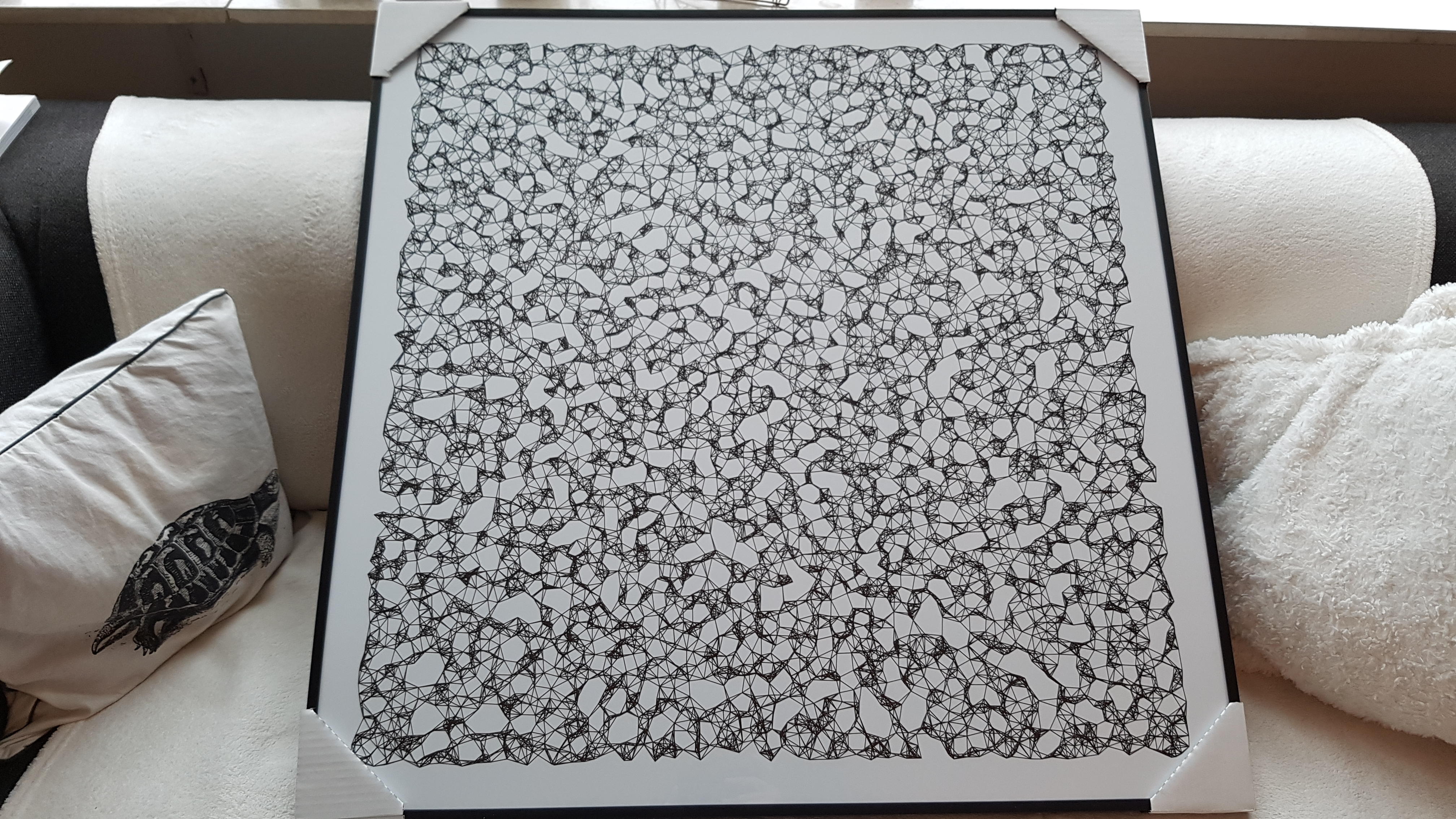
One of Marcus’ hobbies is the visualization of mathematical patterns and statistical algorithms via R. He has a whole portfolio full of them, including a Github page with all the associated R code. For my recent promotion, my girlfriend asked Marcus to generate a K-nearest neighbors visual and she had it printed on a large canvas.
20181109_143559.jpg

The picture contains about 10.000 points, randomly uniformly distributed across x and y, connected by lines with their closest other points. Marcus shared the code to generate such k-nearest neighbor algorithm plots here on Github. So if you know your way around R, you could make your own version:

#' k-nearest neighbour graph
#'
#' Computes a k-nearest neighbour graph for a given set of points. Refer to the \href{https://en.wikipedia.org/wiki/Nearest_neighbor_graph}{Wikipedia article} for details.
#' @param points A data frame with x, y coordinates for the points
#' @param k Number of neighbours
#' @keywords nearest neightbour graph
#' @export
#' @examples
#' k_nearest_neighbour_graph()

k_nearest_neighbour_graph <- function(points, k=8) {
  get_k_nearest <- function(points, ptnum, k) {
    xi <- points$x[ptnum]
    yi <- points$y[ptnum]     points %>%
      dplyr::mutate(dist = sqrt((x - xi)^2 + (y - yi)^2)) %>%
      dplyr::arrange(dist) %>%
      dplyr::filter(row_number() %in% seq(2, k+1)) %>%
      dplyr::mutate(xend = xi, yend = yi)
  }
  
  1:nrow(points) %>%
    purrr::map_df(~get_k_nearest(points, ., k))
}

Those less versed in R can use Marcus package mathart. With this package, Marcus shares many more visual depictions of cool algorithms! You can install the package and several dependencies with the following lines of code:

install.packages(c("devtools", "mapproj", "tidyverse", "ggforce", "Rcpp"))
devtools::install_github("marcusvolz/mathart")
devtools::install_github("marcusvolz/ggart")

Subsequently, you can visualize all kinds of cool stuff, like for instance rapidly exploring random trees (see this Wikipedia article for details):

# Generate rrt edges
set.seed(1)
df <- rapidly_exploring_random_tree() %>% mutate(id = 1:nrow(.))

# Create plot
ggplot() +
  geom_segment(aes(x, y, xend = xend, yend = yend, size = -id, alpha = -id), df, lineend = "round") +
  coord_equal() +
  scale_size_continuous(range = c(0.1, 0.75)) +
  scale_alpha_continuous(range = c(0.1, 1)) +
  theme_blankcanvas(margin_cm = 0)
rrt
Via https://github.com/marcusvolz/mathart

This k-d tree (see this Wikipedia article for details) is also amazing:

result <- kdtree(mathart::points)

ggplot() +
  geom_segment(aes(x, y, xend = xend, yend = yend), result) +
  coord_equal() +
  xlim(0, 10000) + ylim(0, 10000) +
  theme_blankcanvas(margin_cm = 0)
kdtree
Via https://github.com/marcusvolz/mathart

This page of Marcus’ mathart Github repository contains the code exact code for these and many other visualizations of algorithms and statistical phenomena. Do check it out if you’re interested!


Also, check out the “Fun” section of my R tips and tricks list for more cool visuals you can generate in R!

7 tips for writing cleaner JavaScript code, translated to 3.5 tips for R programming

7 tips for writing cleaner JavaScript code, translated to 3.5 tips for R programming

I recently came across this lovely article where Ali Spittel provides 7 tips for writing cleaner JavaScript code. Enthusiastic about her guidelines, I wanted to translate them to the R programming environment. However, since R is not an object-oriented programming language, not all tips were equally relevant in my opinion. Here’s what really stood out for me.

Capture.PNG
Ali Spittel’s Javascript tips, via https://dev.to/aspittel/extreme-makeover-code-edition-k5k

1. Use clear variable and function names

Suppose we want to create our own custom function to derive the average value of a vector v (please note that there is a base::mean function to do this much more efficiently). We could use the R code below to compute that the average of vector 1 through 10 is 5.5.

avg <- function(v){
    s = 0
    for(i in seq_along(v)) {
        s = s + v[i]
    }
    return(s / length(v))
}

avg(1:10) # 5.5

However, Ali rightfully argues that this code can be improved by making the variable and function names much more explicit. For instance, the refigured code below makes much more sense on a first look, while doing exactly the same.

averageVector <- function(vector){
    sum = 0
    for(i in seq_along(vector)){
        sum = sum + vector[i]
    }
    return(sum / length(vector))
}

averageVector(1:10) #5.5

Of course, you don’t want to make variable and function names unnecessary long (e.g., average would have been a great alternative function name, whereas computeAverageOfThisVector is probably too long). I like Ali’s principle:

Don’t minify your own code; use full variable names that the next developer can understand.

2. Write short functions that only do one thing

Ali argues “Functions are more understandable, readable, and maintainable if they do one thing only. If we have a bug when we write short functions, it is usually easier to find the source of that bug. Also, our code will be more reusable.” It thus helps to break up your code into custom functions that all do one thing and do that thing good!

For instance, our earlier function averageVector actually did two things. It first summated the vector, and then took the average. We can split this into two seperate functions in order to standardize our operations.

sumVector <- function(vector){
    sum = 0
    for(i in seq_along(vector)){
        sum = sum + vector[i]
    }
    return(sum)
}

averageVector <- function(vector){
    sum = sumVector(vector)
    average = sum / length(vector)
    return(average)
}

sumVector(1:10) # 55
averageVector(1:10) # 5.5

If you are writing a function that could be named with an “and” in it — it really should be two functions.

3. Documentation

Personally, I am terrible in commenting and documenting my work. I am always too much in a hurry, I tell myself. However, no more excuses! Anybody should make sure to write good documentation for their code so that future developers, including future you, understand what your code is doing and why!

Ali uses the following great example, of a piece of code with magic numbers in it.

areaOfCircle <- function(radius) {
  return(3.14 * radius ** 2)
}

Now, you might immediately recognize the number Pi in this return statement, but others may not. And maybe you will need the value Pi somewhere else in your script as well, but you accidentally use three decimals the next time. Best to standardize and comment!

PI <- 3.14 # PI rounded to two decimal places

areaOfCircle <- function(radius) {
  # Implements the mathematical equation for the area of a circle:
  # Pi times the radius of the circle squared.
  return(PI * radius ** 2)
}

The above is much clearer. And by making PI a variable, you make sure that you use the same value in other places in your script! Unfortunately, R doesn’t handle constants (unchangeable variables), but I try to denote my constants by using ALL CAPITAL variable names such as PI, MAX_GROUP_SIZE, or COLOR_EXPERIMENTAL_GROUP.

Do note that R has a built in variable pi for purposes such as the above.

I love Ali’s general rule that:

Your comments should describe the “why” of your code.

However, more elaborate R programming commenting guidelines are given in the Google R coding guide, stating that:

Functions should contain a comments section immediately below the function definition line. These comments should consist of a one-sentence description of the function; a list of the function’s arguments, denoted by Args:, with a description of each (including the data type); and a description of the return value, denoted by Returns:. The comments should be descriptive enough that a caller can use the function without reading any of the function’s code.

Either way, prevent that your comments only denote “what” your code does:

# EXAMPLE OF BAD COMMENTING ####

PI <- 3.14 # PI

areaOfCircle <- function(radius) {
    # custom function for area of circle
    return(PI * radius ** 2) # radius squared times PI
}

5. Be Consistent

I do not have as strong a sentiment about consistency as Ali does in her article, but I do agree that it’s nice if code is at least somewhat in line with the common style guides. For R, I like to refer to my R resources list which includes several common style guides, such as Google’s or Hadley Wickham’s Advanced R style guide.


dygraphs

dygraphs

Today I learned about dygraphs, a fast, flexible open source JavaScript charting library. As everything in JavaScript, the charts produced by dygraphs integrate completely in the webbrowser and are thus very functional and interactive. See, for instance, the below where the graph highlights the y-axis value for both time series in the graph based on the x-axis value of my mouse location (January 24 2009). Very cool!

1.png

While I am no JS hero, the webpage includes a dypgrahs tutorial, as well as a playground environment.

Fortunately, I do know my way around R, and of course someone had already integrated dypgrahs in R in the form of the dygraphs R package. It works like a charm!

install.packages("dygraphs")
library("dygraphs")

dygraph(AirPassengers)

Also in R, your dygraphs are fully interactive, with my mouse hoevering over June 1951 in the below example.

2.PNG

And you can add all kinds of cool elements and modifications to the graphs, such as for instance a range selector:

dygraph(AirPassengers) %>% dyRangeSelector()

3.PNG

For the full range of visualization options dygraphs offers in R, please do have a look at the official RStudio page.

100 amazing color palettes including their Hex codes

100 amazing color palettes including their Hex codes

TJ Mahr hinted to this Canva webpage on Twitter. It contains 100 beautiful color palettes including their hexadecimal color codes. For instance, these three below.

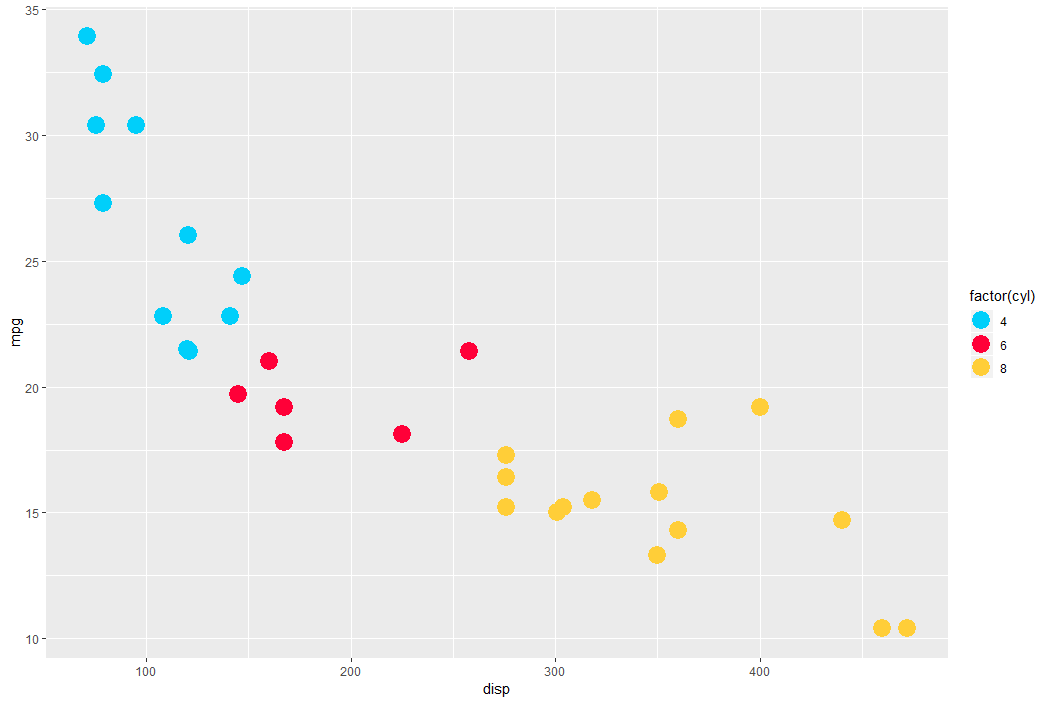
The great thing is that these color palettes are include in the ggthemes package in R. Hence, the following code uses this Nightlife palette directly in an R script, resulting in the plot below.

library(ggplot2)
library(ggthemes)

ggplot(mtcars) +
  aes(x = disp, y = mpg, color = factor(cyl)) +
  geom_point(size = 6) +
  ggthemes::scale_color_canva(palette = "Nightlife")

Rplot

What’s your favorite color palette among these 100?

Tidy Missing Data Handling

Tidy Missing Data Handling

A recent open access paper by Nicholas Tierney and Dianne Cook — professors at Monash University — deals with simpler handling, exploring, and imputation of missing values in data.They present new methodology building upon tidy data principles, with a goal to integrating missing value handling as an integral part of data analysis workflows. New data structures are defined (like the nabular) along with new functions to perform common operations (like gg_miss_case).

These new methods have bundled among others in the R packages naniar and visdat, which I highly recommend you check out. To put in the author’s own words:

The naniar and visdat packages build on existing tidy tools and strike a compromise between automation and control that makes analysis efficient, readable, but not overly complex. Each tool has clear intent and effects – plotting or generating data or augmenting data in some way. This reduces repetition and typing for the user, making exploration of missing values easier as they follow consistent rules with a declarative interface.

The below showcases some of the highly informational visuals you can easily generate with naniar‘s nabulars and the associated functionalities.

For instance, these heatmap visualizations of missing data for the airquality dataset. (A) represents the default output and (B) is ordered by clustering on rows and columns. You can see there are only missings in ozone and solar radiation, and there appears to be some structure to their missingness.

a.JPG

Another example is this upset plot of the patterns of missingness in the airquality dataset. Only Ozone and Solar.R have missing values, and Ozone has the most missing values. There are 2 cases where both Solar.R and Ozone have missing values.b.JPG

You can also generate a histogram using nabular data in order to show the values and missings in Ozone. Values are imputed below the range to show the number of missings in Ozone and colored according to missingness of ozone (‘Ozone_NA‘). This displays directly that there are approximately 35-40 missings in Ozone.

c.JPGAlternatively, scatterplots can be easily generated. Displaying missings at 10 percent below the minimum of the airquality dataset. Scatterplots of ozone and solar radiation (A), and ozone and temperature (B). These plots demonstrate that there are missings in ozone and solar radiation, but not in temperature.d.JPG

Finally, this parallel coordinate plot displays the missing values imputed 10% below range for the oceanbuoys dataset. Values are colored by missingness of humidity. Humidity is missing for low air and sea temperatures, and is missing for one year and one location.

e.JPG

Please do check out the original open access paper and the CRAN vignettes associated with the packages!


Simple Correlation Analysis in R using Tidyverse Principles

Simple Correlation Analysis in R using Tidyverse Principles

R’s standard correlation functionality (base::cor) seems very impractical to the new programmer: it returns a matrix and has some pretty shitty defaults it seems. Simon Jackson thought the same so he wrote a tidyverse-compatible new package: corrr!

Simon wrote some practical R code that has helped me out greatly before (e.g., color palette’s), but this new package is just great. He provides an elaborate walkthrough on his own blog, which I can highly recommend, but I copied some teasers below.

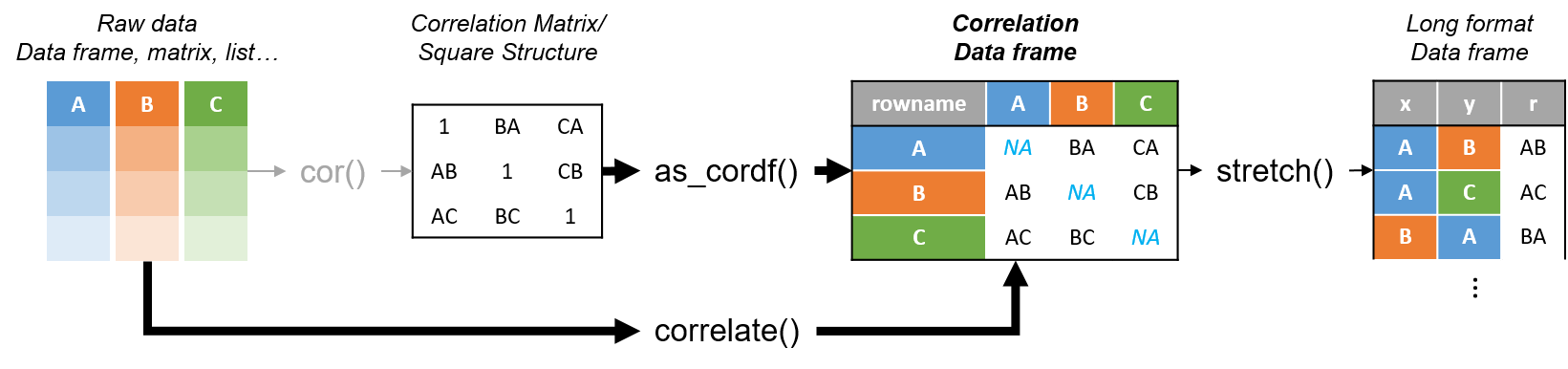
Diagram showing how the new functionality of corrr works.

Apart from corrr::correlate to retrieve a correlation data frame and corrr::stretch to turn that data frame into a long format, the new package includes corrr::focus, which can be used to simulteneously select the columns and filter the rows of the variables focused on. For example:

# install.packages("tidyverse")
library(tidyverse)

# install.packages("corrr")
library(corrr)

# install.packages("here")
library(here)

dir.create(here::here("images")) # create an images directory

mtcars %>%
  corrr::correlate() %>%
  # use mirror = TRUE to not only select columns but also filter rows
  corrr::focus(mpg:hp, mirror = TRUE) %>% 
  corrr::network_plot(colors = c("red", "green")) %>%
  ggplot2::ggsave(
    filename = here::here("images", "mtcars_networkplot.png"),
    width = 5,
    height = 5
    )

mtcars_networkplot.png
With corrr::networkplot you get an immediate sense of the relationships in your data.

Let’s try some different visualizations:

mtcars %>%
  corrr::correlate() %>%
  corrr::focus(mpg) %>% 
  dplyr::mutate(rowname = reorder(rowname, mpg)) %>%
  ggplot2::ggplot(ggplot2::aes(rowname, mpg)) +
  # color each bar based on the direction of the correlation
  ggplot2::geom_col(ggplot2::aes(fill = mpg >= 0)) + 
  ggplot2::coord_flip() + 
  ggplot2::ggsave(
    filename = here::here("images", "mtcars_mpg-barplot.png"),
    width = 5,
    height = 5
  )

mtcars_mpg-barplot.png
The tidy correlation data frames can be easily piped into a ggplot2 function call

corrr also provides some very helpful functionality display correlations. Take, for instance, corrr::fashion and corrr::shave:

mtcars %>%
  corrr::correlate() %>%
  corrr::focus(mpg:hp, mirror = TRUE) %>%
  # converts the upper triangle (default) to missing values
  corrr::shave() %>%
  # converts a correlation df into clean matrix
  corrr::fashion() %>%
  readr::write_excel_csv(here::here("correlation-matrix.csv"))

4.PNG
Exporting a nice looking correlation matrix has never been this easy.

Finally, there is the great function of corrr::rplot to generate an amazing correlation overview visual in a wingle line. However, here it is combined with corr::rearrange to make sure that closely related variables are actually closely located on the axis, and again the upper half is shaved away:

mtcars %>%
  corrr::correlate() %>%
  # Re-arrange a correlation data frame 
  # to group highly correlated variables closer together.
  corrr::rearrange(method = "MDS", absolute = FALSE) %>%
  corrr::shave() %>% 
  corrr::rplot(shape = 19, colors = c("red", "green")) %>%
  ggplot2::ggsave(
    filename = here::here("images", "mtcars_correlationplot.png"),
    width = 5,
    height = 5
  )

mtcars_correlationplot.png
Generate fantastic single-line correlation overviews with <code>corrr::rplot</code>

For some more functionalities, please visit Simon’s blog and/or the associated GitHub page. If you copy the code above and play around with it, be sure to work in an Rproject else the here::here() functions might misbehave.